Threat Intelligence in Sentinel, Part 2: Python, STIX and IOC Matching
Part 2 builds the indicator pipeline: a Python script that validates, scores and writes STIX indicators, a file import into Sentinel, and KQL matches against logons, network flows, outbound connections and a 90-day retrohunt.
show ip route | toc (8 sections)
Part 1 ended with 220 public IP addresses that repeatedly failed logons against devices in the Sentinel workspace. A list in a query result is not intelligence yet. It needs a name, a confidence, an expiry and a home in the ThreatIntelIndicators table where analytics rules can find it. This post covers that step with Python, and then the part that makes it worthwhile: matching the new indicators against logons, network flows, outbound connections and 90 days of history.
The whole procedure is in the RUNBOOK on GitHub, and the labs the project grew from come from the Cyber Range community I linked in Part 1. As before, the workspace is shared, so many of the devices in the results belong to other people.
Two ways to create an indicator
The portal path is fine for a few. In the Defender portal, open Threat intelligence, choose to add a new TI object of type Indicator, and fill in a name, the value, a confidence, a valid-from and valid-until date, a TLP marking and some tags. I did that for three addresses to see the shape of the thing, naming each one MaliciousFlows - Brute Force Source - <IP> and tagging them brute-force and lab.
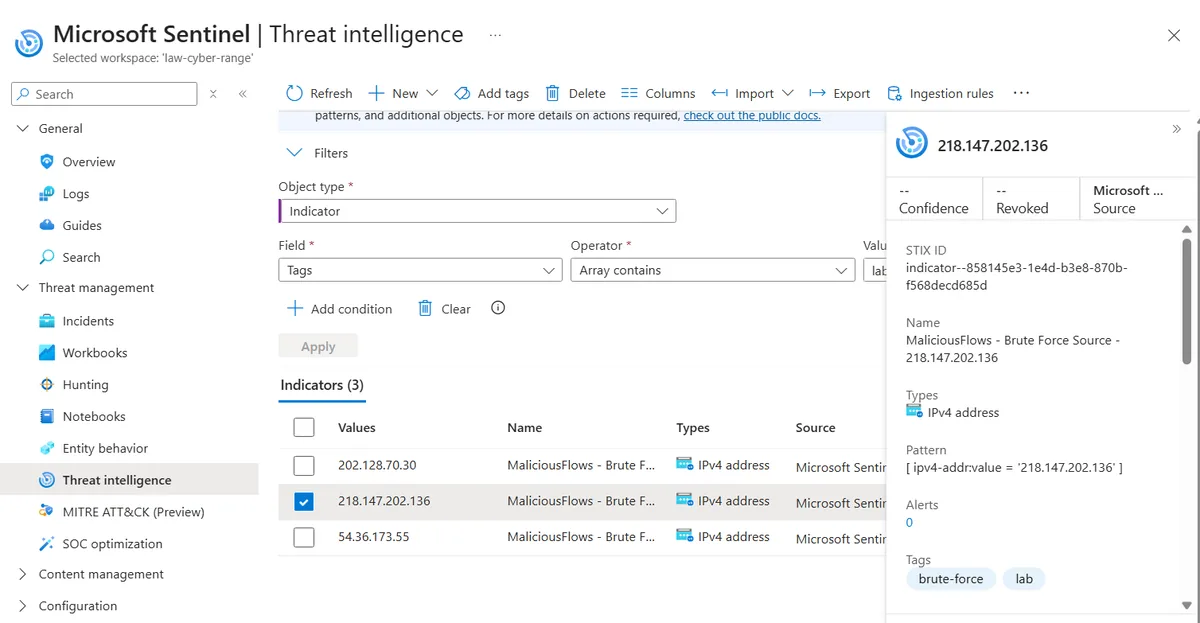
The detail pane is the useful part of that screenshot. Behind the form, an IP indicator is just a STIX pattern, in this case [ipv4-addr:value = '218.147.202.136']. Once you see that, writing them in bulk with code is obvious. STIX is a free, open format for describing cyber threat information, and Sentinel's file import understands it.
Doing 220 of those through a form is not a good use of an afternoon, so the second path is a script.
What the script does, and why each check is there
ti_indicator_builder.py reads a CSV with RemoteIP and Count columns (the export from Query 2.2, with FailedLogons renamed to Count) and produces indicators. It uses only the Python standard library, so there is nothing to install. The rules it applies, in order:
- Validate every value with the
ipaddressmodule. Anything that is not a valid IPv4 address is skipped with a reason. - Drop private, loopback, link-local, multicast, reserved and unspecified addresses.
- Drop anything in an allowlist file, which can hold single IPs or CIDR ranges.
- Drop addresses below a minimum failure count (10 by default).
- Skip duplicates.
- Score confidence from the failure count.
The ipaddress module is the same one I leaned on in my VLSM subnet calculator, and it is a good example of why the standard library is enough for most network scripting. The check that decides whether an address is worth an indicator is only a few lines:
def is_routable_public(ip):
    return not (
        ip.is_private
        or ip.is_loopback
        or ip.is_link_local
        or ip.is_multicast
        or ip.is_reserved
        or ip.is_unspecified
    )
Confidence is deliberately boring and explainable:
def score_confidence(count):
    """Simple, explainable scoring. Tune these thresholds for your environment."""
    if count >= 500:
        return 85
    if count >= 100:
        return 70
    if count >= 25:
        return 50
    return 30
If you set an ABUSEIPDB_KEY environment variable, the script also calls the AbuseIPDB check endpoint for each address, using a 90-day look-back, and averages that community score with the volume score. Any failure in that call (a bad key, a network error, a quota hit) is caught and the run carries on. My run was volume only, with no key set, which you can see from the confidence values being exactly the four buckets above.
Run it like this:
python scripts/ti_indicator_builder.py --input failed_logons.csv --allowlist my_allowlist.txt --valid-days 30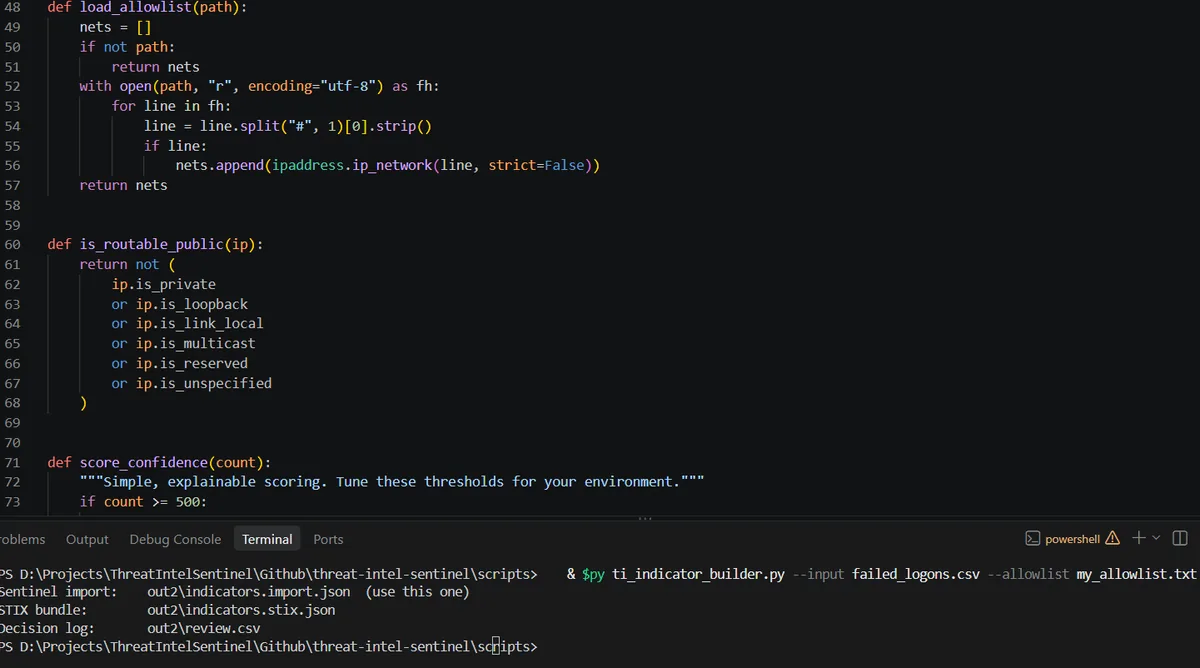
It writes three files, and each has a different job:
| File | What it is for |
|---|---|
indicators.import.json | A plain JSON array of STIX indicators. This is the one Sentinel's file import wants. |
indicators.stix.json | A full STIX 2.1 bundle with a TLP:AMBER marking definition, for platforms that expect a bundle. |
review.csv | One row per input line with the decision and the reason. The audit trail. |
Every indicator in the array looks like this (trimmed to the fields that matter):
{
  "type": "indicator",
  "spec_version": "2.1",
  "name": "MaliciousFlows - Brute Force Source - 138.91.109.48",
  "description": "1306 failed logons observed against our endpoints. Confidence derived from failure volume.",
  "indicator_types": ["malicious-activity"],
  "pattern": "[ipv4-addr:value = '138.91.109.48']",
  "pattern_type": "stix",
  "valid_from": "2026-10-12T23:24:06.000Z",
  "valid_until": "2026-11-11T23:24:06.000Z",
  "confidence": 85,
  "labels": ["brute-force", "first-party-observation", "tlp:amber"]
}
The review file is where the script earns trust. Mine looked like this once opened in a spreadsheet, with every row marked as an indicator and the reason recorded next to it.
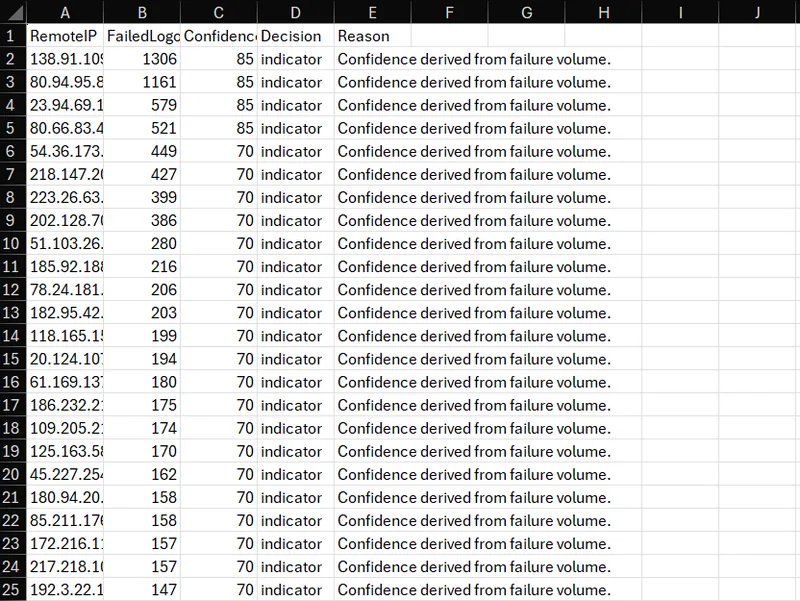
All 220 rows became indicators and none were skipped. That is because Query 2.2 had already removed private and blank addresses and anything under ten failures, so the script's own checks had nothing left to catch. I keep both on purpose: the query is one safety net and the script is a second one for the day someone feeds it a hand-edited CSV. The confidence spread came out as 4 indicators at 85, 43 at 70, 98 at 50 and 75 at 30, which is what you would expect from a long tail of low-volume sources and a short head of persistent ones.
Importing the file
In the Defender portal go to Microsoft Sentinel, Threat management, Threat intelligence, then choose Import and Import using a file. In the Azure portal the same screen is under your workspace's Threat management menu.
- Choose JSON as the file format, and download the template once to see the expected layout.
- Drop
indicators.import.jsoninto the upload box, not the.stix.jsonbundle. - For Source, type
MaliciousFlows-Lab. That value is stamped on every indicator asSourceSystem, which makes them easy to separate from the built-in feeds later. - Track the job under Manage file imports.
If the import says the file is invalid, you almost certainly uploaded the bundle, or the file is not a top-level array. The template is the source of truth. Microsoft also has an upload API for doing the same thing from code, described in its upload API documentation, which is the natural next step once the file approach feels slow.
Query 3.1: did the indicators land?
Ingestion takes a few minutes. The check uses one naming convention everywhere. The source lab filters on Malicious Behavior in one place and tells you to name things MaliciousFlows in another, and I picked MaliciousFlows for the whole project.
ThreatIntelIndicators
| where tostring(Data.name) startswith "MaliciousFlows"
| summarize arg_max(TimeGenerated, *) by Id
| project ObservableValue, ObservableKey, IsActive, Confidence, ValidUntil, Name = tostring(Data.name)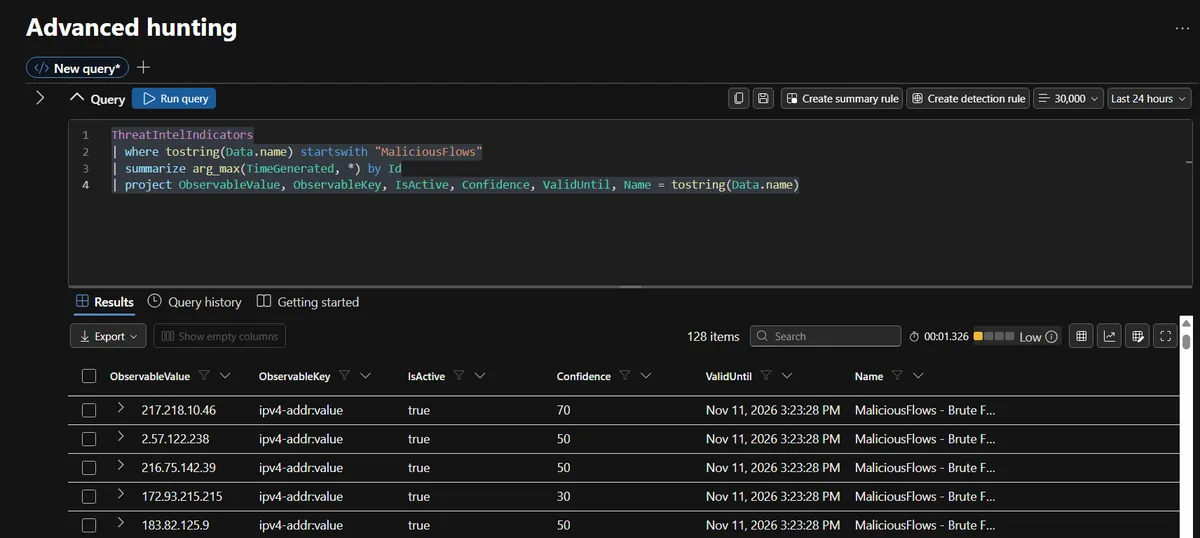
This run returned 128 rows. The ones visible were active and expired on November 11, which is the 30-day lifetime the script wrote. The effectiveness query in Part 3 later counts 222 under the MaliciousFlows-Lab source, which is the 220 script indicators plus two EICAR test indicators, so the full set did land. If your count is short, give ingestion time and run it again before assuming something failed.
Matching against telemetry
Now the part the whole project is for. Each of these queries starts the same way: take the newest row for each MaliciousFlows indicator, keep the active and unexpired ones, and join to a telemetry table. I use a join instead of the lab's toscalar(... make_set()) because a dynamic set is capped at roughly 1 MB, which a real feed can exceed, and a join carries confidence and source along for enrichment.
Against logons
let BadIPs = ThreatIntelIndicators
| where TimeGenerated > ago(365d)
| where tostring(Data.name) startswith "MaliciousFlows"
| summarize arg_max(TimeGenerated, *) by Id
| where IsActive == true and ValidUntil > now()
| project BadIP = ObservableValue, Confidence, Name = tostring(Data.name), ValidUntil;
DeviceLogonEvents
| where TimeGenerated > ago(7d)
| join kind=inner BadIPs on $left.RemoteIP == $right.BadIP
| project TimeGenerated, DeviceName, AccountName, ActionType, LogonType, RemoteIP, Confidence, Name
| order by TimeGenerated desc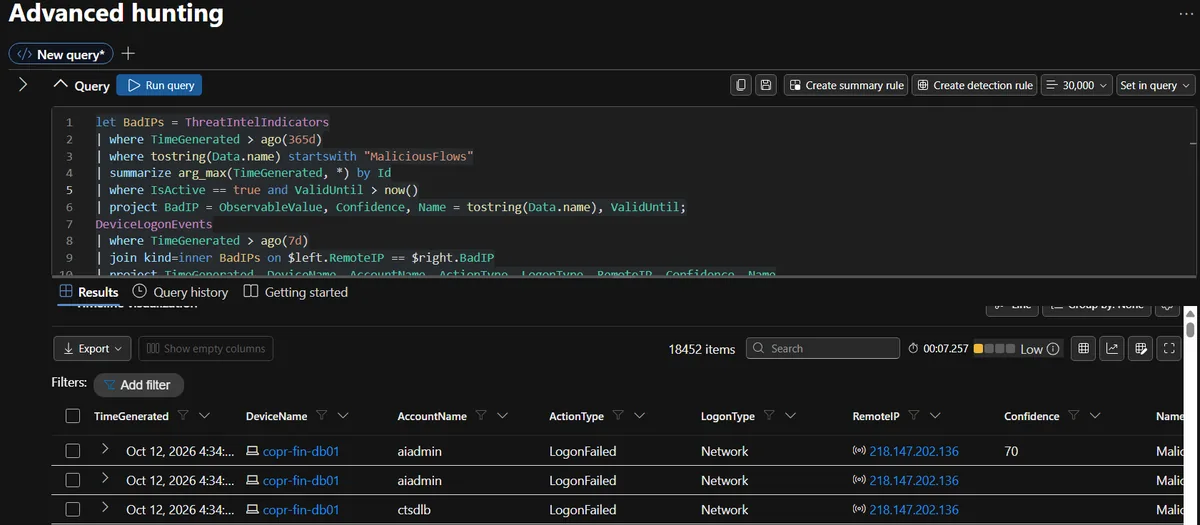
It matched 18,452 logon events. That sounds impressive until you remember where the indicators came from. They were built from these exact logs, so of course they match. The value of this query is not discovery. It proves the pipeline works end to end, from a failed logon through a CSV, a script, an import and an indicator back to the same logon, with confidence and name attached.
Against network flows
The network version needs NSG flow logs with Traffic Analytics, which populates NTANetAnalytics. The field worth understanding is SrcPublicIps:
let BadIPs = ThreatIntelIndicators
| where TimeGenerated > ago(365d)
| where tostring(Data.name) startswith "MaliciousFlows"
| summarize arg_max(TimeGenerated, *) by Id
| where IsActive == true and ValidUntil > now()
| project BadIP = ObservableValue;
NTANetAnalytics
| where TimeGenerated > ago(7d)
| where isnotempty(SrcPublicIps)
| extend FoundIPs = extract_all(@"(\d{1,3}(?:\.\d{1,3}){3})", SrcPublicIps)
| mv-expand RemoteIP = FoundIPs to typeof(string)
| join kind=inner BadIPs on $left.RemoteIP == $right.BadIP
| project TimeGenerated, RemoteIP, SrcIp, DestIp, DestPort, FlowDirection, FlowType, AllowedInFlows, DeniedInFlows, SrcPublicIps
| order by TimeGenerated desc
In real data SrcPublicIps looks like 80.94.95.83|717|740|740: an address followed by pipe-separated counters, possibly with more addresses after it. The original lab splits on the pipe and takes the first element, which only ever sees one address. The regular expression pulls out every IPv4 address in the field and ignores the counters. I keep DeniedInFlows in the output so blocked attempts show up next to allowed ones, and adding | where AllowedInFlows > 0 narrows it to traffic that actually got through. Always inspect the real field first with NTANetAnalytics | where isnotempty(SrcPublicIps) | take 5. That is how I found the format.
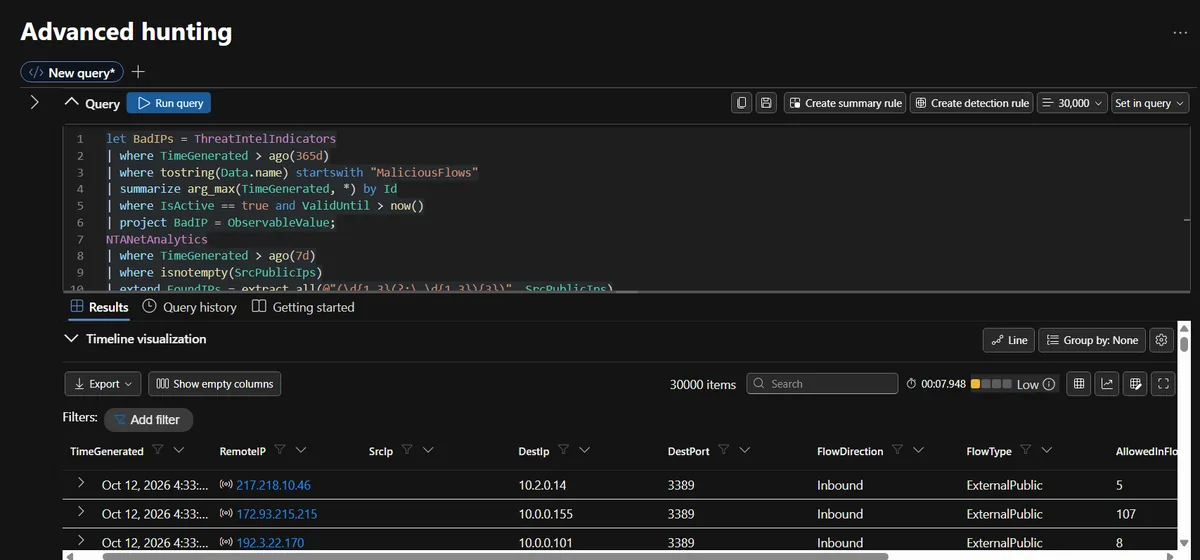
The results also hit the 30,000 row limit, and the rows I could see were inbound RDP on port 3389 from external public addresses: 217.218.10.46 to 10.2.0.14 (5 allowed flows), 172.93.215.215 to 10.0.0.155 (107) and 192.3.22.170 to 10.0.0.101 (8). Remote Desktop open to the internet is External Remote Services (T1133) in ATT&CK terms, and the AllowedInFlows column is the part that matters: the NSG let that traffic through.
Against outbound connections
Inbound brute force is noise. An internal host connecting out to a known bad address is a much stronger signal, because it can mean a compromised machine calling home.
let BadIPs = ThreatIntelIndicators
| where TimeGenerated > ago(30d)
| where ObservableKey == "network-traffic:src_ref.value" or ObservableKey == "ipv4-addr:value"
| summarize arg_max(TimeGenerated, *) by Id
| where IsActive == true and ValidUntil > now()
| project BadIP = ObservableValue, Confidence;
DeviceNetworkEvents
| where TimeGenerated > ago(1d)
| where ActionType in ("ConnectionSuccess", "ConnectionAttempt")
| join kind=inner BadIPs on $left.RemoteIP == $right.BadIP
| project TimeGenerated, DeviceName, InitiatingProcessFileName, InitiatingProcessCommandLine, RemoteIP, RemotePort, Confidence
My runbook says zero rows is the healthy answer here. The workspace disagreed.
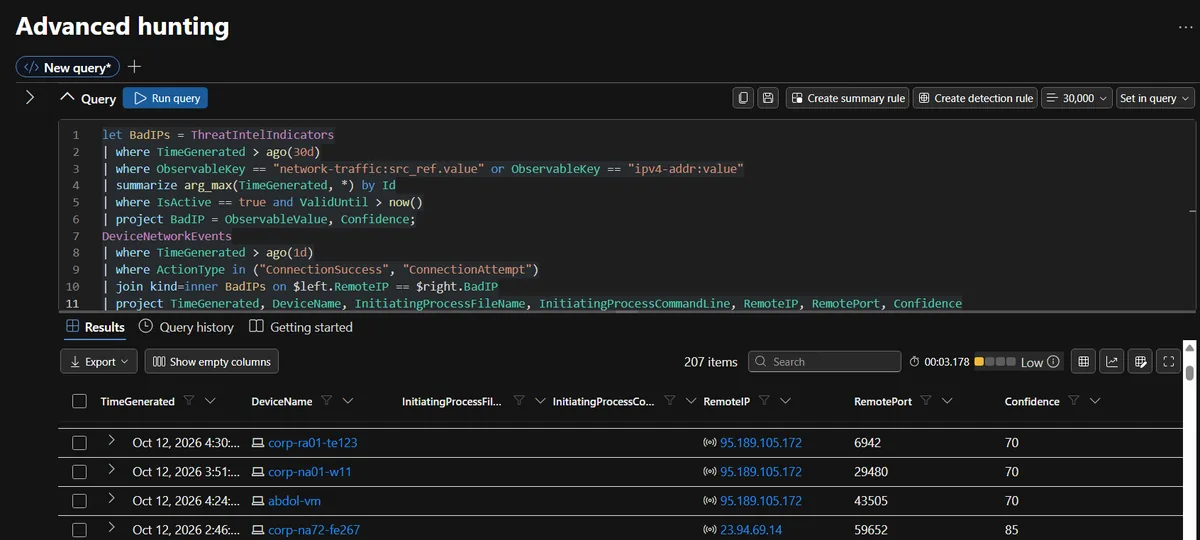
It returned 207 rows. Three devices, corp-ra01-te123, corp-na01-w11 and abdol-vm, connected out to 95.189.105.172 on ports 6942, 29480 and 43505 at confidence 70. Another, corp-na72-fe267, connected to 23.94.69.14 on port 59652 with confidence 85. That second address is also the third entry in my brute force table from Part 1, a source that failed 579 logons against other machines in the workspace.
I would not call any of that a confirmed compromise. These are not my devices, the indicator list in this query includes the built-in feeds as well as mine, and an IP match without the initiating process and command line proves almost nothing on its own. What it does show is the pipeline working: the right columns are there, the ports are unusual, and the next step for an analyst is clear.
Retrohunting: was the attacker here before I knew?
Intelligence arrives late. The most valuable thing to do with a fresh indicator is search old data with it.
let BadIPs = ThreatIntelIndicators
| where tostring(Data.name) startswith "MaliciousFlows"
| summarize arg_max(TimeGenerated, *) by Id
| where IsActive == true
| project BadIP = ObservableValue;
DeviceLogonEvents
| where TimeGenerated > ago(90d)
| join kind=inner BadIPs on $left.RemoteIP == $right.BadIP
| summarize FirstSeen = min(TimeGenerated), LastSeen = max(TimeGenerated),
            Attempts = count(), Successes = countif(ActionType == "LogonSuccess")
            by RemoteIP, DeviceName
| order by Attempts desc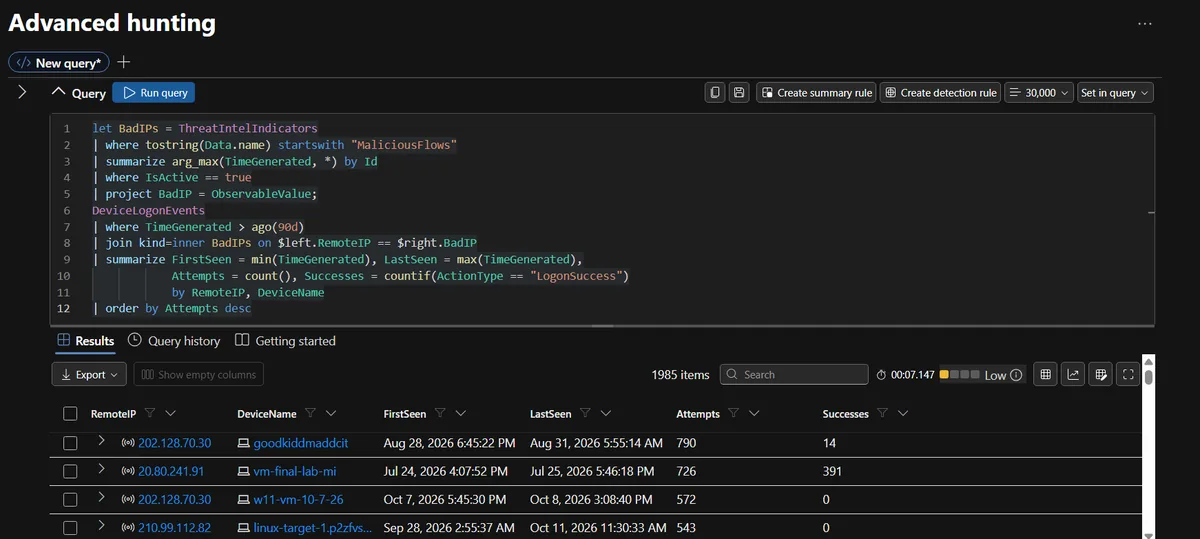
The retrohunt returned 1,985 rows, and the Successes column is the one to read first:
| Source IP | Device | Window | Attempts | Successes |
|---|---|---|---|---|
| 202.128.70.30 | goodkiddmaddcit | Aug 28 to Aug 31 | 790 | 14 |
| 20.80.241.91 | vm-final-lab-mi | Jul 24 to Jul 25 | 726 | 391 |
| 202.128.70.30 | w11-vm-10-7-26 | Oct 7 to Oct 8 | 572 | 0 |
| 210.99.112.82 | linux-target-1... | Sep 28 to Oct 11 | 543 | 0 |
Two of those rows had successful logons, and one of them, 391 successes out of 726 attempts in a day, is a ratio that deserves a closer look. In a lab full of intentionally weak machines I cannot say whether that is guessing that worked or a student's own script. In a production tenant it would be an incident. The first source in that list, 202.128.70.30, is also one of the three indicators I created by hand in the portal, so the same address shows up across both methods.
This is the same logic that matters when a vendor discloses a bug that was already being exploited. When I wrote up the NetScaler zero-days, the question that follows every advisory is the retrohunt one: not "are we vulnerable today" but "did anyone get in before the patch existed".
What Part 3 does with all this
By now there are indicators in the workspace, matches against logons, flows and outbound connections, and a 90-day history. None of it alerts anyone yet, because everything so far was a query someone had to run. Part 3 fixes that. It proves a file hash rule using the EICAR test file, builds three scheduled analytics rules, works an incident from alert to triage note, and asks whether any of this was worth doing.
Frequently asked questions
Why use a Python script instead of adding indicators in the portal?
The portal works for a handful of indicators, and I added three that way. For 220 addresses it is slow and error prone. A script validates every address, drops private and allow-listed ones, scores confidence the same way each time, and writes a review file explaining every decision, so the result is repeatable and auditable.
Which file do I import into Sentinel, the JSON array or the STIX bundle?
Import the plain JSON array, indicators.import.json. The STIX bundle is written for other platforms that expect a bundle object with a marking definition, and Sentinel's file import rejects it. If an import says the file is invalid, download the template from the import screen and compare the layout.
How is confidence calculated, and is it trustworthy?
The script uses failure volume: 500 or more failures scores 85, 100 to 499 scores 70, 25 to 99 scores 50 and anything lower scores 30. Optionally it averages that with an AbuseIPDB score. Volume is a rough proxy for persistence, not proof of malice, so treat the number as a triage hint and tune the thresholds for your own environment.
Why set a ValidUntil date of 30 days on every indicator?
Because IP addresses get reassigned. A residential or cloud address that was hammering your logon page this month can belong to a legitimate customer next quarter. A short lifetime means stale indicators expire on their own instead of turning into false positives.
Why are the indicators marked TLP:AMBER?
Indicators built from your own telemetry can reveal what you run and what was targeted. TLP:AMBER limits sharing to your organization and the partners who need it, which is the right default until you decide otherwise.
Why does the network flow query use a regular expression on SrcPublicIps?
In real NTANetAnalytics data the SrcPublicIps field holds an IP followed by pipe-separated counters, and sometimes several IPs. An exact match against the whole string never succeeds. A regular expression that extracts every IPv4 address matches all of them and ignores the counters.
What is retrohunting and why run it on a new indicator?
Retrohunting is searching old data with new intelligence. Indicators usually arrive after the activity they describe, so a 90-day lookback with today's indicators can reveal that an attacker touched your systems weeks before anyone knew their address. It is the most valuable thing you can do with a new indicator.
Can I try the script without access to Azure?
Yes. It uses only the Python standard library. Make a two-column CSV with the headers RemoteIP and Count, run the script against it, and open the generated review.csv and indicators.import.json. Nothing is sent anywhere unless you set an AbuseIPDB key.