Network troubleshooting for help desk
Use this when: a user says "the internet is down" and you need to find where it breaks, fix the common causes, or escalate with proof.
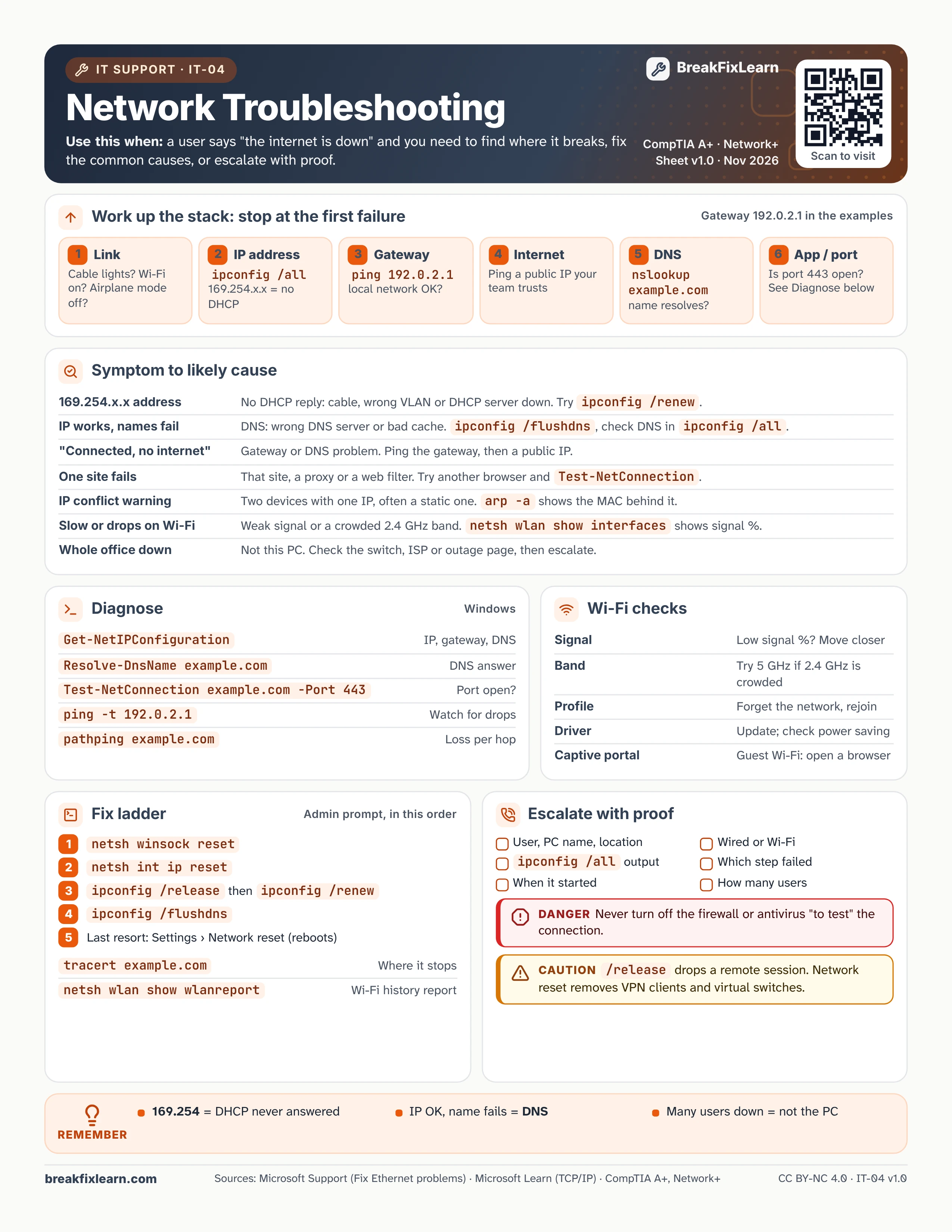
Text version
Everything on the sheet, as plain HTML: handy for screen readers, copy-paste and search.
Work up the stack: stop at the first failure
The examples use 192.0.2.1 as the gateway.
- Link: cable lights on? Wi-Fi on? Airplane mode off?
- IP address:
ipconfig /all. A 169.254.x.x address means no DHCP reply. - Gateway:
ping 192.0.2.1. Is the local network OK? - Internet: ping a public IP address your team trusts.
- DNS:
nslookup example.com. Does the name resolve? - App or port:
Test-NetConnection example.com -Port 443. Is the port open?
Symptom to likely cause
| Symptom | Likely cause and next step |
|---|---|
| 169.254.x.x address | No DHCP reply: cable, wrong VLAN or DHCP server down. Try ipconfig /renew. |
| IP works, names fail | DNS: wrong DNS server or a bad cache. Run ipconfig /flushdns and check DNS in ipconfig /all. |
| "Connected, no internet" | Gateway or DNS problem. Ping the gateway, then a public IP. |
| One site fails | That site, a proxy or a web filter. Try another browser and Test-NetConnection. |
| IP conflict warning | Two devices with one IP, often a static one. arp -a shows the MAC behind it. |
| Slow or drops on Wi-Fi | Weak signal or a crowded 2.4 GHz band. netsh wlan show interfaces shows the signal %. |
| Whole office down | Not this PC. Check the switch, ISP or outage page, then escalate. |
Diagnose (Windows)
| Command | Shows |
|---|---|
Get-NetIPConfiguration | IP, gateway and DNS |
Resolve-DnsName example.com | DNS answer |
Test-NetConnection example.com -Port 443 | Is the port open? |
ping -t 192.0.2.1 | Watch for drops (Ctrl+C to stop) |
pathping example.com | Packet loss per hop |
tracert example.com | Where the path stops |
netsh wlan show wlanreport | Wi-Fi history report |
Wi-Fi checks
- Signal: low signal %? Move closer.
- Band: try 5 GHz if 2.4 GHz is crowded.
- Profile: forget the network and rejoin.
- Driver: update it and check power saving.
- Captive portal: on guest Wi-Fi, open a browser.
Fix ladder
Run these in an admin prompt, in this order (Microsoft's recommended sequence):
netsh winsock resetnetsh int ip resetipconfig /release, thenipconfig /renewipconfig /flushdns- Last resort: Settings, Network reset (the PC restarts)
Escalate with proof
- User, PC name and location
- Wired or Wi-Fi
ipconfig /alloutput- Which step failed
- When it started
- How many users are affected
Danger. Never turn off the firewall or antivirus "to test" the connection.
Caution. ipconfig /release drops a remote session. Network reset removes VPN clients and virtual switches.
Remember
- 169.254 = DHCP never answered
- IP works but names fail = DNS
- Many users down = not the PC
Sources
- Microsoft Support, Fix Ethernet connection problems in Windows
- Microsoft Learn, troubleshoot TCP/IP communication
- Microsoft Learn, Test-NetConnection