Hardening Windows 11 Against DISA STIGs, Part 2: The Audit Policy Trap, WDigest and a Service That Would Not Stop
Part 2 of a Windows 11 DISA STIG project: a Process Creation fix that passed while switching off 13 other audit checks, WDigest, AutoPlay's hex trap, password history, a Secondary Logon service that refused to stop, and the final 151 to 140 result.
show ip route | toc (10 sections)
- STIG 6: Audit Process Creation (WN11-AU-000050)
- STIG 7: WDigest authentication (WN11-CC-000038)
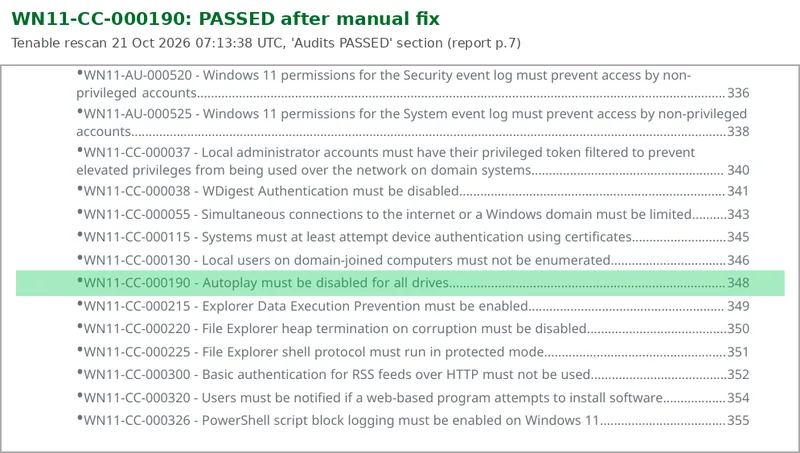
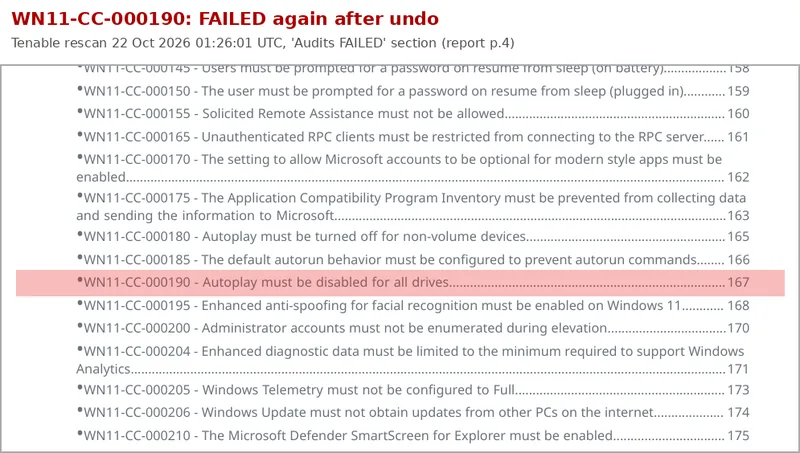
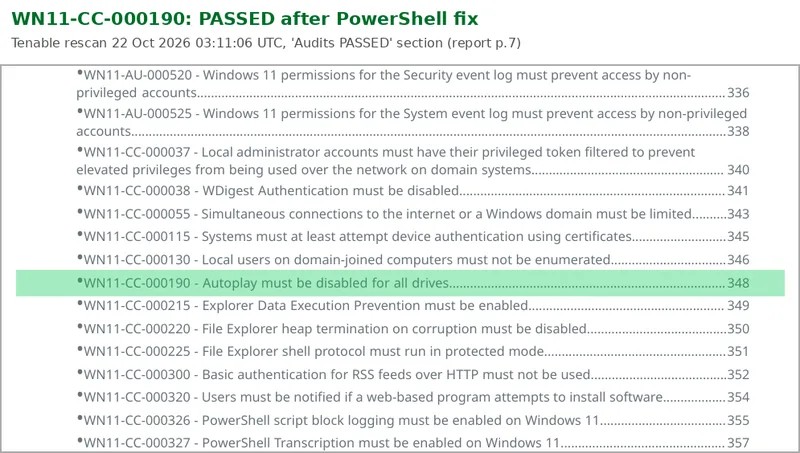
- STIG 8: AutoPlay for all drives (WN11-CC-000190)
- STIG 9: Password history (WN11-AC-000020)
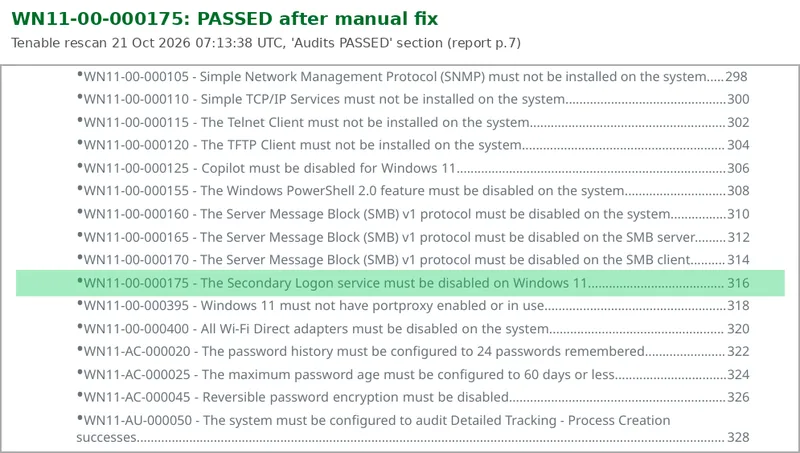
- STIG 10: Secondary Logon service (WN11-00-000175)
- Writing the scripts: four rules
- The results
- What I would tell someone starting this
- Where this goes next
- Frequently asked questions
Part 1 covered the lab, a credentialed Tenable scan that failed 151 of 258 DISA Windows 11 STIG checks, the fix, undo, fix-again method, and the first five controls: event log sizes, PowerShell Script Block Logging and Transcription.
This part covers the other five, and they are the more interesting ones because each introduces a different fix mechanism and a different way to get it wrong. One manual fix passed its own check while silently switching off thirteen others. One looked impossible to do by hand because Group Policy has no setting for it. One fails if you type the right number in the wrong mode. And one service simply refused to stop. Then the final numbers, the script rules, and what I would tell anyone starting this.
Everything here, including the scripts, runbook and evidence, is in the GitHub repository.
STIG 6: Audit Process Creation (WN11-AU-000050)
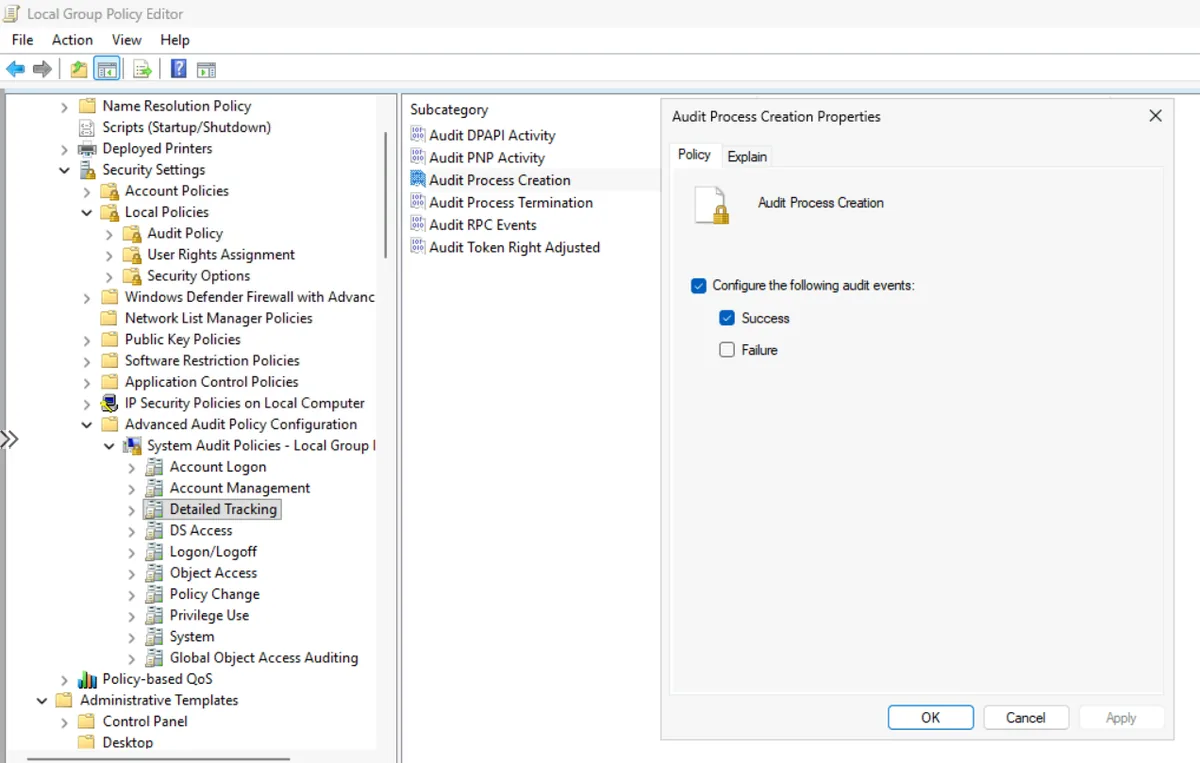
This setting turns on Security event 4688, "A new process has been created." Process creation is the backbone of endpoint detection. Without it, the Security log cannot tell you that Microsoft Word launched PowerShell, one of the most common signs of a malicious document. Every hunt I have written up on this site, from the Sentinel threat intelligence series to the Copilot prompt injection threat hunt, depends on this kind of telemetry existing in the first place.
The hidden dependency
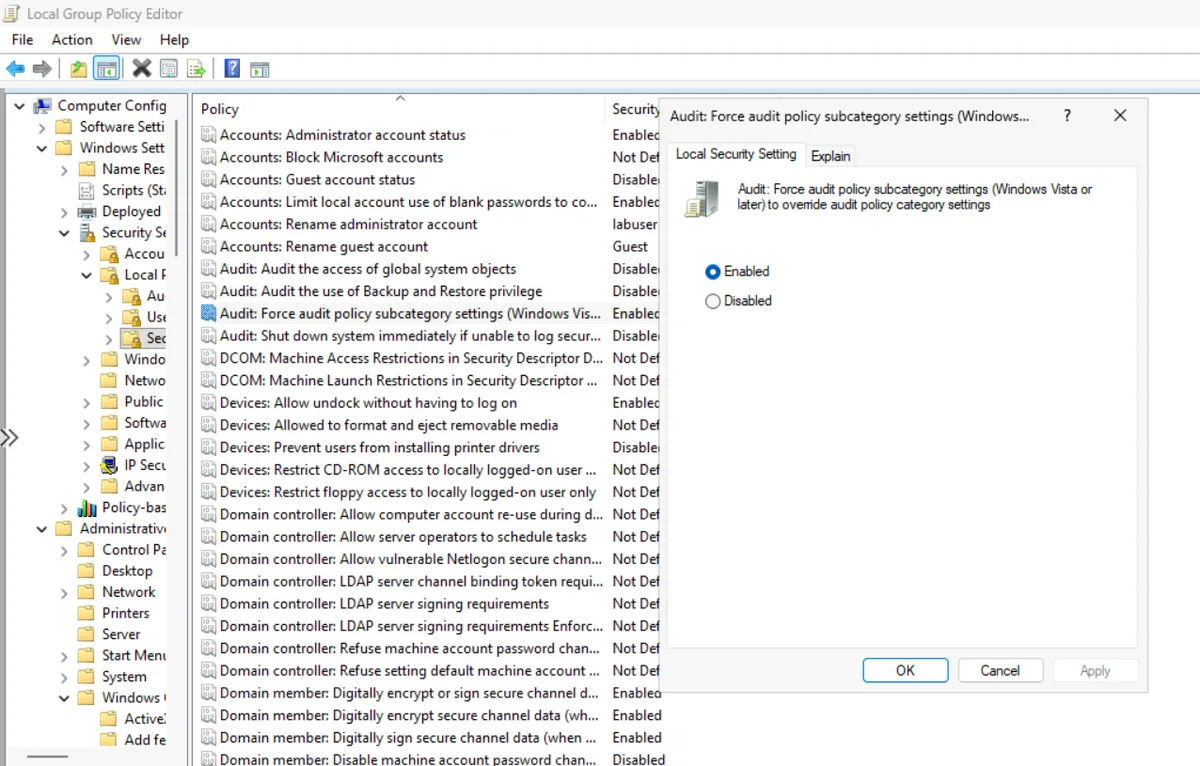
Windows has two layers of audit policy: the old category-level settings and the newer, more granular subcategory settings. A separate STIG, WN11-SO-000030, requires "Audit: Force audit policy subcategory settings to override audit policy category settings" to be enabled. If it is not, the category-level policy can quietly override the subcategory you just configured, and your setting looks correct but does nothing. Microsoft documents the behaviour on the policy's own page. My script sets both.
The fix that passed and broke thirteen other checks
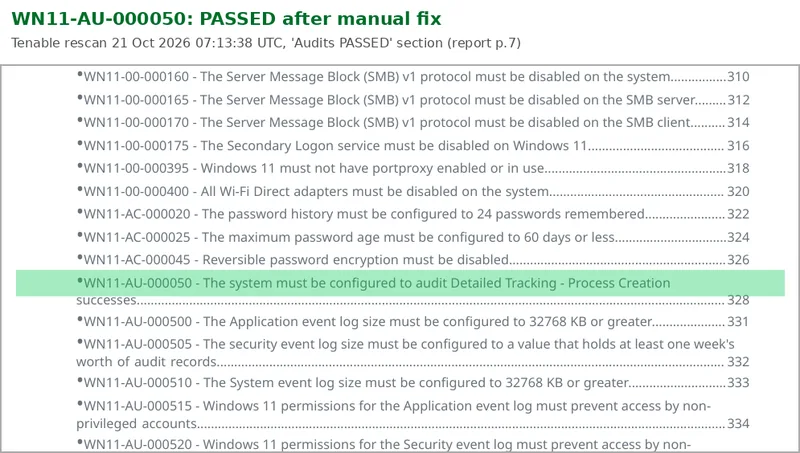
The manual fix worked: Process Creation passed on the rescan.
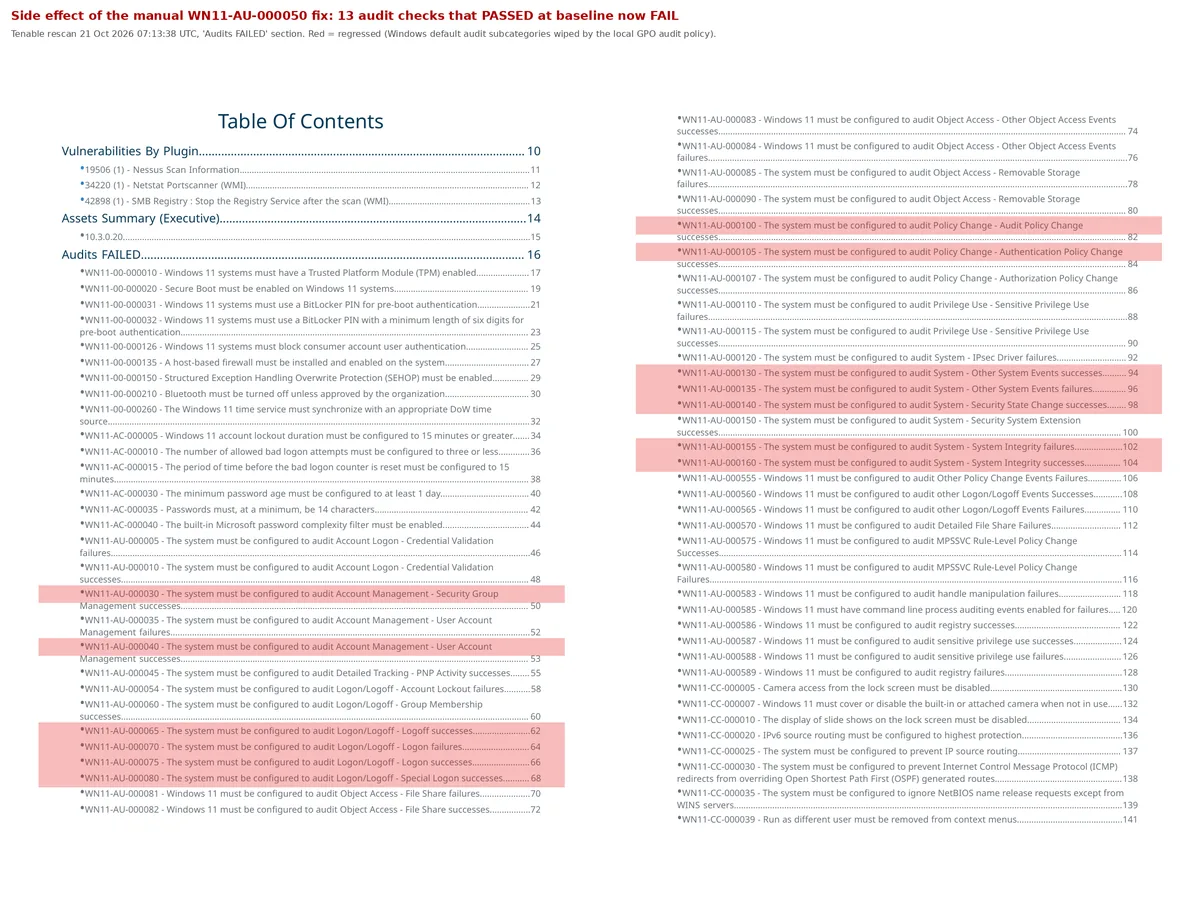
But the totals went the wrong way. Passed checks dropped from 96 to 94 and failed checks rose from 151 to 153, even though all ten of my targets now passed. When I compared the two reports line by line, 13 audit checks that passed at baseline were now failing: WN11-AU-000030, 040, 065, 070, 075, 080, 100, 105, 130, 135, 140, 155 and 160. Logon, logoff, special logon, account management, audit policy change, security state change and system integrity. Every one is a subcategory Windows audits by default.
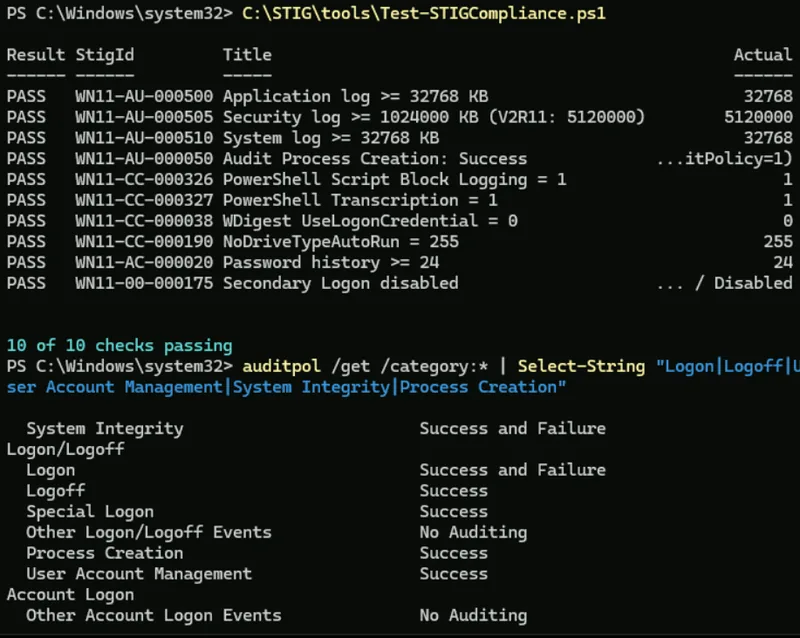
Running auditpol /get /category:* on the VM confirmed it. Every one of those subcategories said "No Auditing". The only one still on was the Process Creation setting I had just configured.
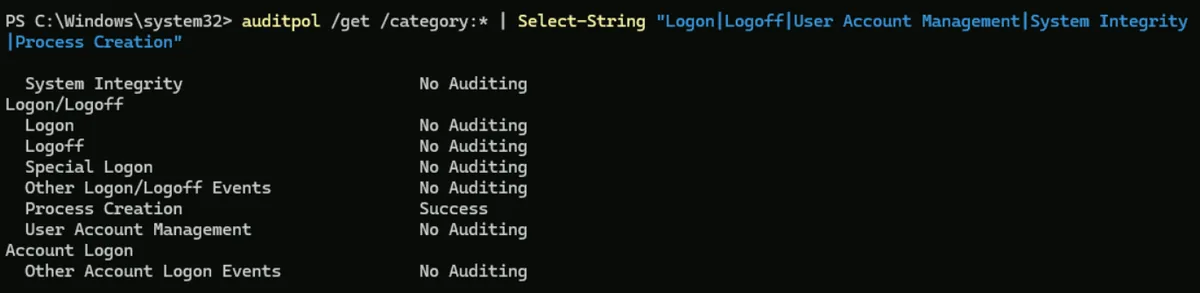
The cause is how Advanced Audit Policy works in Group Policy. Configuring it in the Local Group Policy Editor writes a file called audit.csv that lists only the subcategories you set. When that file applies, it does not add to the existing audit policy. It replaces it. Everything not in the file is switched off. I had turned on one audit setting and silently turned off thirteen.
Undoing it took three steps, not one
Setting the policy back to Not Configured was not enough, because "Not Configured" means "Group Policy stops managing this," not "put it back to the default." The audit settings stick. The real undo was: set the policy to Not Configured, delete both audit.csv files so the next refresh cannot reapply them, and restore the defaults with auditpol.
Remove-Item "C:\Windows\System32\GroupPolicy\Machine\Microsoft\Windows NT\Audit\audit.csv" -Force -ErrorAction SilentlyContinue
Remove-Item "C:\Windows\security\audit\audit.csv" -Force -ErrorAction SilentlyContinue
gpupdate /force
auditpol /set /subcategory:"Security Group Management" /success:enable
auditpol /set /subcategory:"User Account Management" /success:enable
auditpol /set /subcategory:"Logon" /success:enable /failure:enable
auditpol /set /subcategory:"Logoff" /success:enable
auditpol /set /subcategory:"Special Logon" /success:enable
auditpol /set /subcategory:"Audit Policy Change" /success:enable
auditpol /set /subcategory:"Authentication Policy Change" /success:enable
auditpol /set /subcategory:"Security State Change" /success:enable
auditpol /set /subcategory:"Other System Events" /success:enable /failure:enable
auditpol /set /subcategory:"System Integrity" /success:enable /failure:enable
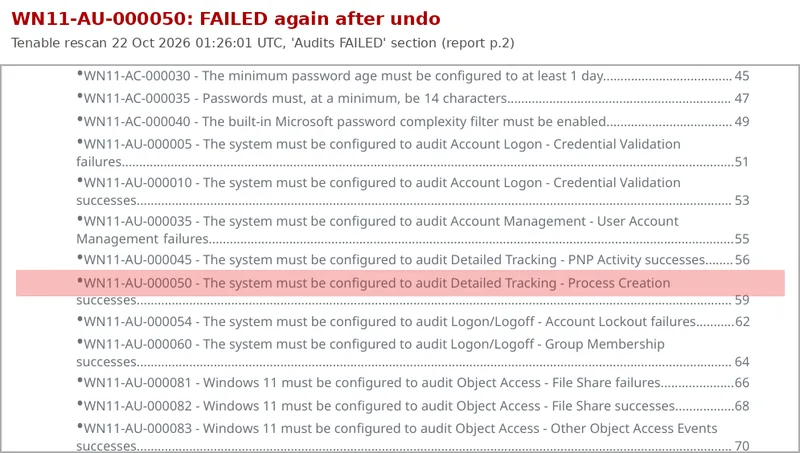
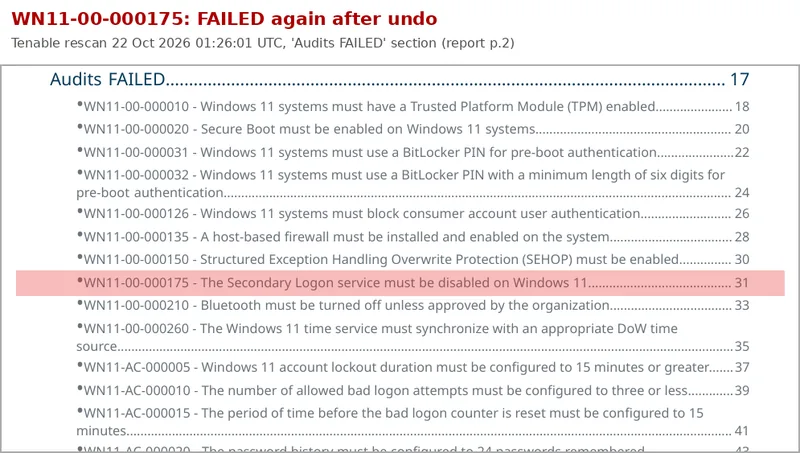
The undo scan showed my ten targets failing again and all 13 regressions passing again, which proved both causes at once.
Why the PowerShell version uses auditpol, not Group Policy
auditpol /set changes exactly one subcategory and leaves the rest alone. The script also uses the subcategory GUID instead of the English name, because names are translated on non-English Windows and GUIDs are not:
# Dependency WN11-SO-000030
New-ItemProperty -Path 'HKLM:\SYSTEM\CurrentControlSet\Control\Lsa' `
    -Name 'SCENoApplyLegacyAuditPolicy' -PropertyType DWord -Value 1 -Force | Out-Null

# Process Creation, by GUID so it works on any OS language
$ProcessCreationGuid = '{0CCE922B-69AE-11D9-BED3-505054503030}'
auditpol.exe /set /subcategory:$ProcessCreationGuid /success:enable

# Verify from CSV output so spacing and language do not matter
$Row = auditpol.exe /get /subcategory:$ProcessCreationGuid /r | Where-Object { $_ } | ConvertFrom-Csv
$Row.'Inclusion Setting'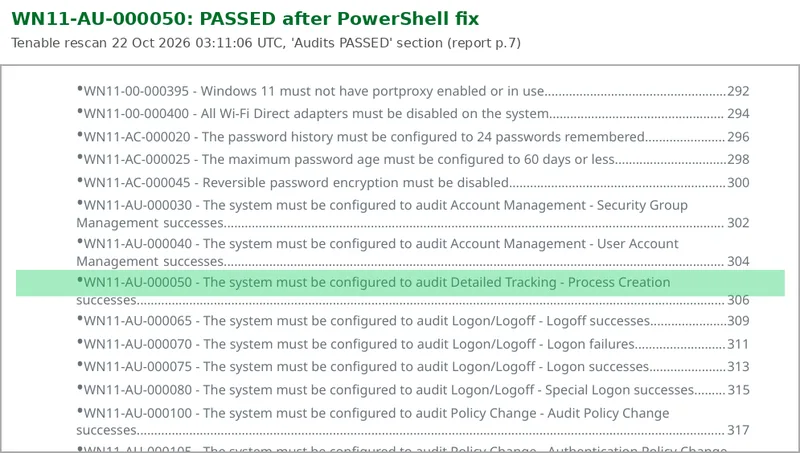
In a domain you would solve this differently: put every required subcategory in the same GPO, so the replacement is complete and intentional. The lesson that carries over is bigger than one setting: a fix that passes its own check can still break something else, and only a full rescan tells you. If I had only looked for WN11-AU-000050 in the report, I would have shipped a change that switched off logon auditing on every machine.
STIG 7: WDigest authentication (WN11-CC-000038)
This one best illustrates "a missing value is a finding."
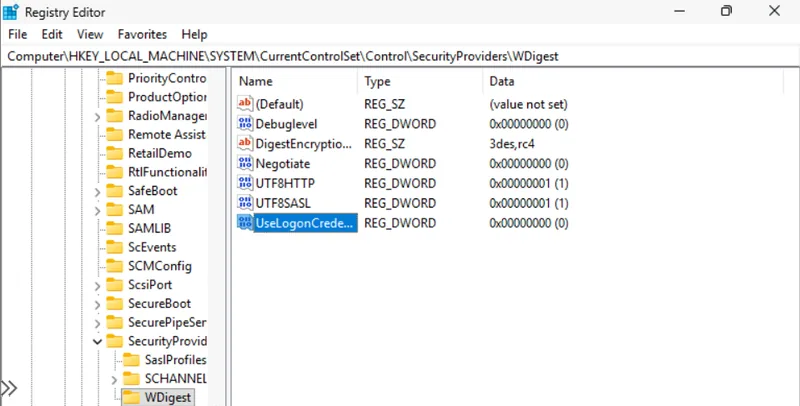
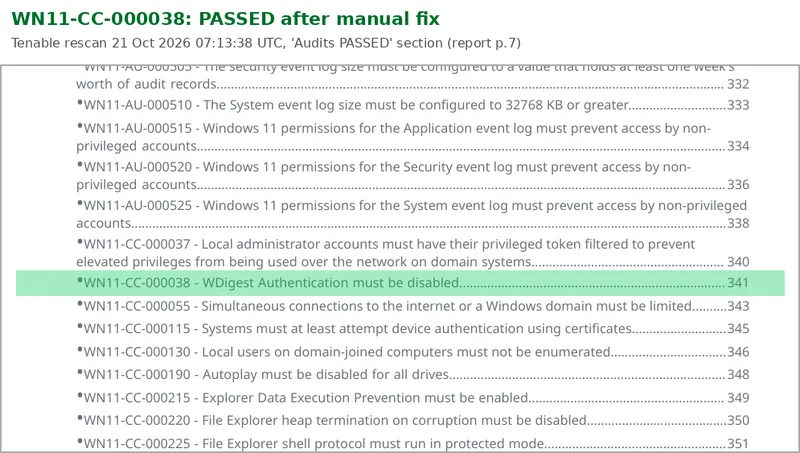
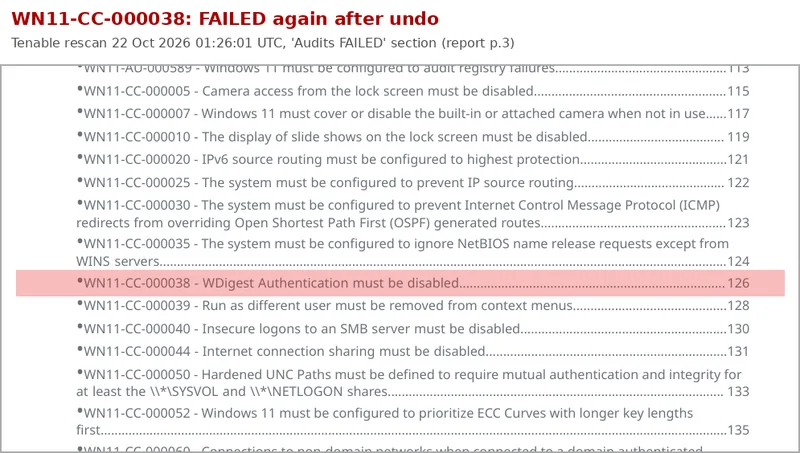
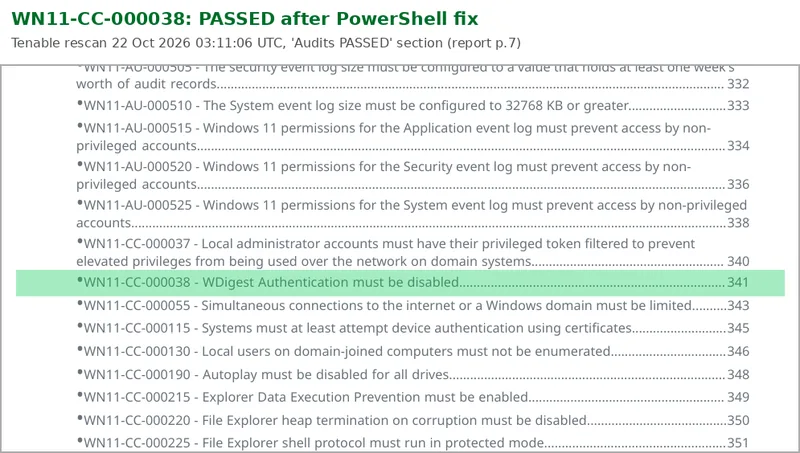
WDigest is a legacy authentication protocol. When its credential caching is active, Windows keeps a copy of the user's password in LSASS memory in a form that credential-dumping tools can recover. WDigest caching has been off by default since Windows 8.1, so why does a fresh Windows 11 VM fail the check? Because the registry value UseLogonCredential does not exist, and the STIG says that if it does not exist, it is a finding.
At first that felt pedantic. Then the reasoning clicks: an attacker who already has admin rights can create the value, set it to 1, and wait for an administrator to log in, at which point that admin's password is sitting in memory. Setting it explicitly to 0 documents intent and gives you something to monitor. A change from 0 to 1 on that key is a very high-fidelity alert, and a compliance rescan catches it too.
There is no Group Policy setting for this by default. DISA ships custom templates, SecGuide.admx and SecGuide.adml, in the STIG package; copied into C:\Windows\PolicyDefinitions, the setting appears under "MS Security Guide". For the lab I set it directly in the Registry Editor.
STIG 8: AutoPlay for all drives (WN11-CC-000190)
AutoPlay pops up a dialog, or runs something, when you plug in a USB drive or insert a disc. Removable media autorun has been a malware delivery path for a long time, and USB drop attacks still show up in penetration tests. This is also the only CAT I finding of the ten in the v2r9 audit.
The fix sets NoDriveTypeAutoRun to 255 under HKLM\SOFTWARE\Microsoft\Windows\CurrentVersion\Policies\Explorer. Each bit represents a drive type, and 255 (hex FF) means all of them. In Group Policy it is "Turn off Autoplay", Enabled, on All drives.
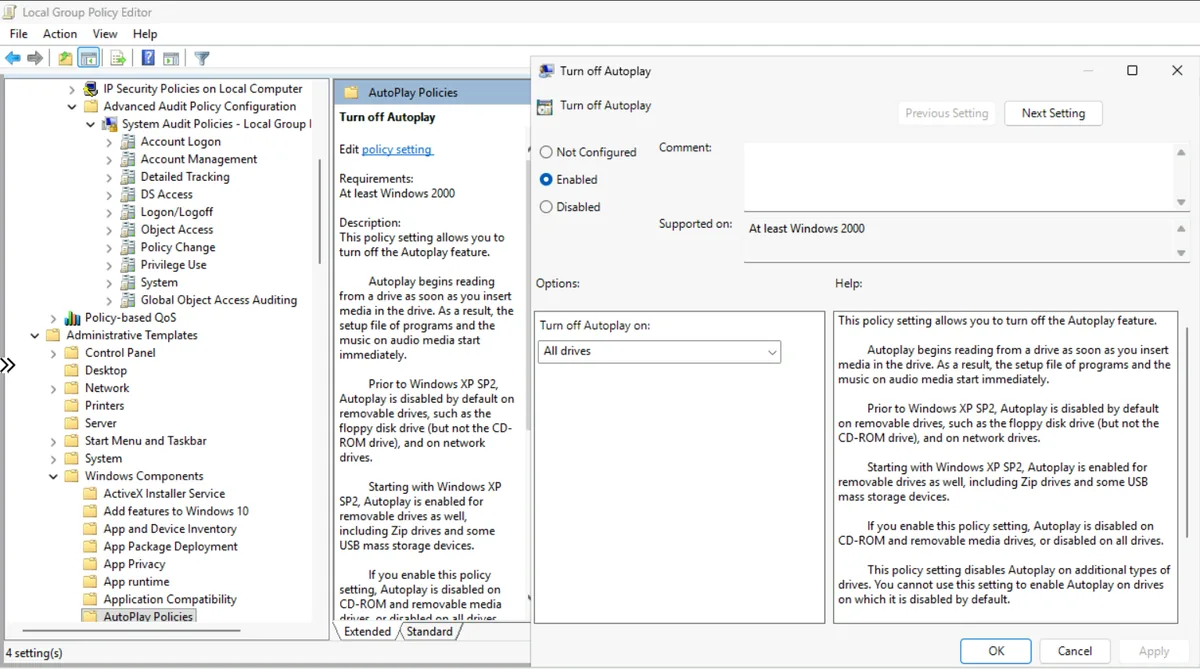
This is where Registry Editor catches people. When you create a DWORD, regedit asks whether the value is hexadecimal or decimal, and hexadecimal is the default. Type 255 in hex mode and you get 0x255, which is 597 in decimal, and the check fails. The correct entry is "ff" in hex or "255" in decimal. PowerShell does not have this problem, because -Value 255 is always decimal. A tiny thing, and exactly the kind of mistake that makes a manual fix look right and fail anyway.
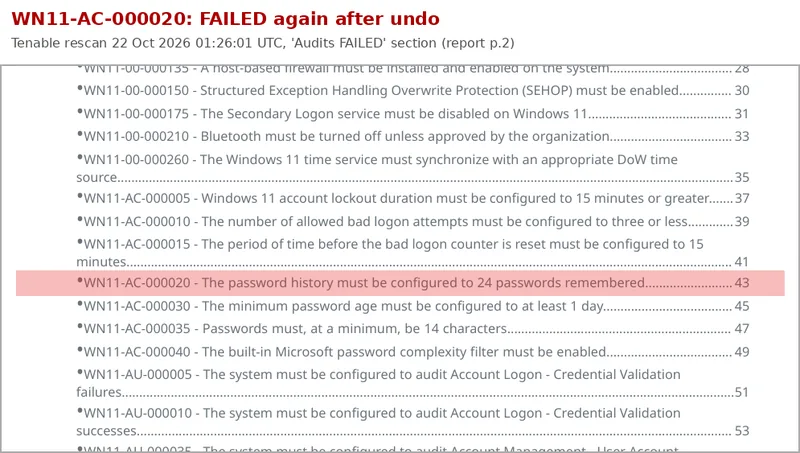
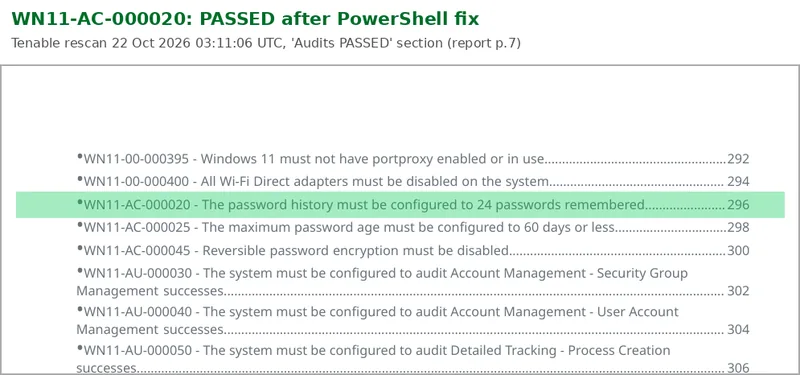
STIG 9: Password history (WN11-AC-000020)
The STIG requires Windows to remember the last 24 passwords. For users it is a minor annoyance. After an incident it matters a lot: you force everyone affected to change their password because the attacker may have it, and without history a user changes it and immediately changes it back. The stolen password works again.
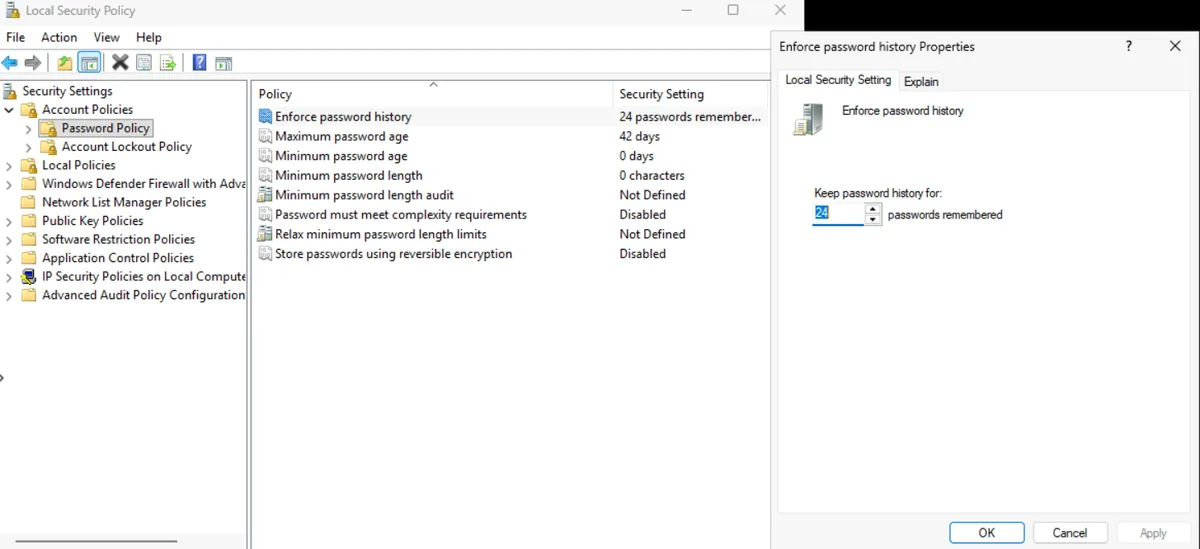
The PowerShell version sets it with net accounts /uniquepw:24. For verification I avoided parsing the text output of net accounts, because that text is translated on non-English systems. The script exports the local security policy and reads the number instead:
secedit.exe /export /cfg $Export /areas SECURITYPOLICY
Select-String -Path $Export -Pattern '^\s*PasswordHistorySize\s*=\s*(\d+)'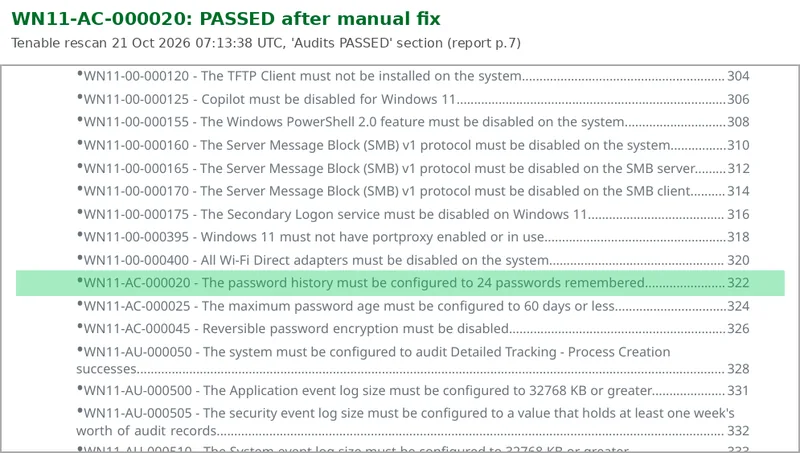
On a domain-joined machine this setting comes from the domain's password policy and a local change would be overwritten. The lab VM is a workgroup machine, so local policy is the right place. Knowing where a setting actually comes from is half of being able to fix it. My Active Directory home lab covers the domain side of that story.
STIG 10: Secondary Logon service (WN11-00-000175)
Secondary Logon (seclogon) is what makes "Run as different user" and runas work. It lets a process start with different credentials from inside an existing session. The STIG wants it disabled because that capability is useful for lateral movement and credential abuse, and the service has had its own privilege escalation bugs over the years.
This was technically the simplest of the ten and organisationally the hardest. Helpdesk technicians use "Run as different user" constantly. In the change advisory board role play I wrote for the repo, the desktop team lead pushes back on exactly this point. The resolution is a pilot group, a two-week grace period for the helpdesk to switch to their remote support tool's own elevation, and a documented exception process for machines that genuinely need it. That is how hardening actually lands: not "the STIG says so," but "here is the risk, here is who it affects, here is how we make it work for them."
The service that would not stop
In the Services console I clicked Pause instead of Stop by mistake. The startup type was already Disabled, which is what the STIG checks, but the service sat there Paused.
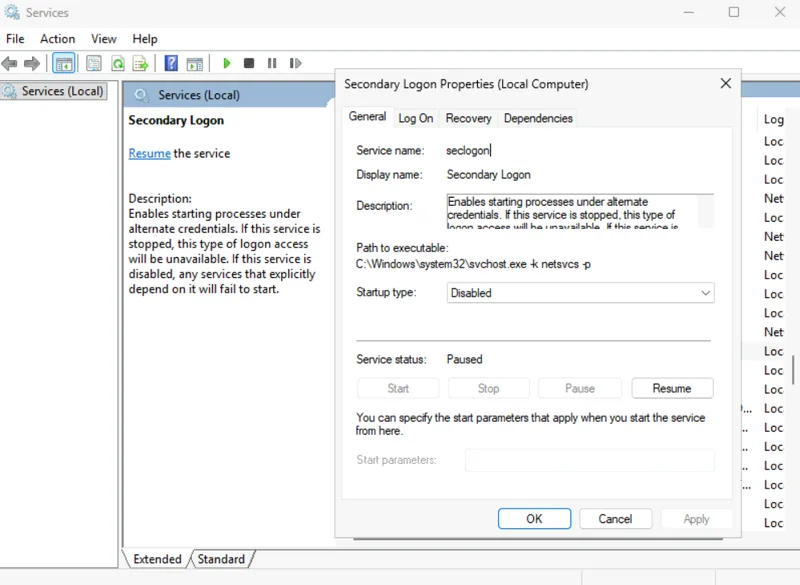
Resuming it worked. Stopping it from PowerShell did not: "Cannot stop seclogon service." Instead of guessing, I asked the service what it accepts:
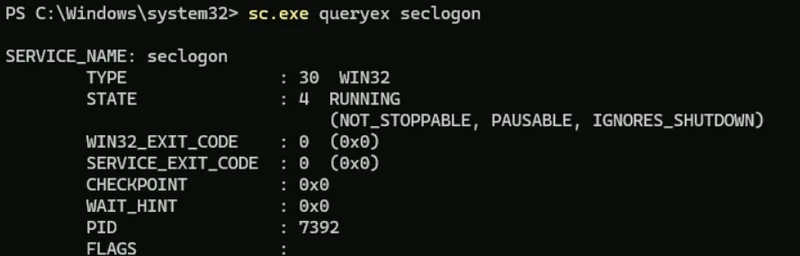
The STIG checks the startup type, which was already Disabled, so the machine was compliant. A reboot left the service stopped for good.

The more useful outcome was what it did to the script. The first version stopped the service and then disabled it. On this build the stop failed, the script exited, and Disabled was never written. The final version sets Disabled first, because that is what compliance depends on, then tries to stop it and warns instead of failing:
Set-Service -Name seclogon -StartupType Disabled -ErrorAction Stop

$Svc = Get-Service -Name seclogon
if ($Svc.Status -eq 'Paused') { Resume-Service -Name seclogon -ErrorAction SilentlyContinue }
if ($Svc.Status -ne 'Stopped') {
    try   { Stop-Service -Name seclogon -Force -ErrorAction Stop }
    catch { Write-Host "[WARN] seclogon would not stop while Windows is running. It is Disabled and will stay stopped after a reboot." }
}
A lab finding is only fixed once the automation handles it.
Writing the scripts: four rules
Every script uses the internship's template header (synopsis, author, STIG ID, documentation link and a "tested on" block), and every script follows the same four rules:
- It requires administrator rights.
#Requires -RunAsAdministratormeans it refuses to run unelevated instead of half-running and failing silently. - It is idempotent. Running it twice does no harm.
New-ItemProperty -Forceoverwrites instead of erroring, and the service script only stops the service if it is not already stopped. - It verifies its own work. After applying the fix it reads the setting back and prints
[PASS]or[FAIL]. - It returns an exit code. 0 for compliant, 1 for not. That one detail means the same script can run as an Intune remediation, a scheduled task or from an RMM tool, and the platform knows whether it worked.
I used AI as a drafting partner for some of the PowerShell, which the methodology encourages. My rule was that I never ran anything I could not explain line by line. Several of the robustness choices, the audit subcategory GUID, well-known SIDs for folder permissions, a secedit export instead of parsing net accounts, came from asking "what happens if this runs on a machine set to a different language?" That is not a question an AI asks on its own. It is the question you learn to ask by thinking about where a script will actually run.
Two helper tools complete the repo: Test-STIGCompliance.ps1, the pre-check from Part 1, and Undo-STIGRemediation.ps1, which puts one STIG (or -All) back to the Windows default for lab use. The undo tool doubles as the rollback plan for each control.
The results
| Round | Expected | Actual | Passed / Failed |
|---|---|---|---|
| Baseline | 10 FAILED | 10 FAILED | 96 / 151 |
| After manual fixes | 10 PASSED | 10 PASSED, but 13 audit checks regressed | 94 / 153 |
| After undo | 10 FAILED | 10 FAILED, 13 regressions fixed | 97 / 150 |
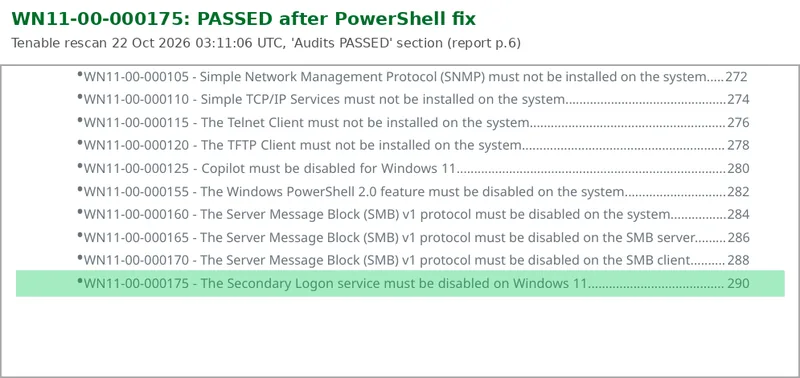
| After PowerShell | 10 PASSED | 10 PASSED, no regressions | 107 / 140 |
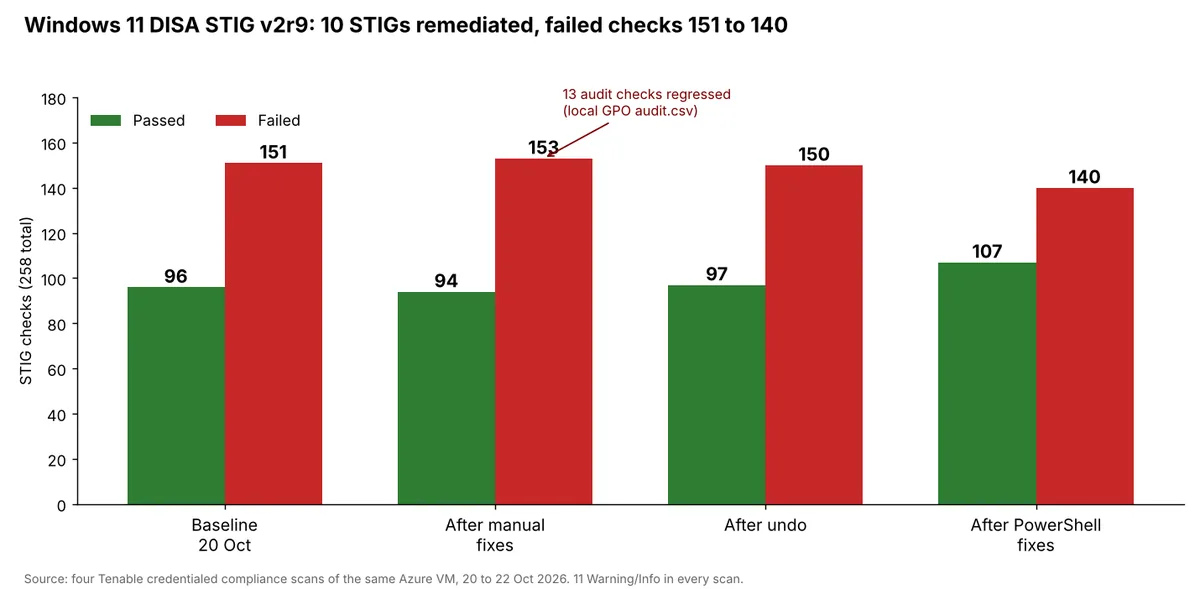
Failed checks went from 151 to 140 and passed from 96 to 107. That is eleven, not ten, because the Process Creation fix also enables WN11-SO-000030, the dependency it needs. Comparing the final report with the baseline, the failed list lost exactly those eleven and gained nothing.
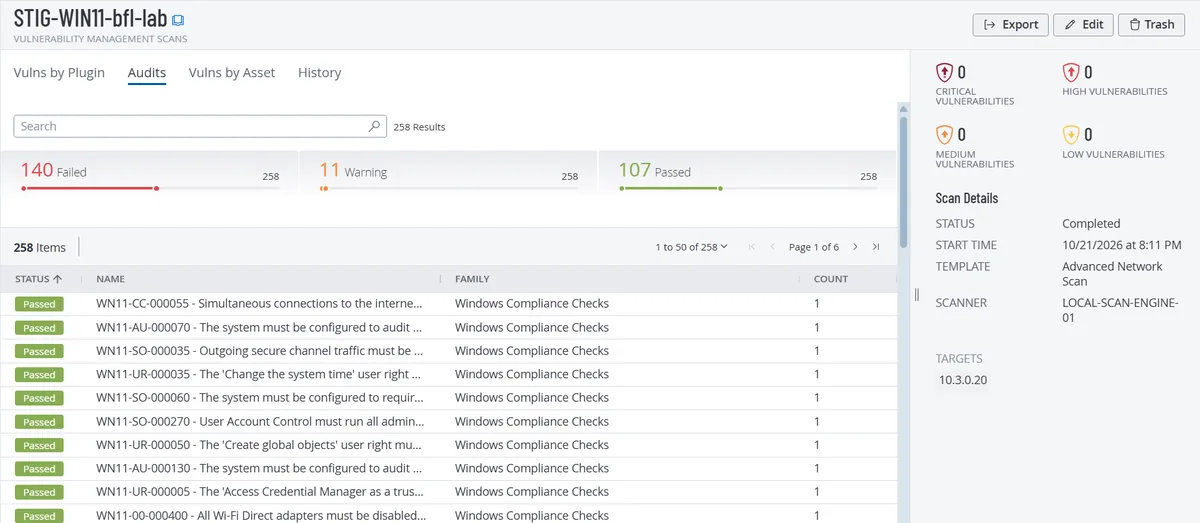
Eleven checks out of 258 is not a dramatic percentage, and I do not want to oversell it. The real result is a tested, documented, repeatable process for taking any registry, audit policy, security policy or service-based STIG from FAILED to PASSED with evidence, plus ten scripts ready to reuse.
What I would tell someone starting this
- Read the check text before the fix text. The fix text says what to change; the check text says what the scanner looks at. When they disagree in your head, the check text wins.
- "Not Configured" is not "default". It means Group Policy stops managing the setting. Always verify a rollback.
- A missing value is a finding. Windows often behaves securely without writing an explicit value. Scanners check for the value. Setting it documents intent and makes tampering visible.
- Export before you undo.
reg export,auditpol /backupandsecedit /exportturn a GUI change into text you can read, compare and automate. - Rescan everything, not just the target. The 13 regressions were invisible from WN11-AU-000050's own result.
- Every hardening change has a person on the other end. Ask "who uses this today?" before a change goes on the list, and talk to that team before the meeting, not in it.
- Batch your scans. Four scans instead of thirty gave the same proof.
Where this goes next
In a real organisation these settings would not be applied with ten scripts run by hand. On domain-joined machines they belong in a GPO linked to a pilot OU first, because Group Policy keeps reapplying settings and prevents drift. On Intune-managed machines they live in the Settings Catalog, and the scripts can run as Intune Remediations because of their exit codes. They also belong in the golden image build, so new machines start compliant instead of being fixed later, with a scheduled compliance scan to catch drift.
My next steps are working through more of the failed list, starting with the remaining CAT I findings, and building a small report that compares two Tenable compliance exports and shows exactly what changed between scans, so the next regression gets caught automatically.
All ten scripts, the full runbook with every manual step, the evidence checklist and the change advisory board meeting script are in the windows11-stig-remediations repository. The lab environment is the Cyber Range community (referral link). If you are working through STIGs and get stuck on one, I would like to hear which one and what tripped you up.
Frequently asked questions
Why did enabling one audit subcategory turn off others?
Configuring Advanced Audit Policy in the Local Group Policy Editor writes an audit.csv file that lists only the subcategories you set. When it applies, it replaces the whole audit policy rather than adding to it, so every subcategory not in the file becomes No Auditing. In this lab, enabling only Process Creation switched off 13 default subcategories and turned 13 passing STIG checks into failures.
How do I enable a single audit subcategory without breaking the others?
Use auditpol, for example auditpol /set /subcategory with the Process Creation GUID and /success:enable. It changes one subcategory and leaves the rest alone. In a domain, define every required subcategory in the same GPO so the replacement is complete and intentional, and make sure Force audit policy subcategory settings (WN11-SO-000030) is enabled.
Does setting a Group Policy back to Not Configured restore the default?
No. Not Configured means Group Policy stops managing the setting, not that the original value comes back. Some settings, advanced audit policy in particular, stay applied afterwards. Always verify a rollback with the actual tool, such as auditpol, the registry or a rescan, instead of assuming it worked.
Why set WDigest UseLogonCredential to 0 if Windows 11 already disables it?
Because the STIG treats a missing value as a finding, and because an explicit 0 documents intent and gives you something to monitor. An attacker with admin rights can create the value and set it to 1 so that passwords are kept in memory in a recoverable form. A change from 0 to 1 on that key is a high-fidelity alert.
Why must NoDriveTypeAutoRun be 255?
Each bit of the value represents a drive type, and 255 (hex FF) covers all of them. The common mistake is typing 255 in the Registry Editor while it is in its default hexadecimal mode, which stores 0x255, or 597 in decimal, and fails the check. Enter ff in hexadecimal or 255 in decimal. PowerShell's -Value 255 is always decimal.
Does the local password history setting apply on domain-joined machines?
Not for domain accounts. On domain-joined machines the password policy comes from the domain, usually the Default Domain Policy, and a local change is overwritten. The local setting matters for workgroup machines and local accounts, which is what this lab VM is.
Why will the Secondary Logon service not stop?
On this Windows 11 25H2 build, sc.exe queryex seclogon reports the service as NOT_STOPPABLE, PAUSABLE and IGNORES_SHUTDOWN, so Windows rejects a stop request while it is running. The STIG checks the startup type, so setting it to Disabled makes the machine compliant, and a reboot leaves the service stopped.
Does disabling Secondary Logon break Run as different user?
Yes. Secondary Logon is what makes Run as different user and runas work, so helpdesk workflows that rely on it stop working. Plan for it: give the helpdesk an alternative such as the remote support tool's own elevation, run a pilot, and keep a documented exception process for machines that genuinely need it.
Why do the remediation scripts return exit codes?
Exit 0 for compliant and 1 for not compliant lets the same script run as an Intune remediation, a scheduled task or from an RMM tool, and the platform knows whether it worked without parsing text output.