Hardening Windows 11 Against DISA STIGs, Part 1: Baseline, Method and Logging Fixes
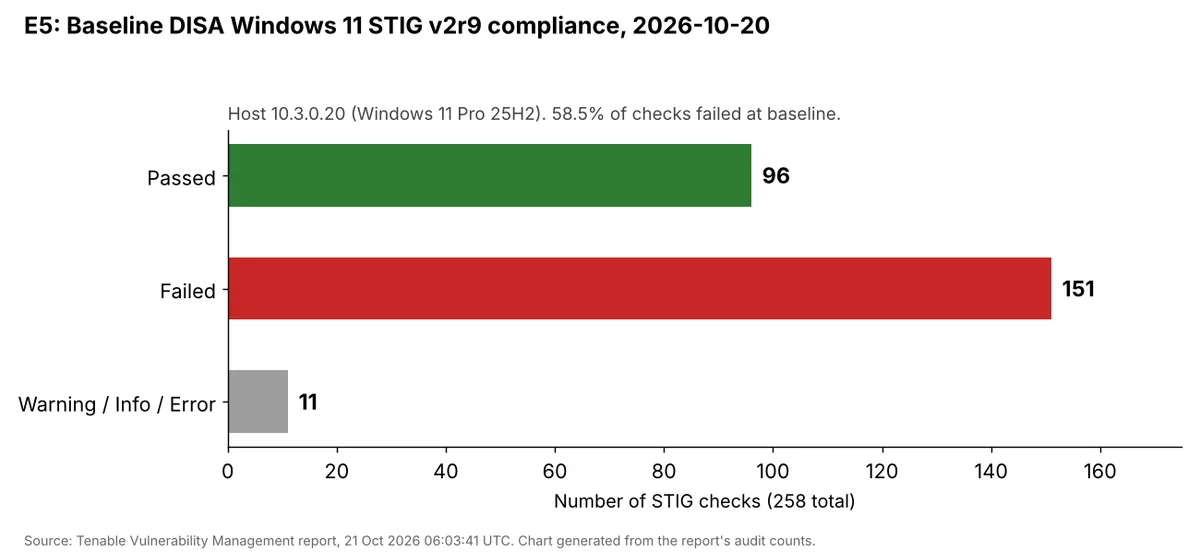
A fresh Windows 11 VM failed 151 of 258 DISA STIG checks. Part 1 builds a fast credentialed Tenable scan, explains the fix, undo, fix-again method, and remediates event log sizes, Script Block Logging and Transcription, manually and with PowerShell.
show ip route | toc (11 sections)
- What a STIG is, and why it matters outside the military
- The lab
- Building a fast, STIG-only Tenable scan
- The baseline: 151 of 258 checks failed
- Choosing ten out of 151
- The method: fix it, prove it, break it, prove it again
- STIGs 1 to 3: event log sizes
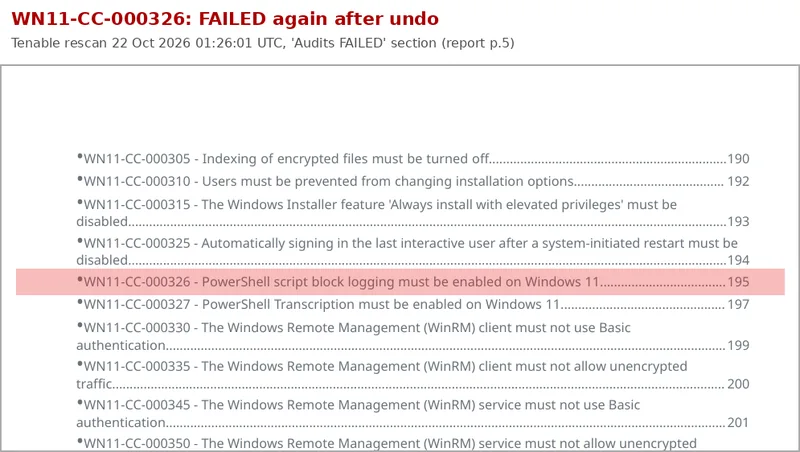
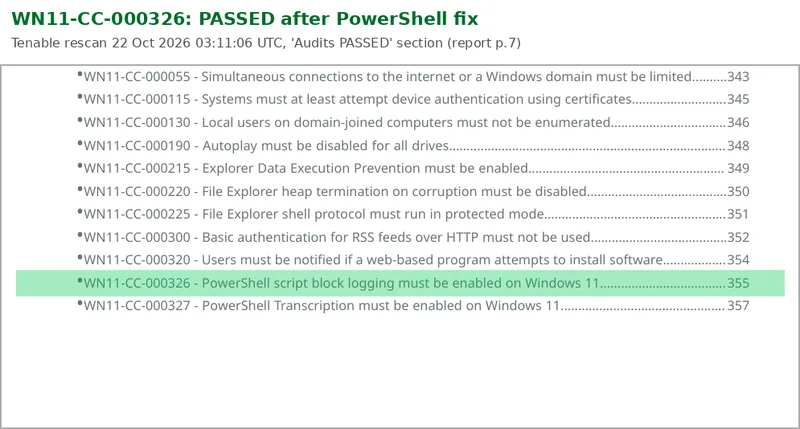
- STIG 4: PowerShell Script Block Logging (WN11-CC-000326)
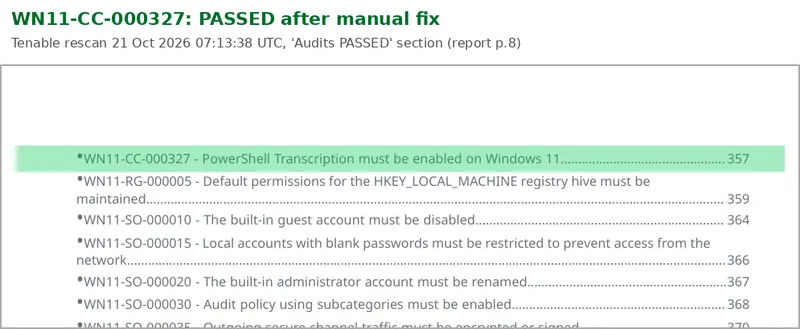
- STIG 5: PowerShell Transcription (WN11-CC-000327)
- What Part 1 proved
- Frequently asked questions
There is a moment in most security jobs where someone hands you a scan report with a few hundred red lines in it and says "fix these." You do not know where to start, which lines matter, or how you would ever prove you fixed anything.
This two-part series is how I worked through that moment with Windows 11 and the DISA Security Technical Implementation Guides, better known as STIGs. I scanned a fresh Windows 11 VM with Tenable against the DISA Windows 11 STIG, picked ten failed controls, and fixed each one twice: once by hand and once with PowerShell. In between, I undid every fix and scanned again to watch it fail. That step sounds like wasted time. It turned out to be the most useful thing I did, because it caught a fix that quietly broke thirteen other checks.
This part covers the lab, the scan, the baseline, the method, and the first five fixes: three event log sizes and two PowerShell logging controls. Part 2 covers the audit policy trap, WDigest, AutoPlay, password history, a Secondary Logon service that refused to stop, and the final numbers. Every script, the full runbook and all the evidence are in the GitHub repository.
What a STIG is, and why it matters outside the military
STIGs are published by DISA, the Defense Information Systems Agency in the US Department of Defense. Each one is a long list of specific configuration requirements for one product: Windows 11, Windows Server 2022, Red Hat Enterprise Linux, Cisco IOS, Chrome and dozens more.
Every requirement has an ID such as WN11-AU-000500. "WN11" is Windows 11, "AU" is the audit family, the number is the item. Each one carries three things that matter:
- a severity, from CAT I (most serious) to CAT III
- a check text, which says exactly what to inspect to decide compliance
- a fix text, which says how to make it compliant
Defense contractors and government agencies have to follow them. Everyone else benefits too, because STIGs are one of the most specific public descriptions of what a hardened system looks like. CIS Benchmarks cover similar ground and many companies use those instead, but the skill transfers directly: read the requirement, understand the risk, change the setting, prove it changed. "Experience with STIG compliance" and "experience with Tenable or Nessus" also show up in a lot of entry-level security and sysadmin job postings, so "here are ten STIGs I fixed and the evidence" is more useful than "familiar with security frameworks."
The free STIG-A-View site makes the Windows 11 STIG searchable, and I used it for every check and fix text in this project.
The lab
The environment came from the Cyber Range, the hands-on lab I use for my LogN Pacific cybersecurity internship. It provides Azure VMs and a shared Tenable instance, so I did not have to build a scanner. If you want the same environment, it is the Cyber Range community (that link carries my referral code).
| Component | Detail |
|---|---|
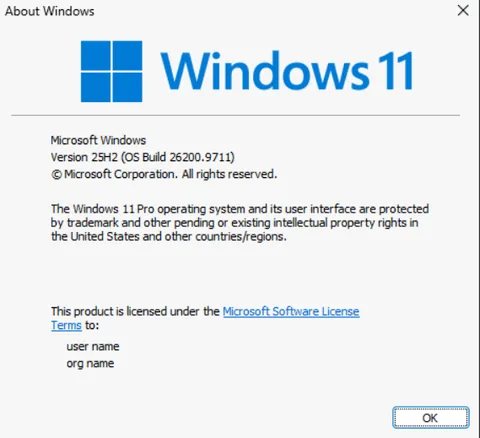
| Target | Windows 11 Pro 25H2, OS build 26200.9711, Azure VM, workgroup (not domain joined) |
| Scanner | Tenable Vulnerability Management with an internal scan engine |
| Audit | DISA Microsoft Windows 11 STIG v2r9 |
| Scripting | Windows PowerShell 5.1, built into Windows 11 |
| Reference | STIG-A-View, Windows 11 STIG V2R11 |
Building a fast, STIG-only Tenable scan
The scan is a credentialed Advanced Network Scan, so Tenable can log in and read the registry, audit policy and local security policy directly. A compliance scan without credentials sees almost nothing.
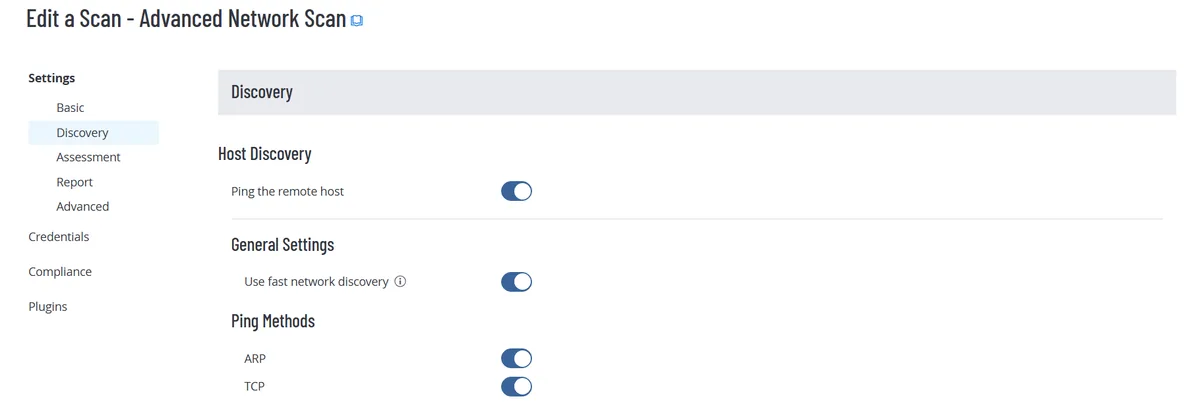
Three settings made the difference between a useless scan and a useful one. First, Use fast network discovery in the Discovery settings. Without it my early scans finished in about a minute with no compliance results at all, because host discovery never confirmed the VM was alive.
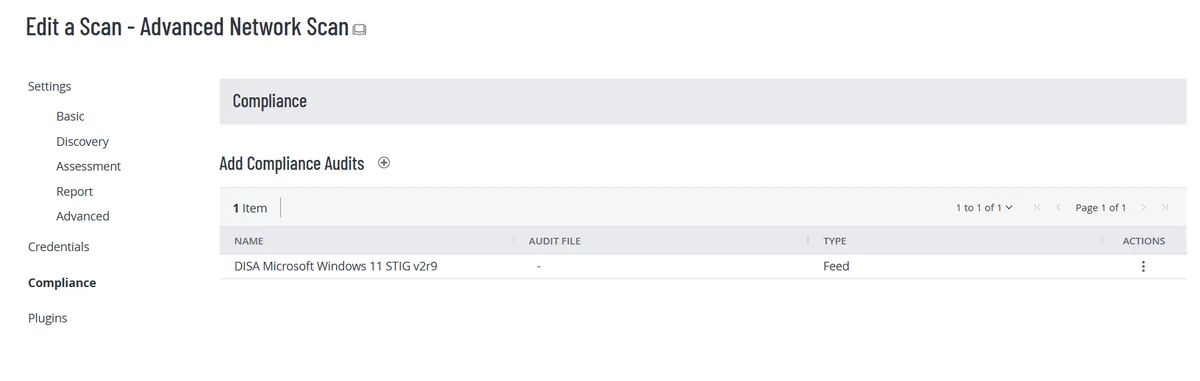
Second, the compliance audit itself: the DISA Microsoft Windows 11 STIG, v2r9 in this lab. Write the exact audit name down, because expected values can change between versions.
Third, I disabled every plugin family except Policy Compliance and enabled only Windows Compliance Checks inside it. That turned a long vulnerability scan into a focused STIG scan that finishes in minutes.
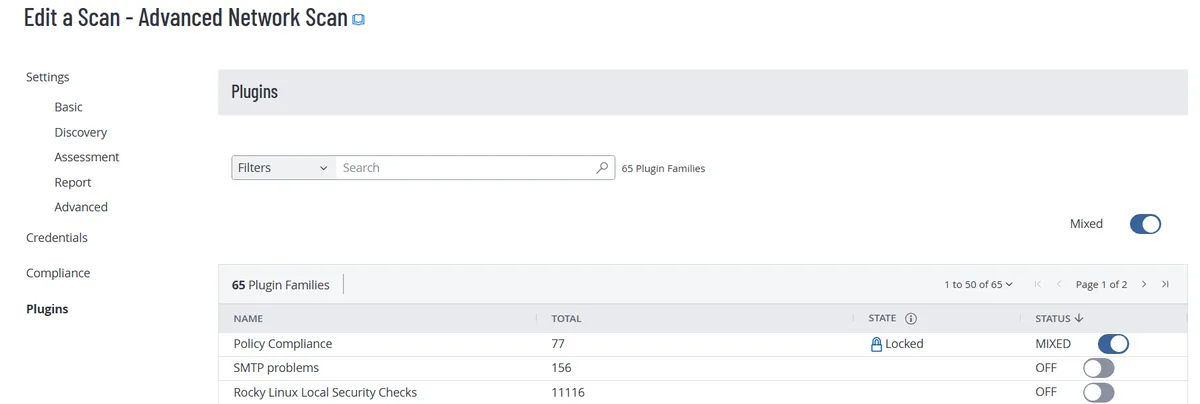
I also turned off the Windows Firewall on the VM so the scanner could reach it over SMB. That is a lab shortcut, and I want to be clear about it: in a real company you would never disable the firewall, you would allow the scanner's IP through on TCP 445. That is why WN11-00-000135, the host firewall check, fails in every scan here.
If you have done vulnerability scanning before, this will feel familiar. My earlier vulnerability management program write-up used the same Tenable platform for vulnerabilities; this project uses it for configuration compliance instead.
The baseline: 151 of 258 checks failed
The baseline scan showed 96 passed, 151 failed and 11 warning or informational results out of 258 checks. That number surprises people. Windows 11 is a modern, well-maintained operating system, so how can it fail that many security checks out of the box?
Part of the answer is that Microsoft and DISA optimise for different things. Microsoft ships defaults that work for everyone from a home user to a developer running containers. DISA writes for systems that may be targeted by capable attackers and need to support forensic investigation. Neither is wrong.
The other part is subtle and comes up again and again: a missing registry value counts as a failure, even when Windows already behaves the right way by default. The scanner checks for an explicit value, not for good intentions.
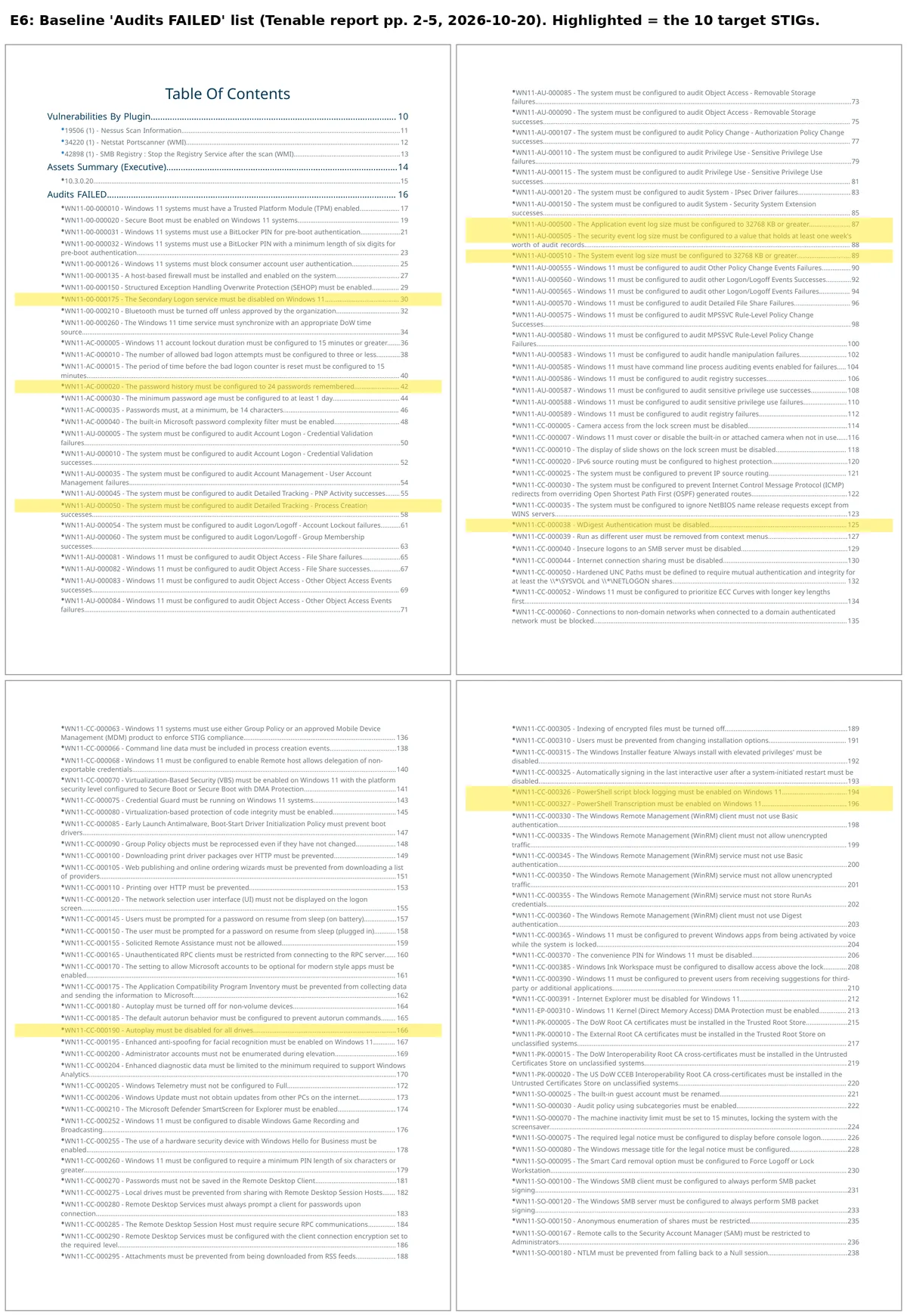
Choosing ten out of 151
I did not want ten random findings, and I did not want ten of the same kind of fix. Three rules shaped the list.
Start with visibility. If something bad happened on this machine, could anyone reconstruct it? On a default install the honest answer is "not for long." So six of the ten are about logging.
Close attack paths that need no exploit. WDigest credential caching, USB autorun and password reuse are abused as features, not vulnerabilities.
Learn a different fix mechanism each time. Registry policy, advanced audit policy, local security policy and a Windows service each behave differently.
| # | STIG ID | Requirement | Severity | Fix mechanism |
|---|---|---|---|---|
| 1 | WN11-AU-000500 | Application log at least 32768 KB | CAT II | Registry policy |
| 2 | WN11-AU-000505 | Security log holds a week of events | CAT II | Registry policy |
| 3 | WN11-AU-000510 | System log at least 32768 KB | CAT II | Registry policy |
| 4 | WN11-CC-000326 | PowerShell Script Block Logging on | CAT II | Registry policy |
| 5 | WN11-CC-000327 | PowerShell Transcription on | CAT II | Registry policy plus folder ACL |
| 6 | WN11-AU-000050 | Audit Process Creation successes | CAT II | Advanced audit policy |
| 7 | WN11-CC-000038 | WDigest authentication disabled | CAT II | Registry, no default template |
| 8 | WN11-CC-000190 | AutoPlay off for all drives | CAT I | Registry policy |
| 9 | WN11-AC-000020 | Remember 24 previous passwords | CAT II | Local security policy |
| 10 | WN11-00-000175 | Secondary Logon service disabled | CAT II | Windows service |
Severities come from the Tenable report for the v2r9 audit. Only one of the ten, AutoPlay, is CAT I, which is worth knowing if you are prioritising by severity alone.
The method: fix it, prove it, break it, prove it again
The methodology came from the internship brief, and one step looked strange to me at first. For every STIG:
- Read the STIG on STIG-A-View and confirm it is FAILED in the baseline.
- Fix it manually in Group Policy, the Registry Editor, Services or Local Security Policy.
- Rescan and confirm PASSED.
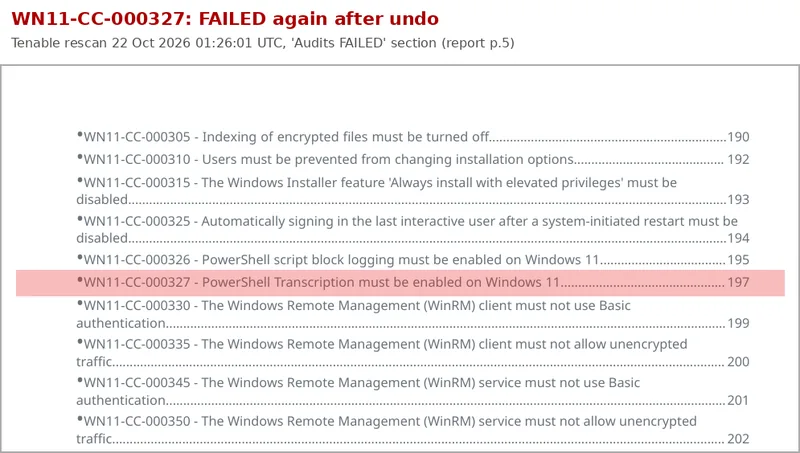
- Export the change, undo it, rescan, and confirm FAILED again.
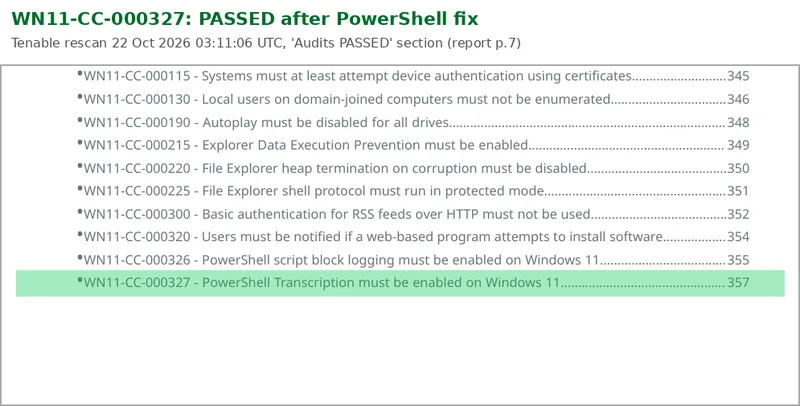
- Write a PowerShell script that applies the fix, run it, rescan, confirm PASSED.
- Publish the script.
The undo step is the strange one. Why undo a fix that worked? Because when a check flips from FAILED to PASSED after you change something, it is tempting to assume your change caused it. Maybe the scanner reads a different path that something else set. Maybe a reboot applied a pending policy. Maybe you changed two things and only one mattered. When you undo your change and the check goes back to FAILED, you have proven cause and effect. It is a control group, and it is also exactly what a change manager wants: "show me what happens if we roll this back."
Thirty separate scans for ten STIGs would take a long time, so I batched them into three rounds after the baseline: all ten manual fixes with one reboot and one scan, all ten undone with one scan, and all ten PowerShell scripts with one scan. Four scans in total, same proof.
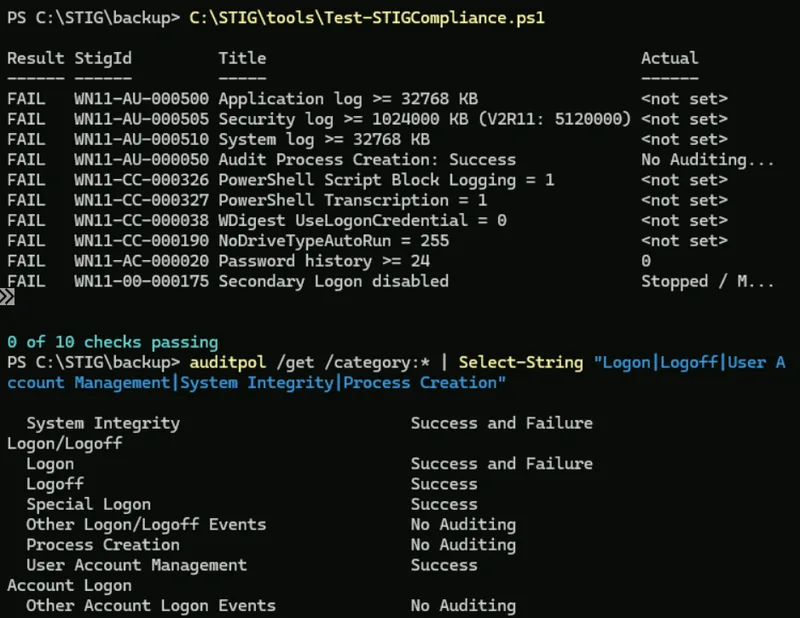
I also wrote a small pre-check, Test-STIGCompliance.ps1, that prints PASS or FAIL for all ten settings in a few seconds, so I never launched a ten-minute scan without knowing roughly what it would say.
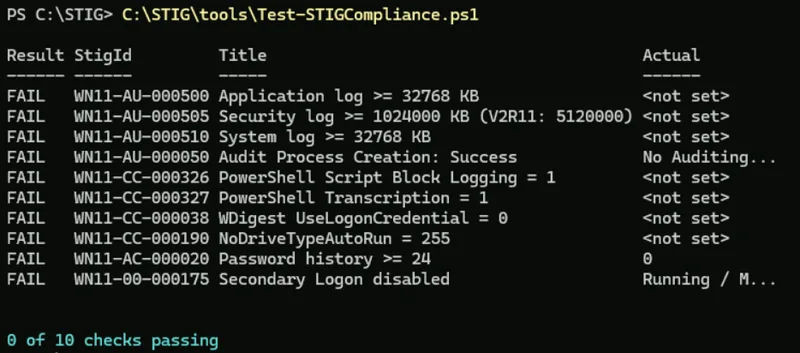
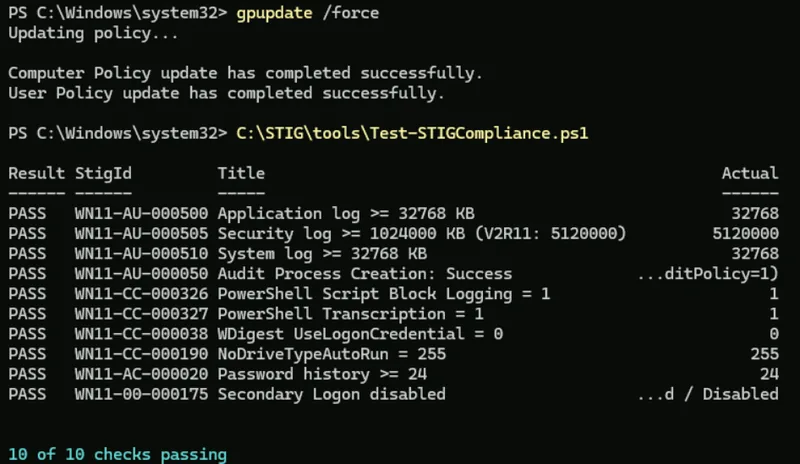
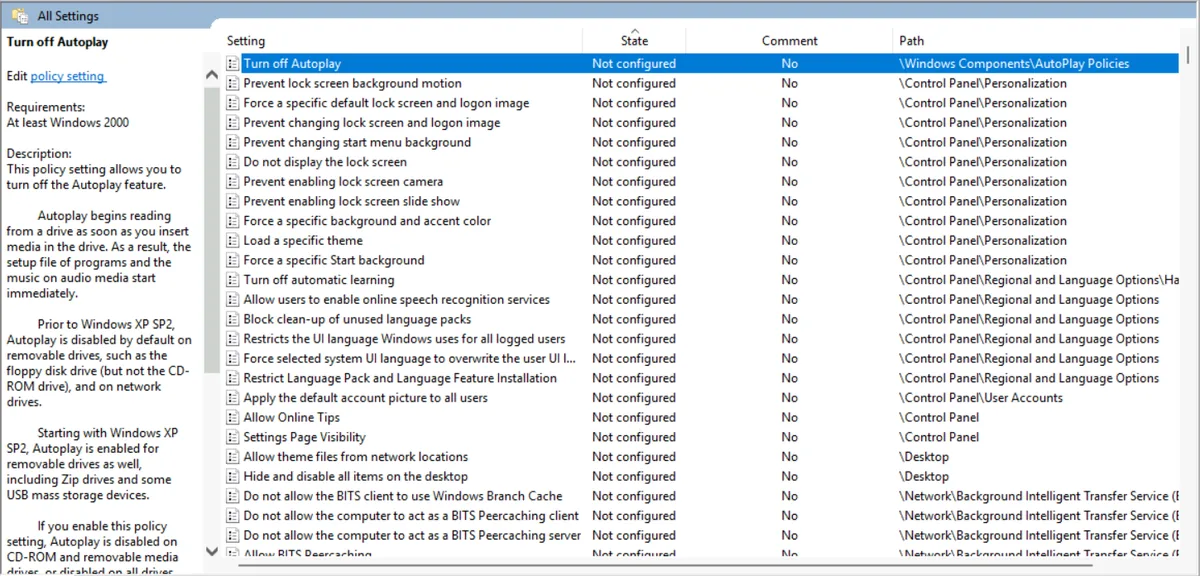
Undoing Group Policy settings properly has its own trap, which Part 2 explains in detail. The short version: "Not Configured" means "Group Policy stops managing this," not "put the default back." For the undo round I checked that no policy I had touched was still Enabled.
STIGs 1 to 3: event log sizes
The first three are the same idea applied to three logs, which makes them a good place to learn the loop. When a Windows event log fills up, the oldest events are overwritten. Think about what that means during an incident: a user clicks a phishing link on Monday, the attacker runs a few commands, creates a scheduled task for persistence and goes quiet. Nobody notices until Thursday. By then a busy machine has rolled its Security log over several times. The evidence is gone.
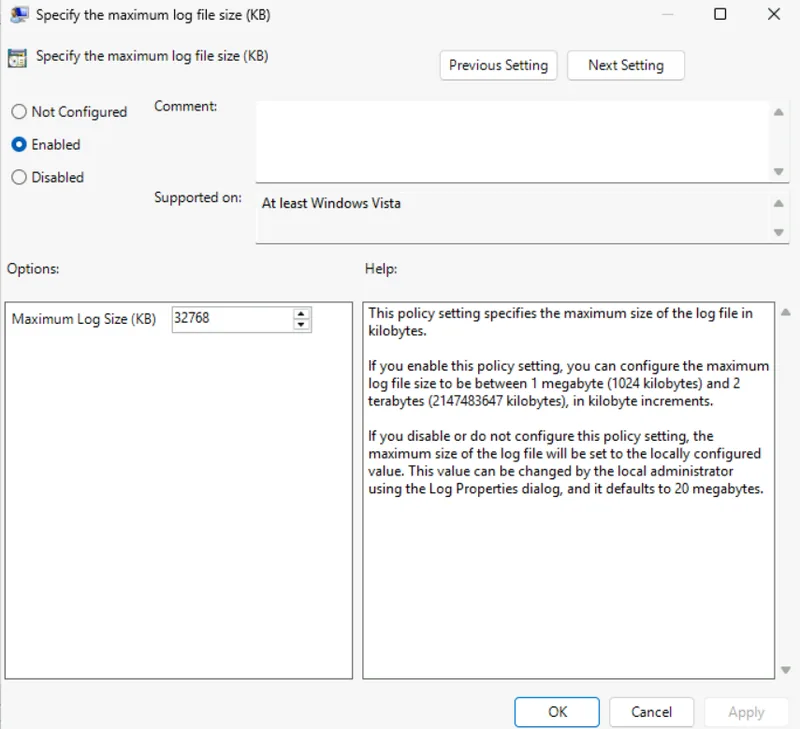
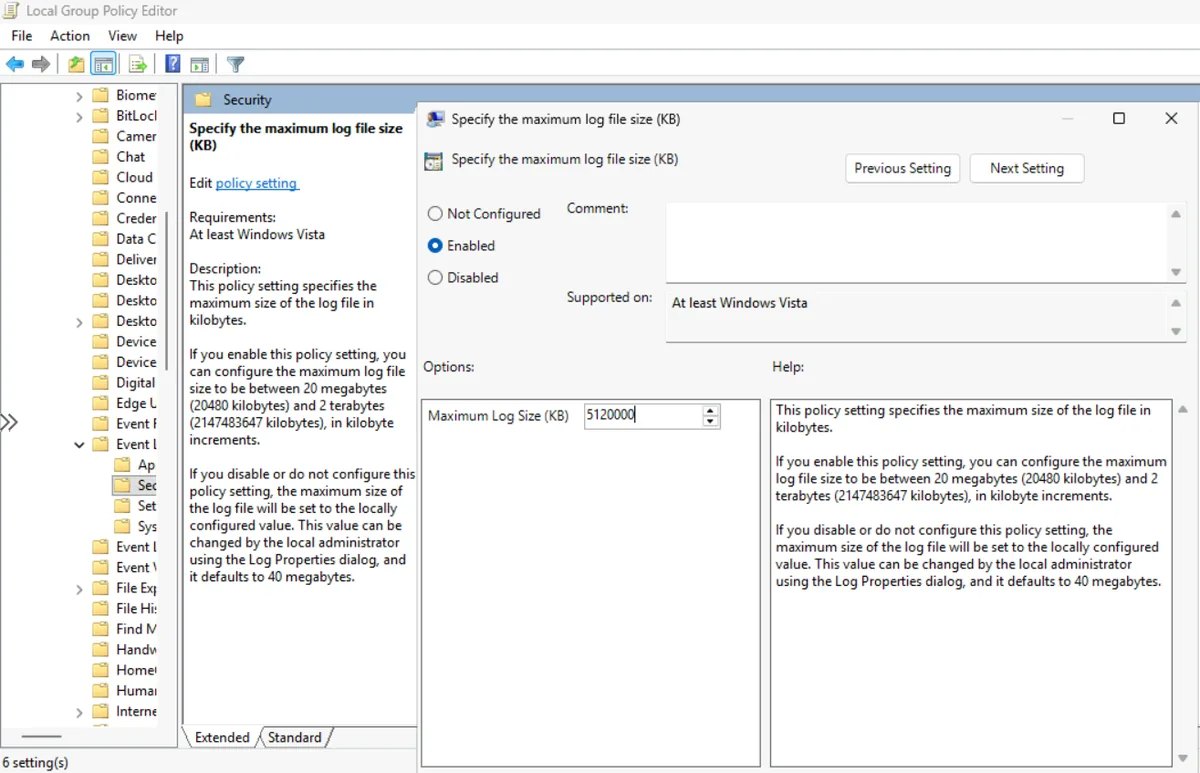
The STIG requires the Application and System logs to allow at least 32768 KB. The Group Policy help text on this build says those two default to 20 MB, and the Security log to 40 MB. For the Security log, older STIG releases required 1024000 KB (about 1 GB). The current requirement is "at least one week of audit records," and V2R11 uses 5120000 KB (about 5 GB) as its example. I set 5120000 so the script passes both old and new audit files. The value is a ceiling, not a reservation, so it does not eat 5 GB of disk on day one.
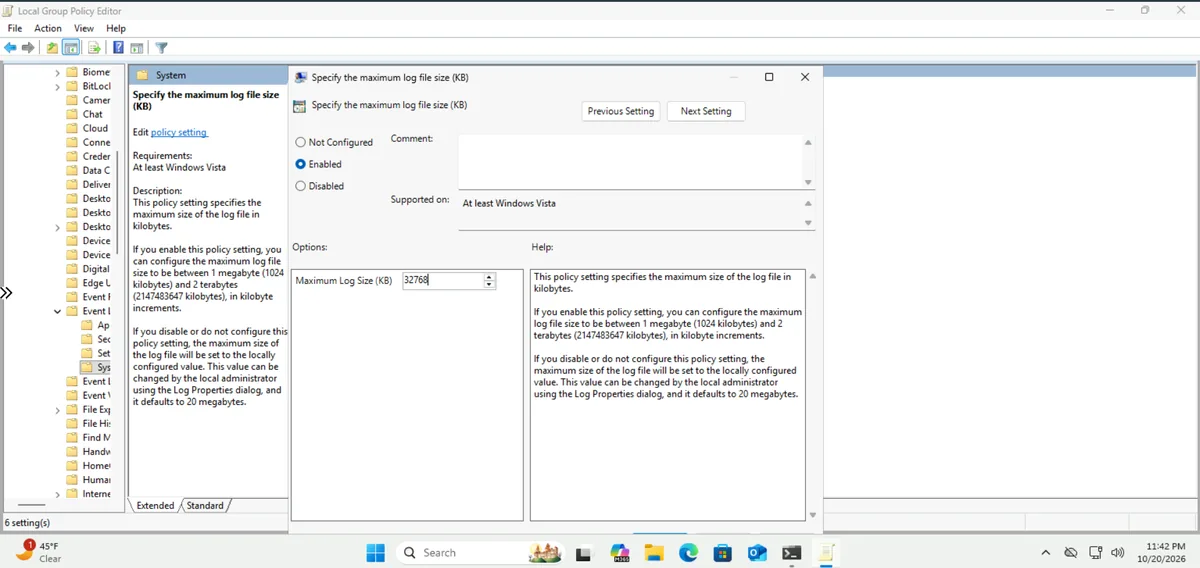
The manual fix is in the Local Group Policy Editor under Computer Configuration, Administrative Templates, Windows Components, Event Log Service, then the log name, then "Specify the maximum log file size (KB)". Behind the scenes it writes a DWORD called MaxSize under HKLM\SOFTWARE\Policies\Microsoft\Windows\EventLog\<LogName>, which is exactly what Tenable checks.
WN11-AU-000500: Application log
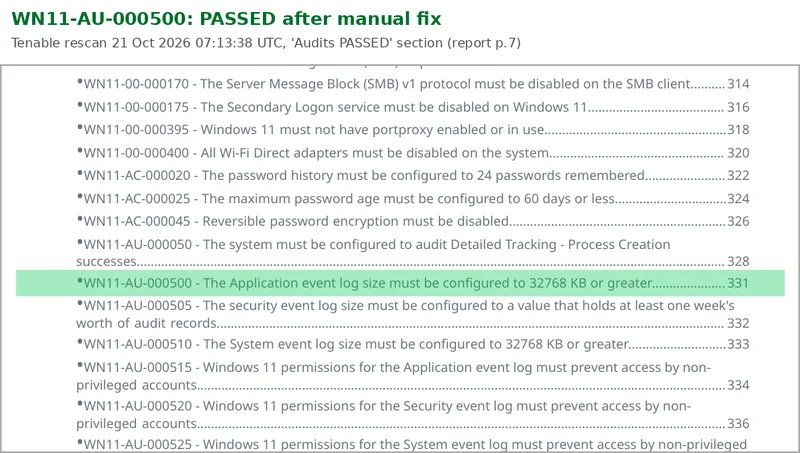
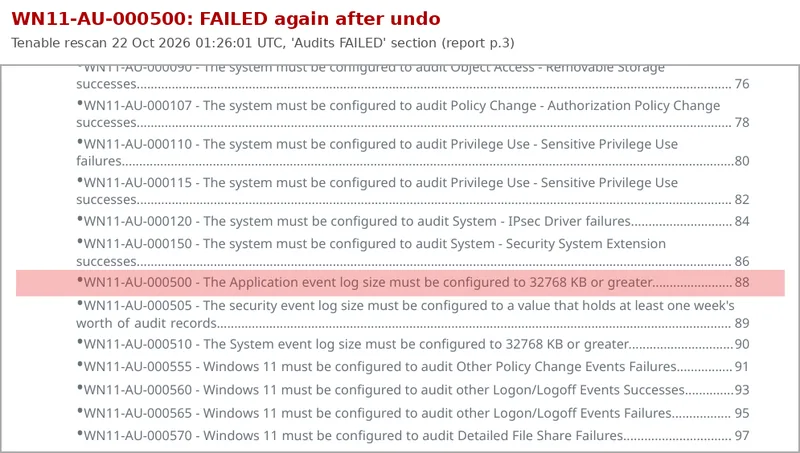
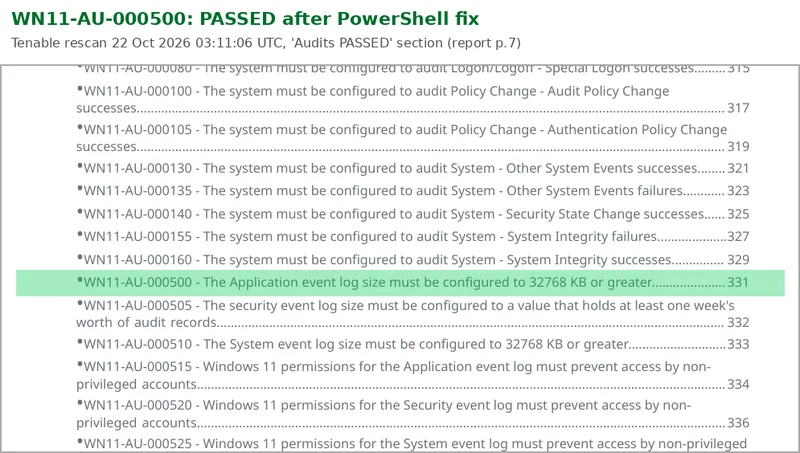
Before undoing the fix, I exported the key with reg export. Reading the .reg file is a small skill that pays off constantly:
reg export "HKLM\SOFTWARE\Policies\Microsoft\Windows\EventLog\Application" C:\STIG\backup\WN11-AU-000500.reg /y
The file contains "MaxSize"=dword:00008000. Hex 8000 is 32768 decimal. Once you can see the exact value a GUI setting writes, you can automate it. The core of the PowerShell version:
$RegPath   = 'HKLM:\SOFTWARE\Policies\Microsoft\Windows\EventLog\Application'
$Required  = 32768
if (-not (Test-Path -Path $RegPath)) { New-Item -Path $RegPath -Force | Out-Null }
New-ItemProperty -Path $RegPath -Name 'MaxSize' -PropertyType DWord -Value $Required -Force | Out-Null

# Apply the size to the live log now (wevtutil takes bytes), no reboot needed
wevtutil sl Application /ms:$([int64]$Required * 1024)
It then reads the value back and prints [PASS] or [FAIL] with exit code 0 or 1. The wevtutil sl line is my addition: the policy value is what the scanner checks, and this makes the live log grow immediately instead of after a reboot.
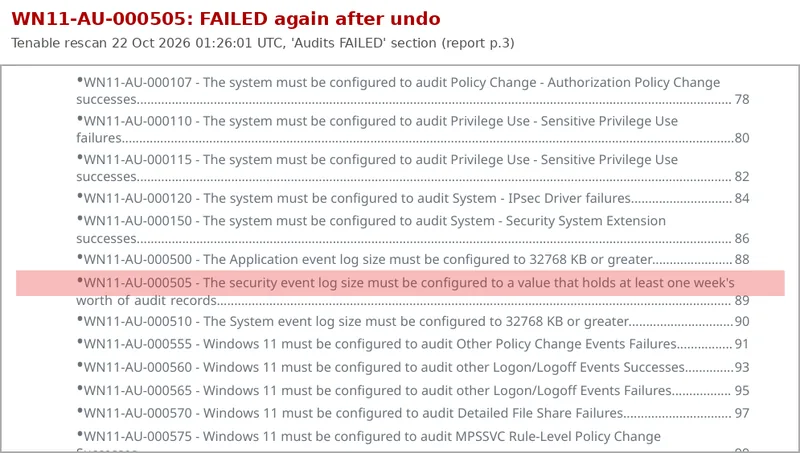
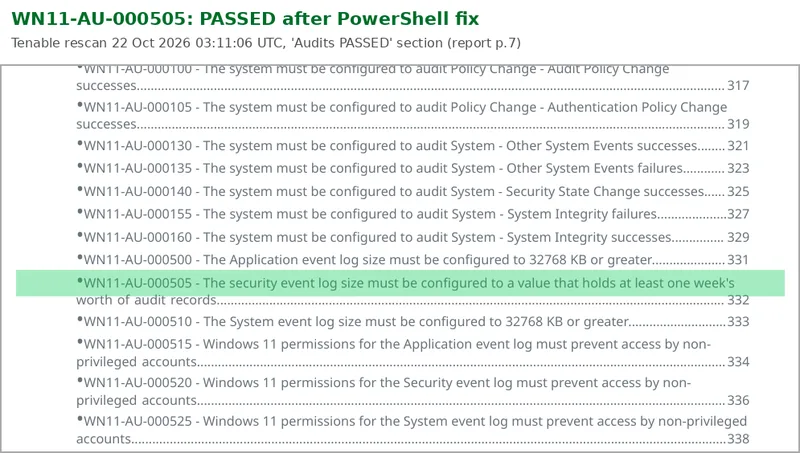
WN11-AU-000505: Security log
The Security log is where logons (4624, 4625), process creation (4688), privilege use and account changes live. It is the single most important log in most investigations.
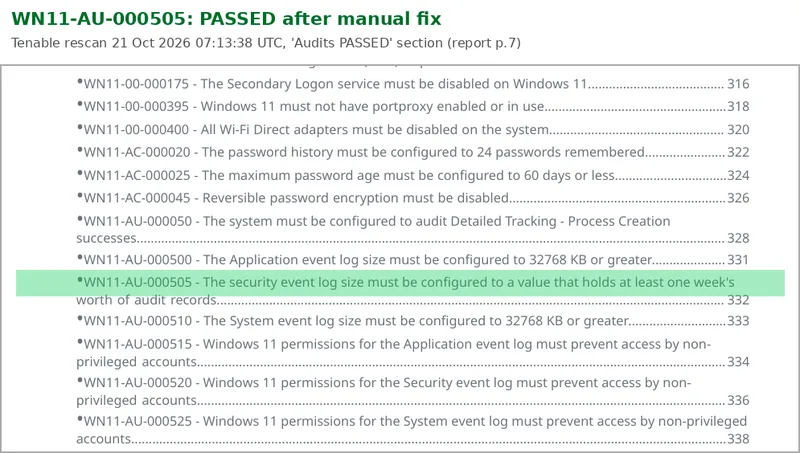
WN11-AU-000510: System log
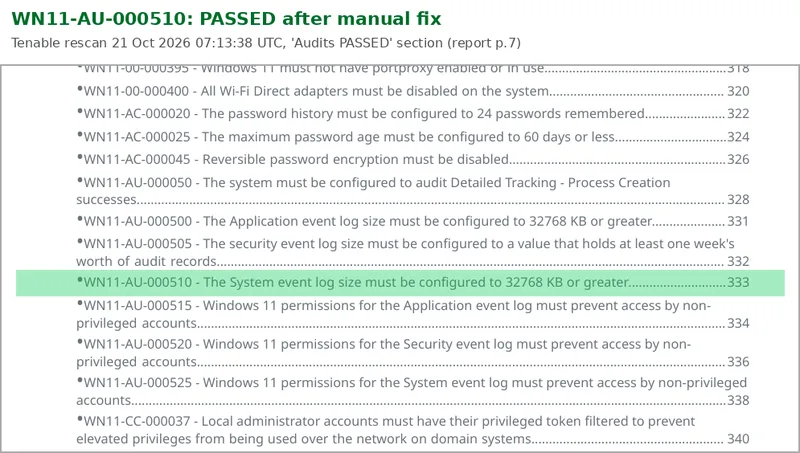
The System log holds service installs (event 7045), driver loads and unexpected shutdowns. Event 7045 is one of the first places to look for persistence and for tools like PsExec.
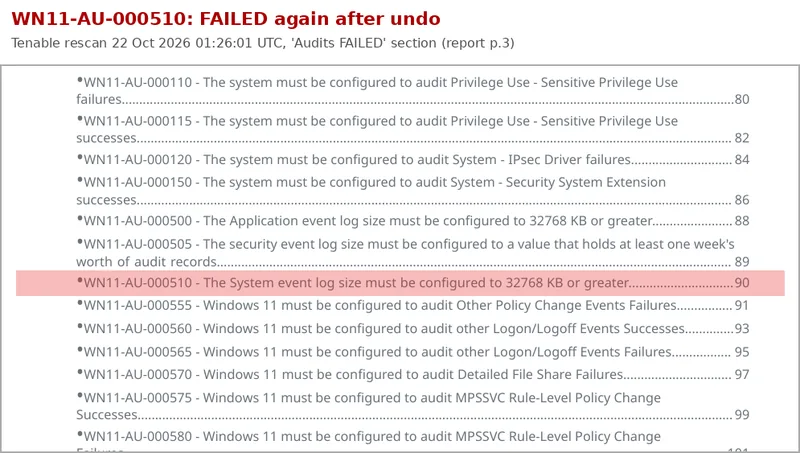
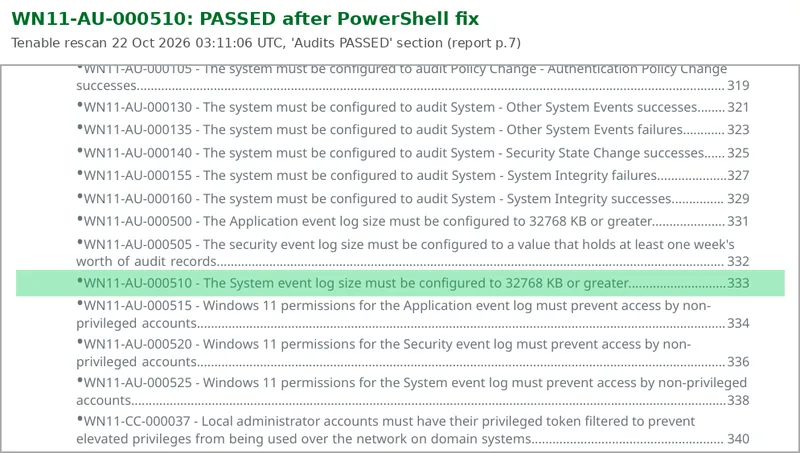
After three rounds of the same pattern, one point is worth making: in a real environment all three belong in a single Group Policy Object. The scripts are for machines Group Policy does not reach, such as workgroup machines, golden image builds and Intune gaps.
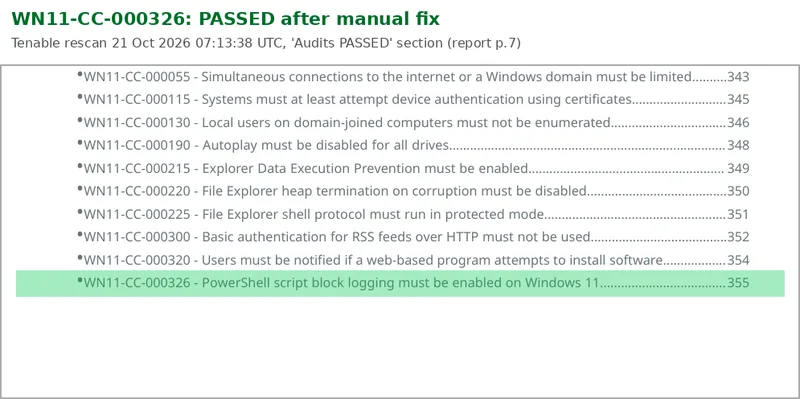
STIG 4: PowerShell Script Block Logging (WN11-CC-000326)
If you take one control from this series, take this one. PowerShell is on every Windows machine and attackers love it. A common trick is passing a Base64-encoded command with -EncodedCommand so the real code never appears in plain text on the command line.
Script Block Logging defeats that. With it on, PowerShell logs the full text of every script block it executes, after decoding, as event 4104. In Windows PowerShell 5.1 that goes to the Microsoft-Windows-PowerShell/Operational log. Code downloaded straight into memory that never touched disk still lands in the log in readable form. (Microsoft's PowerShell logging documentation is written for PowerShell 7, which logs to a separate PowerShellCore/Operational channel, so check which one you are querying.)
The fix is one Group Policy setting, "Turn on PowerShell Script Block Logging", which writes EnableScriptBlockLogging = 1 under HKLM\SOFTWARE\Policies\Microsoft\Windows\PowerShell\ScriptBlockLogging.
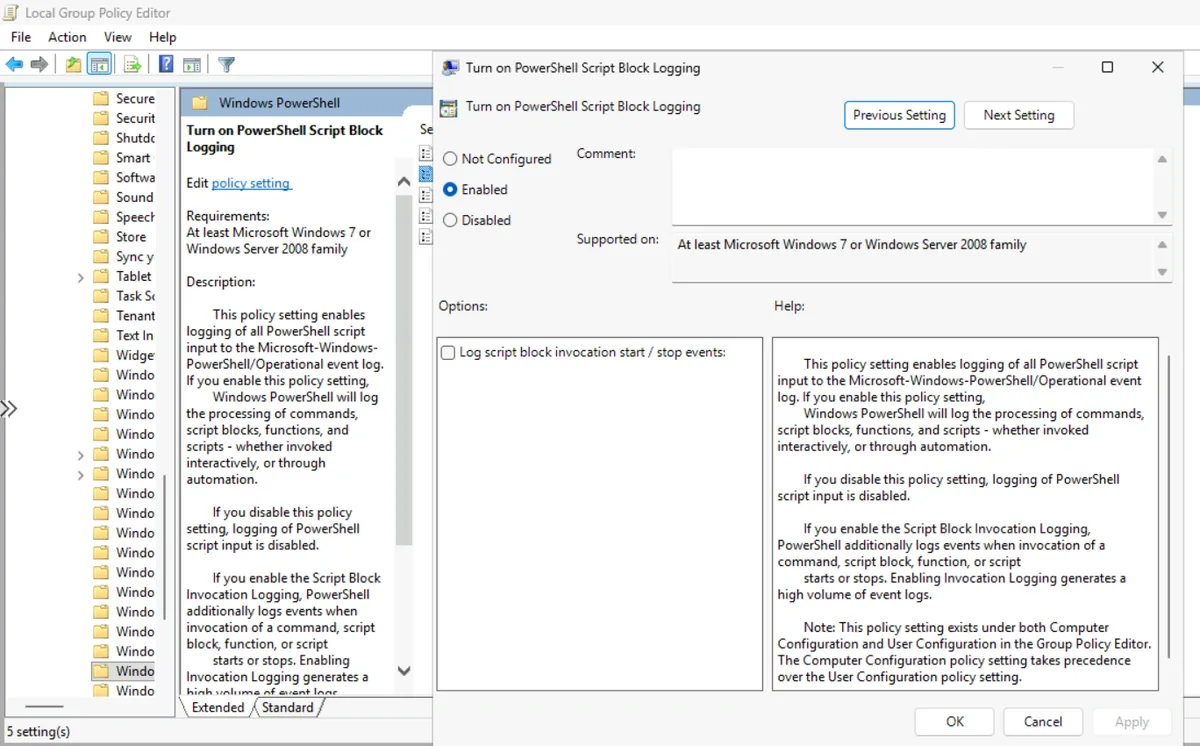
The scan proves the registry value. To prove the logging actually works, open a new PowerShell window and check for your own test string:
Write-Output "stig-test-4104"
Get-WinEvent -LogName 'Microsoft-Windows-PowerShell/Operational' -MaxEvents 20 |
    Where-Object Id -eq 4104 | Select-Object TimeCreated, Message -First 3
Your test string shows up inside a 4104 event. That is the kind of check that explains the control to a non-technical reader in two seconds.
STIG 5: PowerShell Transcription (WN11-CC-000327)
Script Block Logging records the code. Transcription records the session: what was typed and what came back on screen, written to a text file. During an investigation a transcript reads almost like a screen recording.
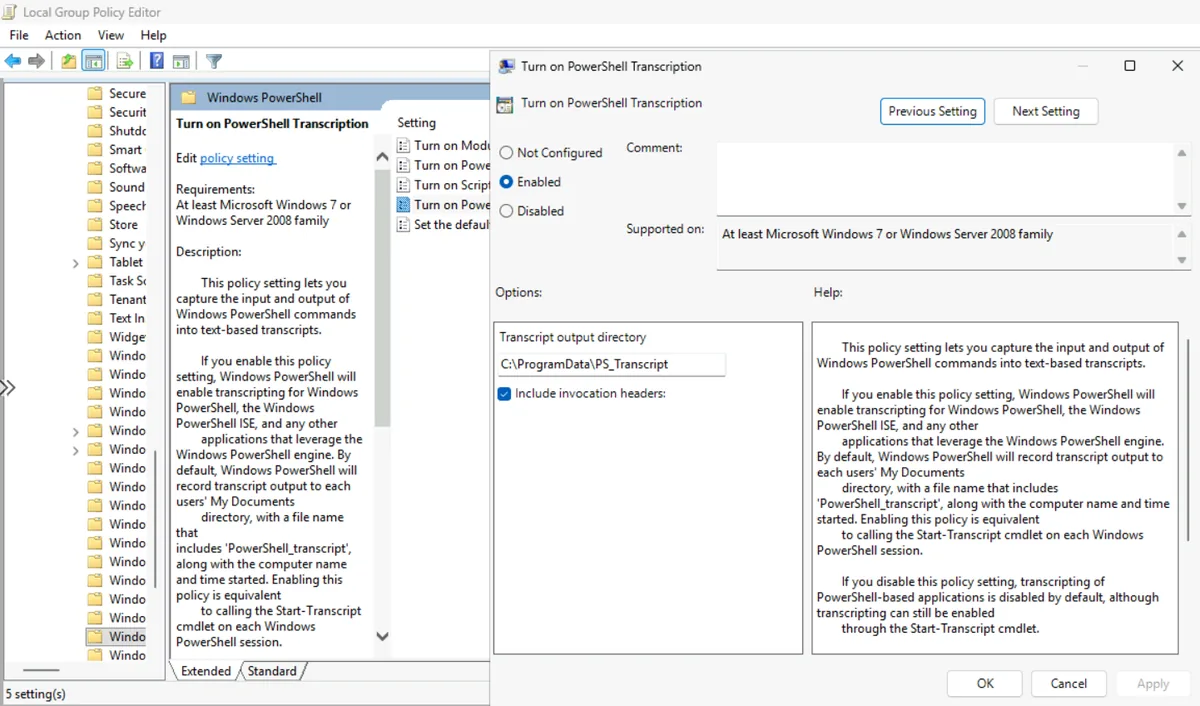
There is a detail here that is easy to miss. Turning transcription on is not enough: the output folder must be locked so standard users can write transcripts into it but cannot read or change them. Otherwise an attacker running as a normal user could delete the evidence, or read an administrator's transcript that contains something sensitive.
The script creates the folder, removes inherited permissions, gives Administrators and SYSTEM full control, and gives Users and Authenticated Users only Write Data and Append Data. It uses well-known SIDs instead of group names, so it works on a Windows install in any language, where "Administrators" might be "Administradores":
# *S-1-5-32-544 = Administrators, *S-1-5-18 = SYSTEM
# *S-1-5-32-545 = Users, *S-1-5-11 = Authenticated Users
icacls.exe $TranscriptDir /inheritance:r /grant:r '*S-1-5-32-544:(OI)(CI)(F)' '*S-1-5-18:(OI)(CI)(F)'
icacls.exe $TranscriptDir /grant:r '*S-1-5-32-545:(OI)(CI)(WD,AD)' '*S-1-5-11:(OI)(CI)(WD,AD)'
Then it writes three policy values: EnableTranscripting, OutputDirectory and EnableInvocationHeader.
There is a real risk to name here. People paste secrets into PowerShell: API keys, passwords, connection strings. With transcription on, those land in a text file. The locked folder limits who can read it, but the better answer is a habit: never paste a secret into the console, use Get-Credential or a secret store. That nuance is exactly what a change advisory board wants to hear before approving a logging change.
What Part 1 proved
Five controls, three rounds, each one FAILED at baseline, PASSED after the manual fix, FAILED after the undo and PASSED after the script. Event logs that keep a week or more of history instead of hours, and PowerShell activity recorded both as code and as sessions.
The next five did not go as smoothly. One of them passed its own check while silently switching off thirteen others, and another refused to stop no matter how I asked. That is all in Part 2, along with the final numbers and the script design rules. If you work on Linux too, the same "measure, harden, re-measure" loop is what I used in my Linux hardening audit with Lynis and rkhunter.
The full procedure, including every Group Policy path, registry path and undo step, is in the RUNBOOK on GitHub.
Frequently asked questions
What is a DISA STIG?
A Security Technical Implementation Guide is a hardening standard published by the US Defense Information Systems Agency for a specific product, such as Windows 11, Windows Server or Cisco IOS. Each requirement has an ID like WN11-AU-000500, a severity from CAT I (most serious) to CAT III, a check text that says what to inspect, and a fix text that says what to change.
Why does a fresh Windows 11 install fail so many STIG checks?
Microsoft ships defaults that work for the widest range of users, while DISA writes for systems that may be targeted by capable attackers and must support investigations. On top of that, many checks fail simply because a registry value is missing, even when Windows already behaves securely by default. My fresh Windows 11 25H2 VM failed 151 of 258 checks, 58.5 percent.
Do I need a credentialed scan for STIG compliance?
Yes. Compliance checks read the registry, audit policy, local security policy and service configuration, which a scanner can only see after logging in. Without credentials a compliance scan sees almost nothing. In Tenable that means adding Windows credentials to the scan, and in a lab it often also means letting the scanner reach SMB on TCP 445.
Why undo a STIG fix that already passed?
Because a pass after a change does not prove the change caused it. Undoing the fix and watching the check fail again proves cause and effect: your setting, and only your setting, controls that result. It also gives you a tested rollback plan, which is exactly what a change advisory board asks for.
How large should the Windows Security event log be for the STIG?
WN11-AU-000505 requires a size that holds at least one week of audit records. Older STIG releases and many audit files expect 1024000 KB, and newer guidance uses 5120000 KB as its example. Setting 5120000 KB passes both. It is a maximum, not a reservation, so it does not consume 5 GB of disk the moment you set it.
What is the difference between PowerShell Script Block Logging and Transcription?
Script Block Logging records the code PowerShell actually executes, after decoding, as event 4104 in the Microsoft-Windows-PowerShell/Operational log in Windows PowerShell 5.1. Transcription writes a text file of the whole session, what was typed and what came back. One shows the code, the other reads like a recording of the session.
Can PowerShell transcription capture passwords?
Yes, if someone pastes a secret into the console it lands in the transcript. That is why the STIG requires a locked-down output folder where normal users can write but not read, and why the better habit is never pasting secrets at all, using a credential prompt or a secret store instead.
Should STIG settings be applied with Group Policy or PowerShell?
On domain-joined machines, Group Policy or Intune, because they keep reapplying the setting and prevent drift. PowerShell scripts fill the gaps: workgroup machines, golden image builds, and anything the management platform misses. Scripts that return an exit code can also run as Intune remediations.