%BLOG-6-SUPPORT
I Automated the Seven Microsoft 365 Admin Tasks That Actually Fill an IT Ticket Queue
Every organization running Microsoft 365 has the same handful of tickets on repeat, week after week, regardless of industry or size. Someone starts on Monday and needs an account, a license, group memberships, and a manager assigned before their first meeting. Someone else leaves the company, sometimes on good terms with two weeks of notice and sometimes not, and their access needs to disappear completely, immediately, with no ambiguity about whether it actually happened. Somewhere in between, someone needs a new team group set up, someone accidentally deletes the wrong one, someone on the help desk needs enough admin access to reset a password but nowhere near enough to touch the whole tenant, someone insists an email they sent never arrived, and once in a while everyone just wants to know whether Microsoft is having a bad day or the tenant is.
I started by automating the first two of these, onboarding and offboarding, in my own Microsoft 365 tenant, clicking through the admin center by hand the way most people do when they are just getting comfortable with the platform. It was slow enough, and mistake-prone enough, that I decided to actually fix it the way a real IT team would: with PowerShell, the Microsoft Graph API, and an audit trail that could survive a real security review. Once that was working, the same pattern kept showing up everywhere else I looked in the admin center: a task that takes five or six clicks across two different screens every single time, done often enough that a script pays for itself almost immediately. So I kept going. This article walks through all seven pieces, why each one matters, how it works, and what broke along the way, in enough detail that you could build the same thing yourself even if you have never touched the Graph API before.
The problem with doing it by hand
Manual onboarding in the Microsoft 365 admin center takes somewhere between fifteen and thirty minutes per person if you are being careful, longer if you are also configuring anything beyond the basics. You create the user, assign the license, add them to the right groups, set their manager, generate a temporary password, and decide how to communicate that password securely. Every one of those is a separate click, a separate screen, a separate opportunity to get something wrong: the wrong department, a forgotten group, a license that never actually got applied because you clicked away from the screen before it saved.
None of that is catastrophic in isolation. A new hire missing a group membership on day one is an annoyance, not an incident. But multiply that by every new hire a company brings on in a year, and the aggregate cost in IT hours and downstream confusion adds up fast, especially for smaller IT teams without dedicated identity management tooling.
Offboarding is the side that actually worries me, and it should worry anyone thinking about this seriously. If IT is slow, if a termination ticket sits in a queue over a weekend, or if the offboarding step gets missed entirely because the person who normally handles it is out sick, a terminated employee can retain working access to email, Teams, and any connected systems for days. That is not a hypothetical scenario I am inventing to make a point. Delayed deprovisioning shows up constantly in security audit findings and in real breach postmortems, and it is one of the more preventable categories of security failure that exists, precisely because the fix is not exotic. It is just consistency, applied every single time, without exception, regardless of how busy IT is that week.
The same underlying pattern shows up in the parts of this project that are not about individual people at all. Groups sprawl quietly over time, nobody deletes the ones nobody uses, and the one time someone does delete a group, it is often the wrong one, deleted under pressure, with no clear recovery path anyone remembers in the moment. Admin access sprawls in a similar, quieter way: it is always easier to hand someone Global Administrator than to figure out exactly which narrower role actually covers what they need, and that shortcut compounds every time someone new joins the IT team. Mail flow issues and service outages both cost the same kind of hidden tax: time spent troubleshooting the wrong problem, because nobody checked the obvious thing first.
Why this is worth automating specifically
There is a version of this problem that gets solved by simply writing a better checklist and asking people to follow it more carefully. That version does not actually work, not because people are careless, but because manual processes degrade under load in predictable ways. The tenth onboarding of the week gets less careful attention than the first one. The offboarding that happens at 4:45 PM on a Friday, right before a long weekend, is exactly the one most likely to get rushed or deferred. The group that gets deleted at the end of a stressful reorg conversation is exactly the one nobody remembers how to restore an hour later.
Automation does not have bad days. A script that disables an account, revokes every active session, strips licenses, and removes group memberships behaves identically whether it is the first offboarding of the quarter or the fiftieth, whether it is run by someone who has done this a hundred times or someone doing it for the first time following a runbook. That consistency is the actual value proposition here, more than the time savings, although the time savings are real too.
What I built
Seven PowerShell scripts, all built against the Microsoft Graph PowerShell SDK and, where the task actually lives in Exchange rather than Graph, the Exchange Online PowerShell module. Worth a brief aside here: if you have seen older tutorials referencing the "AzureAD" or "MSOnline" PowerShell modules, those are deprecated and being retired by Microsoft in favor of the Graph SDK, so building against Graph from the start means the automation is not built on a foundation that is already being sunset. The same is true on the Exchange side: message trace was rebuilt in 2025, and the classic Get-MessageTrace cmdlet most tutorials still reference was deprecated on September 1, 2025, in favor of Get-MessageTraceV2.
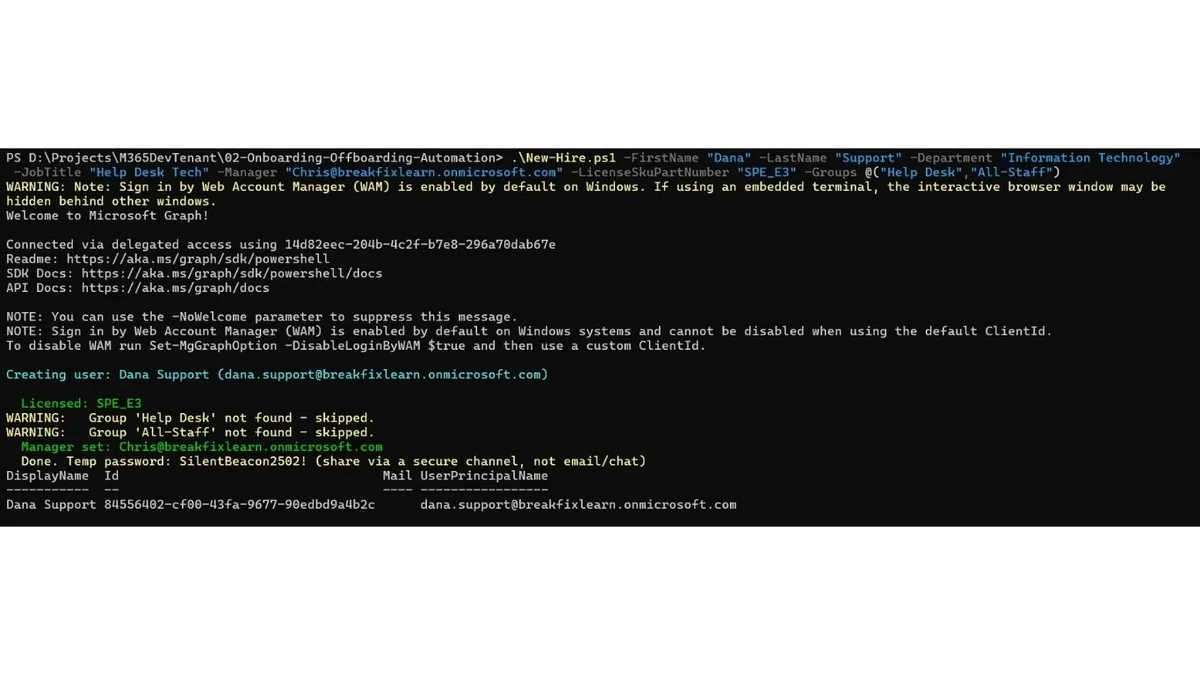
New-Hire.ps1 creates the account, sets a temporary password that forces a change at first login, assigns the correct license by looking up the SKU dynamically rather than hardcoding a fragile identifier, adds the person to whichever groups are specified, sets their manager, and logs every action to a CSV file with a timestamp and the identity of whoever ran the script.
Offboard-User.ps1 does the reverse, and does it thoroughly rather than partially: disables sign-in, revokes every active session and refresh token, strips every license, removes every group membership, hides the account from the Global Address List, and optionally converts the mailbox to shared so a manager can retain access during a transition period.
Manage-Groups.ps1 creates, renames, deletes, and manages membership for both Microsoft 365 groups and plain Security groups, and requires you to retype a group's name before it will actually delete it, a deliberate friction point that exists specifically to stop a stressful, distracted moment from becoming an accidental deletion.
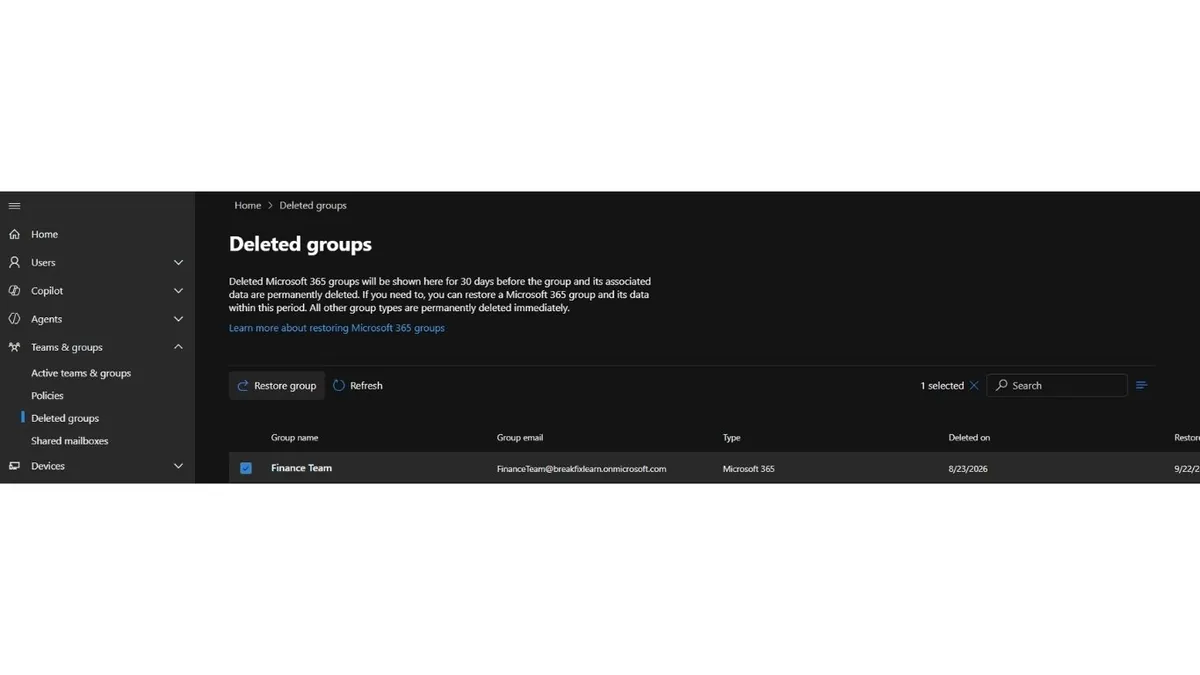
Restore-DeletedGroup.ps1 lists and restores soft-deleted Microsoft 365 groups within the 30 day recovery window Microsoft gives you, by name or by object Id, and restores everything attached to the group (its SharePoint site, its Team, its Planner data) automatically along with it.
Manage-RoleDelegation.ps1 assigns, removes, and audits delegated Entra ID admin roles, so a help desk technician gets exactly the Helpdesk Administrator role they need to reset passwords, rather than the far broader Global Administrator role that would also let them do considerably more damage if their account were ever compromised.
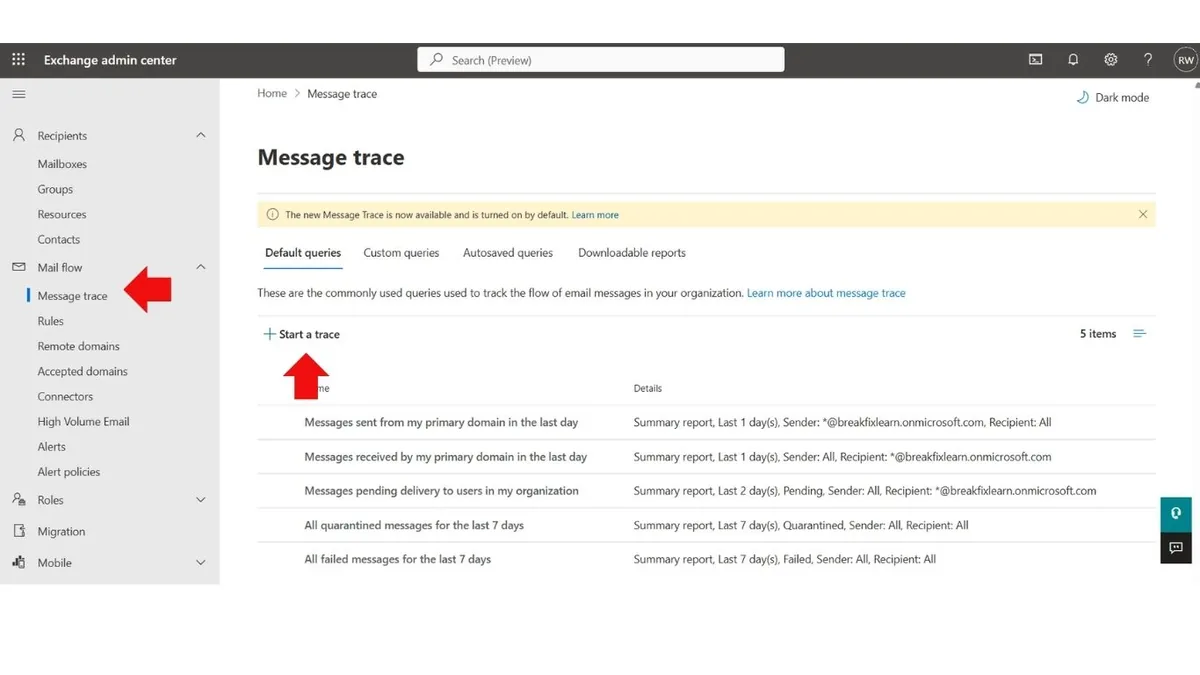
Troubleshoot-MailFlow.ps1 runs a message trace against a sender, recipient, and date range, and translates the result into plain language, so "did my email arrive" resolves in seconds instead of a trip through the Exchange admin center.
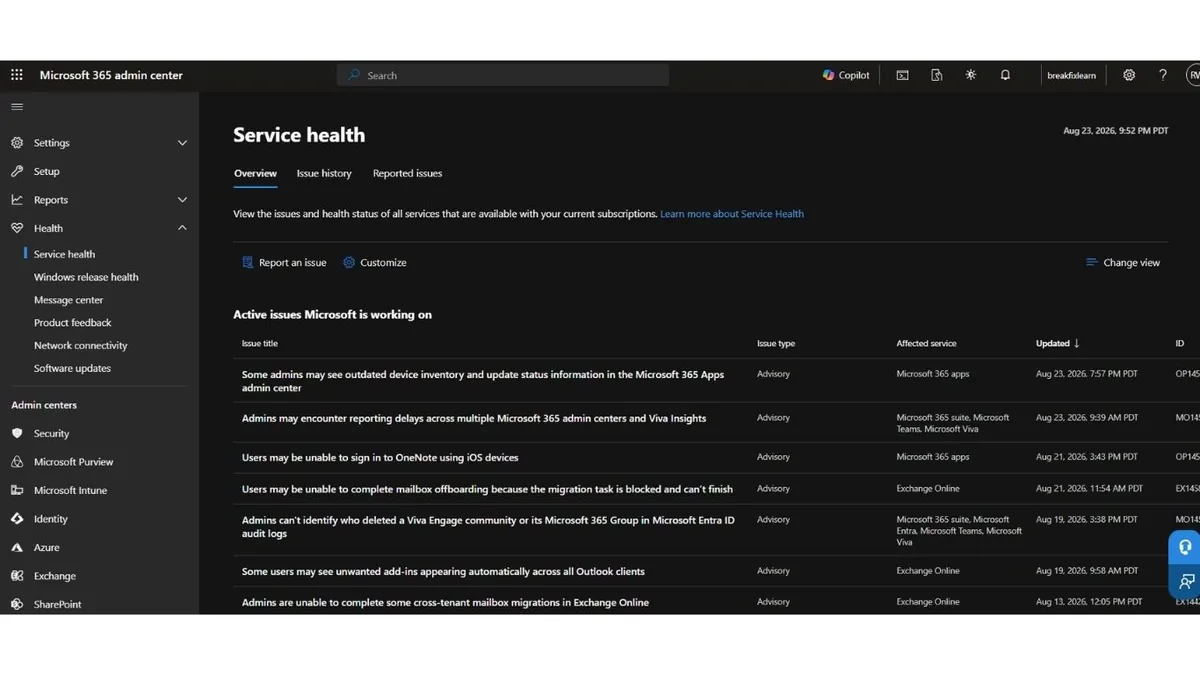
Get-ServiceHealthReport.ps1 pulls the tenant's current service health, any active Microsoft-side incidents, tenant usage reports, and license activation detail, answering "is this Microsoft's problem or ours" before anyone spends thirty minutes troubleshooting something Microsoft is already fixing.
Every action that changes the tenant, creating a user, removing a license, assigning a role, restoring a group, writes to a structured audit log: who ran it, when, what happened. That log is not a nice-to-have. It is the artifact a security review or a compliance audit actually asks for, and having it generated automatically as a byproduct of doing the work, rather than reconstructed after the fact from memory or scattered email threads, is the difference between a defensible process and a hopeful one.
Walking through the onboarding script in more detail
The core of New-Hire.ps1 is a function that takes a first name, last name, department, job title, manager, license SKU, and a list of groups, and does five things in sequence, checking the result of each before moving to the next rather than assuming success blindly.
First, it constructs a display name and a user principal name from the provided first and last name, generates a temporary password using a small readable-word-plus-number pattern (readable temp passwords are easier to communicate verbally or over a secure channel without transcription errors, compared to fully random strings), and calls New-MgUser with the account enabled and a password profile that forces a change at next sign-in.
Second, it looks up the requested license by SKU part number using Get-MgSubscribedSku rather than a hardcoded GUID, because SKU GUIDs are tenant-specific and hardcoding one is exactly the kind of fragile shortcut that breaks the first time the script gets reused somewhere else. If the SKU is not found, it warns rather than failing silently, which matters because a license that quietly fails to apply is a much worse outcome than an error message telling you immediately that something needs attention.
Third, it iterates over the requested group names, looks each one up by display name, and adds the new user as a member if the group exists, warning explicitly if it does not rather than assuming the group name was a typo and guessing.
Fourth, if a manager was specified, it looks up that manager's own account and sets the manager relationship using a proper Graph directory object reference, which is what actually makes the manager relationship show up correctly in the org chart view within the admin center and in Microsoft Graph queries elsewhere.
Fifth, and this is the part that actually makes the whole thing defensible later, it writes a structured log entry containing the timestamp, the action taken, the new user's details, the license and groups applied, and the identity of the admin account that ran the script, appending to a CSV rather than overwriting it so the log accumulates a full history over time.
Walking through the offboarding script in more detail
Offboard-User.ps1 follows a similar structure but with a different, more security-critical sequence, and the order here is deliberate rather than arbitrary.
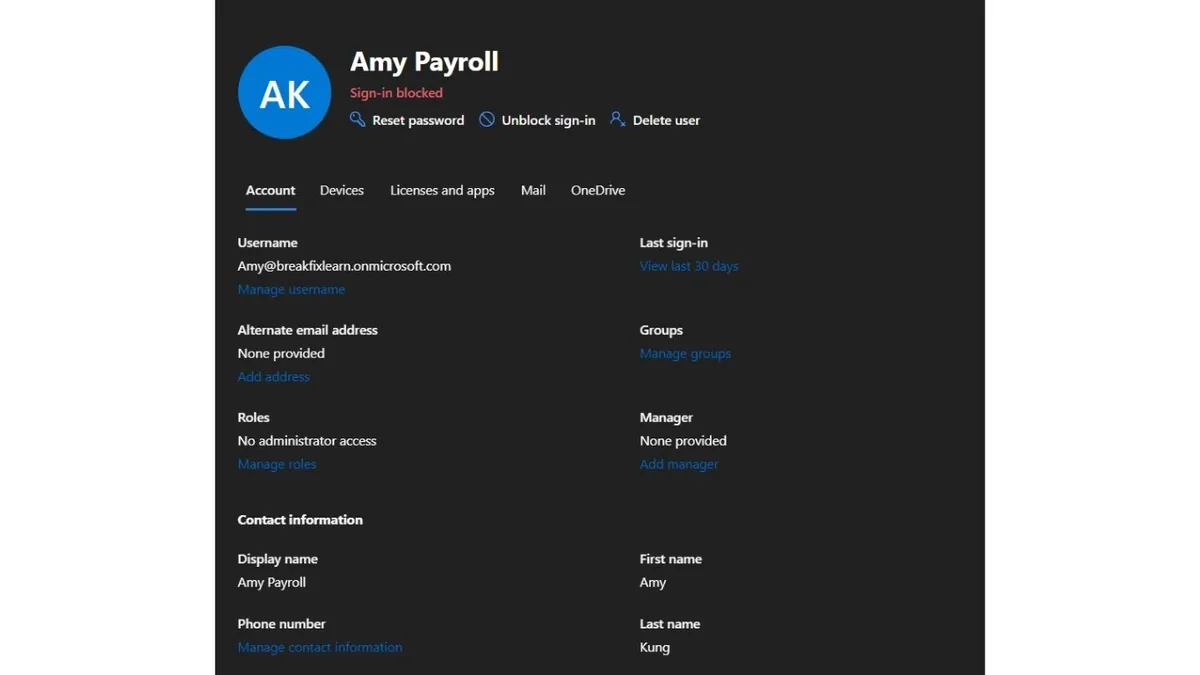
It starts by disabling the account's ability to sign in, which is the fastest, cheapest action to take and closes the door to any brand new authentication attempt within seconds of the script running.
It then explicitly revokes all refresh tokens tied to the account, using the Graph SDK's session invalidation cmdlet, Revoke-MgUserSignInSession. This is the step that actually forces every existing session, on every device, in every app the person was signed into, to require re-authentication, which then fails because the account is already disabled. Skipping this step and relying on account disablement alone is a common mistake, because a session that was already active before the account was disabled can, in some client configurations, continue functioning for a period of time until the client tries to refresh its token and gets rejected. Explicitly revoking sessions closes that gap immediately instead of waiting for it to close itself eventually.
Next, it walks through every group the user belonged to and removes them one at a time, logging any failures rather than stopping the whole process if one group removal fails for some unrelated reason.
It then queries every license currently assigned to the user and strips all of them in a single batched call, which returns those license seats to the tenant's available pool immediately rather than leaving them silently consumed by a disabled account that will never use them again.
It hides the user from the Global Address List so they stop appearing in autocomplete suggestions and directory searches, with a fallback noted in the script for the cases where that specific property gets rejected for a mail-enabled object and needs to be set from the Exchange Online side instead.
Finally, if requested, it converts the mailbox to a shared mailbox using the Exchange Online PowerShell module, which preserves the mailbox contents and allows a manager to be granted access for a transition period without leaving a live, sign-in-capable, licensed account sitting around indefinitely.
One detail worth calling out because it is the kind of thing you only learn by actually watching the output scroll by: two of the Graph cmdlets this script depends on, Revoke-MgUserSignInSession and Set-MgUserLicense, return raw objects by default. Left uncaptured, PowerShell auto-prints them, and in the case of Set-MgUserLicense, that means the entire updated user object, every property, dumped to the console right in the middle of what should be a clean status message. It looks alarming the first time you see it, like something crashed, even though nothing actually failed. The fix is simply piping both calls to Out-Null so only the intended confirmation messages show. Small detail, but it is exactly the kind of polish that separates a script that works from a script you would actually hand to someone else on the team.
Managing groups, and recovering from the one you delete by mistake
Group sprawl is a quieter problem than a missed offboarding, but it is a real one. Groups get created for a project that ends six months later and nobody deletes the group. Nobody remembers whether a given group is a Microsoft 365 group, with its own mailbox, calendar, and SharePoint site attached, or a plain Security group that exists purely to gate access to something. Choosing the wrong type at creation time is an easy, common mistake, and Manage-Groups.ps1 exists partly just to make that choice explicit every time instead of something people click through without reading.
The more interesting half of this part of the project is recovery. Microsoft 365 groups are soft-deleted for 30 days before permanent removal, which is generous, but only useful if you actually know the recovery path exists and how to use it under pressure. Restore-DeletedGroup.ps1 lists everything currently sitting in that 30 day window and restores a specific one by name or object Id, bringing back not just the group itself but everything attached to it: the Team, the SharePoint site, the Planner data. I tested this by deliberately deleting a group I had just created, watching it show up in the deleted-items list, and restoring it, specifically because I did not want the first time I actually relied on this recovery path to be a real, stressful situation with a real group that mattered.
Deletion itself requires retyping the group's name as a confirmation step before Manage-Groups.ps1 will actually delete anything. That is a deliberate piece of friction. The scenario it defends against is not carelessness in the abstract, it is the very specific, very human situation of deleting the wrong "IT" group when there are two of them and you are moving quickly.
Delegating admin access instead of handing out Global Administrator
This is the part of the project I think matters most from a security standpoint, and it is also the part most likely to get skipped by a small IT team just trying to get things working. It is always faster, in the moment, to give someone Global Administrator. It requires no research into which narrower role actually covers what they need, no risk of discovering three weeks later that you picked a role that was slightly too narrow. But that shortcut compounds. Every additional Global Administrator is another account that, if compromised, can do essentially anything in the tenant, and in a lot of small organizations, nobody has ever actually audited how many accounts ended up with that role over time.
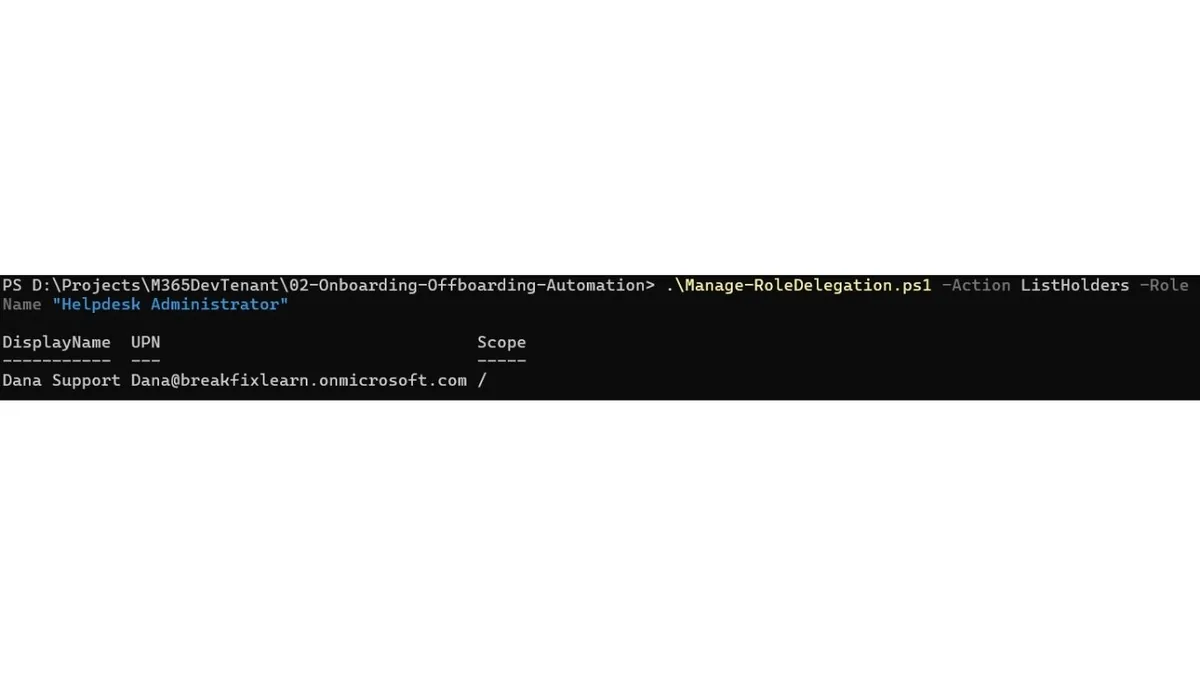
Manage-RoleDelegation.ps1 assigns, removes, and lists holders of Entra ID's built-in delegated roles: Helpdesk Administrator for password resets and basic support, User Administrator for account and group management, Groups Administrator, Exchange Administrator, Reports Reader for someone who only ever needs to pull usage data, and others. The ListHolders action is the one I would actually build a habit around: run it against Global Administrator specifically, in any tenant you are responsible for, before doing anything else. An unexpectedly long list of Global Admins is one of the single most common findings in a real internal security review, and it is a finding that exists purely because nobody ever checked, not because anyone made an active decision to over-provision access.
Every assignment and removal writes to its own audit log, which matters here more than almost anywhere else in the project. "Who has admin access to what, and when did that change" is one of the first questions any real security review asks, and having a script-generated answer beats reconstructing it from memory.
Troubleshooting mail flow without opening a support ticket with yourself
"Did my email actually send" is one of the single most common help desk tickets in any organization running email, and it is also one of the tickets most likely to have a completely mundane answer that nonetheless takes real time to track down manually. Troubleshoot-MailFlow.ps1 wraps message trace so that answer takes seconds: run it with a sender, a recipient, and a date range, and it returns not just raw status codes but a plain-language read of what each one actually means. "Delivered" is the good outcome. "FilteredAsSpam" means the message arrived, it just landed in Junk, which is worth knowing because users routinely report that as "I never got it" when the actual problem is a filtering rule, not a delivery failure. "Pending" that never clears is worth investigating for a transport rule loop. "Failed" needs the hop-by-hop detail view for the specific rejection reason.
This script is also a good example of why building against current documentation matters more than building against whatever tutorial ranks first in a search. The cmdlet it depends on, Get-MessageTraceV2, replaced the classic Get-MessageTrace cmdlet in 2025, and it changed its own parameters along the way: the old -PageSize parameter is gone, replaced with -ResultSize, and a single query can only span 10 days even though the underlying searchable history goes back 90. I hit both of those directly while building this, watched the script fail with a parameter-binding error, and fixed it by checking Microsoft's current documentation rather than assuming the tutorial I half-remembered was still accurate. It was not, and that is exactly the kind of gap that makes automation built on stale references quietly stop working months after it was written.
Knowing whether it is Microsoft's problem or yours
The last piece is the one that looks the least impressive on paper and might actually save the most time in practice. Before troubleshooting a "Teams is broken for me" ticket for half an hour, the single highest-value thing to check is whether Microsoft is already reporting an incident with that service. Get-ServiceHealthReport.ps1 pulls the tenant's current service health overview, a list of any active issues Microsoft is actively working on, usage reports showing who is actually using what over a given period, and license activation detail showing which assigned licenses have never actually been set up by the person holding them, a genuinely common source of wasted spend that is easy to overlook until someone specifically goes looking for it.
I ran into a real, if minor, complication building this part: a usage-report call returned an "UnknownTenantId" error even though every other Graph call against the same tenant worked without issue. It turned out to be a known quirk rather than a real bug, Microsoft's usage-reporting subsystem is separate from the rest of Graph and typically takes 24 to 48 hours to index a brand-new tenant before those specific report endpoints will recognize it. The fix was not a code change at all, it was patience and a sanity check against the admin center GUI to confirm the same "no data yet" state showed up there too. Worth including here because it is a good example of a class of bug that is not actually a bug: something that looks broken because it is being tested too early against a system with its own separate, undocumented timing.
Why deletion is gated, not automated
This is a deliberate design choice, not an oversight, and it applies to both people and groups. The user-facing scripts disable, revoke, strip, and hide, but they never delete a user outright. A deleted user object goes into a 30 day soft-delete window before permanent purge, and treating deletion as something a script does automatically, without a human explicitly deciding it is time, is exactly the kind of shortcut that turns a minor mistake (offboarding the wrong "David" in a company with two Davids, for instance) into a genuinely painful recovery scenario instead of a quick fix.
Group deletion works differently: it is available, but gated behind a typed confirmation, precisely because a group actually does get deleted here, not just disabled, and the recovery path (Restore-DeletedGroup.ps1, or the equivalent GUI screen) only works within a 30 day window for Microsoft 365 groups and does not exist at all for plain Security groups. Building the automation to match that reality, rather than automating everything simply because it is technically possible, is itself a signal of operational judgment, and it is the kind of decision worth calling out explicitly in documentation rather than leaving implicit.
Testing this safely before trusting it
Everything here was built and tested against the Microsoft 365 developer tenant from the first project in this series, specifically so that mistakes during development cost nothing and affect nobody. I ran the onboarding script against fictitious users first, then verified every claimed action independently through the admin center rather than trusting the script's own success messages: checking that the account actually existed, that the license actually applied, that the group membership actually showed up, that the manager relationship actually rendered correctly.
For the offboarding script, I specifically tested the session revocation behavior by signing into a test account from a browser, running the offboarding script, and confirming that the existing browser session was actually terminated rather than continuing to work until it happened to expire naturally. For groups, I deliberately deleted one I had just created and restored it, rather than trusting that the recovery path existed just because the documentation said it did. For delegation, I assigned a role, confirmed it with ListHolders, removed it, and confirmed again that the holder list came back empty. That kind of verification, actually checking that a control does what it claims to do rather than assuming it works because the script exited without an error, is a habit worth building deliberately rather than something that comes naturally by default.
The security and compliance angle
It is worth being explicit about why the audit logging matters as much as the automation itself, because it is easy to treat logging as an afterthought bolted onto the "real" functionality.
A security review or compliance audit (SOC 2 and ISO 27001 both include explicit controls around timely deprovisioning of access and least-privilege administration) generally wants to see a few consistent things: that access removal happens promptly after termination, that administrative access is scoped to what a role actually needs rather than granted broadly by default, that there is a record of exactly what changed and when, and that changes were performed by an authorized identity rather than through some ambiguous, unaccountable process. A CSV log with a timestamp, the action taken, and the admin identity that performed it directly answers those questions without requiring anyone to reconstruct history from memory or scattered email threads after the fact. That is the difference between an audit finding and a clean audit, and it applies just as much to "who has admin access to this tenant" as it does to "was this person's access removed on time."
The business impact, in concrete terms
It is worth putting a rough number on the time savings, not because the number itself is the point, but because being able to frame a technical project in terms an operations-focused stakeholder actually cares about is a skill worth practicing deliberately.
Manual onboarding at fifteen to thirty minutes per hire, done a dozen times a year for a small organization, is somewhere between three and six hours of IT time annually just on the clicking, before accounting for the time spent fixing mistakes made during that clicking. Automated onboarding, once the script exists, takes closer to a minute of actual runtime per hire. The time savings compound further on the offboarding side, where the actual security benefit, immediate, complete, logged access revocation, is worth considerably more than the raw minutes saved, because the cost of a delayed offboarding is measured in the size of a potential security incident that consistency prevents from happening in the first place.
The other five pieces compound differently. Group creation and membership management scale from "a few clicks" to "a one-line loop" the moment you are doing it for more than a handful of people at once, which is exactly the situation a real reorg or a new team stand-up creates. Group restoration is worth close to nothing until the one day it is worth everything, the day someone deletes the wrong group under pressure and needs it back in minutes, not after a support ticket to Microsoft. Delegated administration trades a small amount of upfront setup time for a meaningfully smaller attack surface, which is a savings that shows up as risk avoided rather than hours saved, harder to put a number on but no less real. Mail flow troubleshooting turns a ticket that used to take real digging into something resolved in the time it takes to type one command. And service health monitoring, the least glamorous piece of all seven, is the one most likely to save someone from burning thirty minutes troubleshooting a problem that was never theirs to fix in the first place.
Who is actually affected by a project like this inside a real organization
New hires benefit from a faster, more consistent account setup that has everything they need working correctly from their very first login. IT support and help desk staff benefit from running one command instead of clicking through ten or more screens per hire, and from holding exactly the admin role their job requires instead of either too little access to do their job or, more commonly, far more than they need. HR benefits from a single clear onboarding handoff point. Managers benefit from predictable turnaround on a new report's access and genuine confidence that a departing employee's access was cut off same day, not eventually, and from not losing an entire team group to a deletion mistake with no clear way back. Security and compliance teams benefit the most directly and in the widest number of ways here, from logged offboarding, from an auditable delegation model that replaces broad Global Administrator grants with narrow, purpose-built roles, and from a group deletion path that has an actual, tested recovery story instead of a hopeful one. Finance benefits from license reclamation happening automatically on offboarding and from visibility into licenses that were assigned but never actually activated. And the wider organization benefits, in a less visible but still real way, from mail flow issues and service incidents both getting diagnosed correctly the first time instead of after a round of guessing.
What I learned building this
The scripting itself, once I understood the Graph SDK's cmdlet patterns, was the easier half of this project. The harder, more valuable part was thinking through everything a real IT team needs around the scripts rather than just the scripts themselves: a runbook someone else could actually follow without me in the room to explain it, a troubleshooting table built from the specific errors I actually hit while developing this, and a rollback plan for each piece, because "what happens if this goes wrong" matters exactly as much as "does this work when everything goes right."
A few of those errors were genuinely instructive rather than just annoying. I initially wrote the session-revocation step using a cmdlet name I was confident was correct and was not; Invoke-MgInvalidateUserRefreshToken does not exist, the real cmdlet is Revoke-MgUserSignInSession. I hit the exact parameter change in Get-MessageTraceV2 described above and had to go verify current documentation rather than trust a half-remembered pattern. I ran into a subtler bug across every single Graph-connected script: each one's connection logic only reconnected if there was no active session at all, so running several of these scripts back to back in the same PowerShell window meant a session opened by an earlier script, with a narrower set of permissions, got silently reused by a later script that actually needed broader ones, producing a confusing "Forbidden" error that looked like a permissions problem on my account when it was actually a stale-session problem in the script itself. Fixing that meant every script now checks that its specific required permissions are actually present in the current session, not just that some session exists. None of these were exotic bugs. All of them were the kind of thing that only shows up when you actually run the code against a real tenant and watch what comes back, rather than when it merely compiles or looks correct on a read-through.
I also came away with a much clearer sense of why the deletion decisions, for both users and groups, matter as deliberate design choices rather than technical afterthoughts, and why revoking sessions explicitly, checking every non-terminating error rather than trusting an exit code, and suppressing cmdlets that return more than you asked for, are all the kind of details that separate automation that looks complete from automation that actually is.
How this fits into the larger project series
This project builds directly on the tenant foundation and MFA baseline established in the first project in this series. That ordering was deliberate: automating identity lifecycle management and delegated administration against an environment with no documented security baseline would have been building on a foundation I could not actually vouch for. Having MFA already configured and a clean, documented baseline in place before writing a single line of this automation meant everything here inherits a starting point that is actually trustworthy rather than assumed to be fine.
Future projects in this series will build further on the same tenant, extending the Conditional Access and access control story beyond the MFA baseline this one assumes. Each project is designed to read as part of one coherent, evolving environment rather than a scattered collection of unrelated one-off exercises, which is itself part of the point: real IT environments are not built as a series of disconnected demos, they are built incrementally, with each piece depending on the ones before it.
Frequently asked questions
Do I need a paid Microsoft 365 tenant to build this myself?
No. Everything here was built and tested against a Microsoft 365 E3 environment provisioned through the standard 30-day free trial, covered in detail, including how to avoid getting billed after the trial ends, in the first project in this series. The Graph PowerShell SDK and Exchange Online Management module are both free.
Why use the Microsoft Graph PowerShell SDK instead of the older AzureAD module?
The AzureAD and MSOnline PowerShell modules are being deprecated by Microsoft. Building new automation against the Graph SDK means it is built on the platform Microsoft is actively investing in and supporting going forward, rather than something already scheduled for retirement.
Is it safe to automate offboarding and access delegation given how serious the consequences of a mistake would be?
Yes, provided the automation is built thoughtfully: disabling and revoking access rather than deleting anything outright, gating any real deletion (like a group) behind an explicit confirmation, logging every action for accountability, and testing thoroughly in a sandbox before ever pointing the scripts at a real production tenant. Everything here was deliberately designed around that principle.
What happens if a script fails partway through?
Each action is handled independently and logged as it happens, so a partial failure shows up immediately in the console output and in the audit log rather than silently succeeding or silently failing. The accompanying runbook includes a troubleshooting table and a rollback procedure for exactly this scenario.
Does this replace HR's offboarding checklist, or a security team's access review process, entirely?
No, and it is not meant to. It replaces the mechanical IT portions specifically: disabling access, revoking sessions, reclaiming licenses, scoping and auditing admin roles, and logging every action. Equipment return, exit interviews, and periodic manual access reviews remain exactly that, owned by the people who actually own them.
Who should be allowed to run these scripts in a real organization?
It depends on the script, which is the whole point of the delegation piece. Onboarding and offboarding require User Administrator. Group management requires Groups Administrator. Role delegation itself requires Privileged Role Administrator, deliberately the narrowest and most tightly held of all of them. Mail flow troubleshooting requires Exchange Administrator, or Global Reader for read-only access. None of the scripts expand anyone's effective permissions, they simply make the actions a given role can already take faster, more consistent, and automatically logged.
Try it yourself
The full PowerShell scripts, a step-by-step runbook covering every task through both the admin center and the command line, a troubleshooting table built from real errors hit while building this, a stakeholder-style meeting script, and the complete project README are all in the GitHub repository linked here.
Repository: github.com/rachata072/m365-identity-ops-automation
This is the second project in an ongoing series of hands-on IT support and cybersecurity projects I'm building for my portfolio (more on my background here). Each one is scoped to solve a genuinely real problem an IT organization actually has, not to look impressive in a portfolio scroll without holding up under a closer look. More lab notes and write-ups land here as each one ships.