%BLOG-6-SUPPORT
The Microsoft 365 Developer Sandbox Isn't Actually Free for Most People. Here Is What Actually Works.
I set out to write a straightforward guide to provisioning a free Microsoft 365 environment for practice, the kind of thing you need if you are studying IT support, cybersecurity, or networking and want somewhere real to build hands on skills without touching a production tenant. I found Microsoft's Developer Program, read the setup documentation, and wrote the whole procedure up assuming it was open to anyone with a Microsoft account, the way the getting started page reads on first pass.
Then I actually tried to follow my own instructions and hit a wall. The free Microsoft 365 E5 developer sandbox is not, in fact, open to individual sign ups. It requires one of three things: a paid Visual Studio Professional or Enterprise subscription, ISV Success Program or Microsoft AI Cloud Partner Program partner status, or a Premier or Unified Support contract. A plain personal or work Microsoft account, the thing most students and career changers actually have, does not qualify on its own. I found this out the hard way, corrected the entire project as a result, and I am leaving that correction visible in this article rather than quietly rewriting history, because the actual accessible path, and the reasoning for choosing it, is more useful to you than a version of this guide that pretends everything worked perfectly the first time.
This article covers what genuinely works: the standard Microsoft 365 E3 free trial, available to anyone, along with the real terms attached to it (a credit card requirement and an automatic conversion to a paid subscription if you are not careful), and exactly how to use it without paying anything.
Why you need a free Microsoft 365 environment in the first place
If you are learning IT support, cybersecurity, or networking, or working toward a certification like the CCNA, you eventually need somewhere to practice real Microsoft 365 administration: user provisioning, license management, security policy configuration, Microsoft Graph API automation, Conditional Access rules. None of that is something you want to learn for the first time against a production tenant with real employees in it. A mistake in a sandbox costs you nothing. The same mistake in production can lock out an executive, break mail flow for an entire department, or worse.
This is not a small or niche need. Anyone building a portfolio around Microsoft 365 administration, anyone studying for a Microsoft certification, anyone trying to demonstrate real hands on experience to a hiring manager rather than just describing what they read in a textbook, needs an actual tenant to work in. The question is how to get one without paying for enterprise licensing you cannot justify while you are still learning.
The path that looks free but usually is not: the Developer Program
Microsoft's Developer Program advertises a Microsoft 365 E5 developer sandbox, and the marketing language around it genuinely does say things like "free of charge to eligible members." That is technically accurate and practically misleading, because the eligibility bar is much higher than most people assume when they first read it.
According to Microsoft's own current documentation, qualifying for the free E5 developer subscription requires one of three things. First, an active Visual Studio Professional or Enterprise subscription, and specifically a paid standard subscription, not the free Visual Studio Community edition and not a monthly subscription tier. Second, membership in the ISV Success Program or an eligible tier of the Microsoft AI Cloud Partner Program, which is aimed at software vendor companies, not individual learners. Third, a Premier or Unified Support contract, which is an enterprise support relationship that individuals and small teams simply do not have.
If none of those apply to you, and for most students, career changers, and self taught IT professionals none of them do, you cannot get the free E5 developer sandbox through the standard sign up flow, regardless of how the getting started documentation reads. This is a genuinely common point of confusion, and it is worth naming clearly rather than glossing over, because I initially missed it myself and built an entire project around the assumption that it was open to anyone.
If you do happen to have access to one of those three qualifying paths, particularly a paid Visual Studio subscription, that route is worth taking: it gives you a full E5 sandbox, 25 licenses, a 90 day renewable subscription, and genuinely no billing risk since Microsoft does not charge for it under any circumstance short of you deliberately purchasing an add on. But this article is written for the far more common case: you do not have any of those, and you need a real option that does not require them.
The path that actually works for individuals: the Microsoft 365 E3 trial
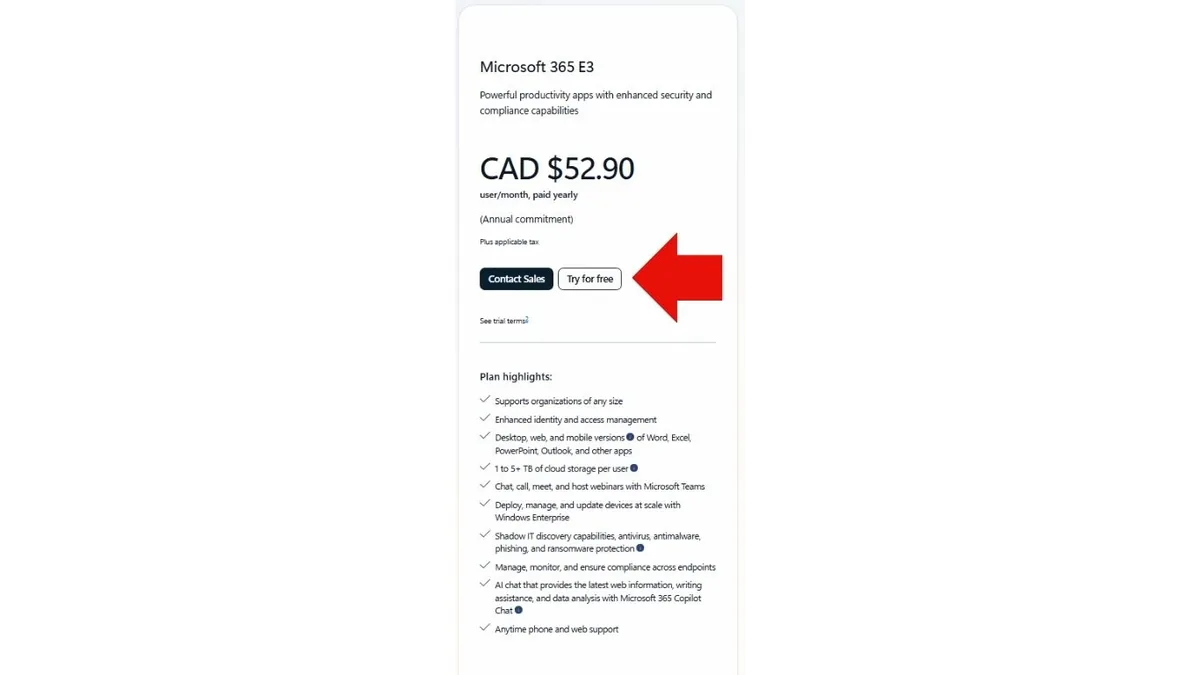
Microsoft's standard enterprise pricing page, the one most people land on when they search for Microsoft 365 plans, includes a straightforward "Try for free" option next to the Microsoft 365 E3 plan. This is not gated behind a partner program or a paid developer subscription. Anyone can sign up.
The terms are different from the Developer Program sandbox, though, and it is important to understand them precisely before you start, because getting them wrong costs actual money.
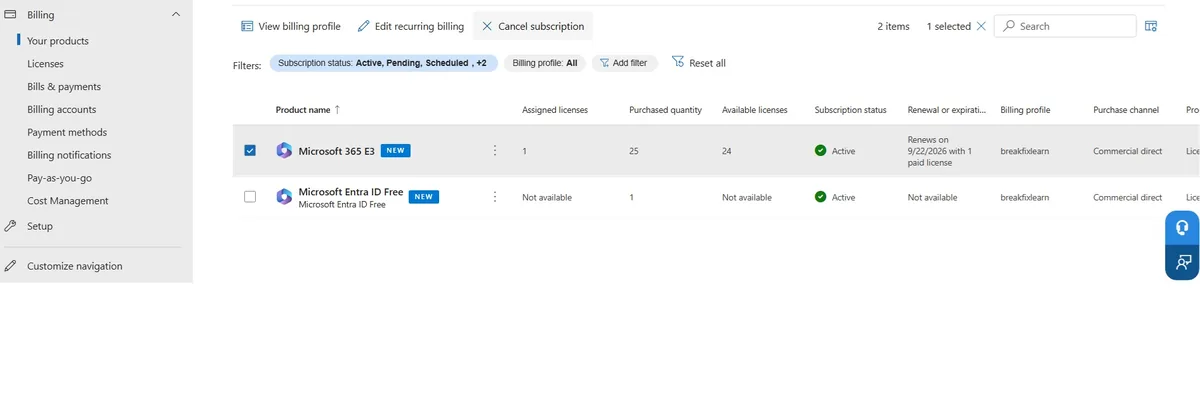
It is a one month trial, not 90 days. It requires a credit card at signup, which the Developer Program path does not strictly require for the sandbox itself. And critically, it automatically converts to a paid subscription and begins billing you once the month ends, unless you cancel first. This is the opposite risk profile from the Developer Program: instead of a subscription that quietly expires if you stop using it, you have a subscription that quietly starts costing money if you stop paying attention to it.
None of this makes the E3 trial a bad option. It makes it an option that requires you to actually manage it, the way you would manage any trial software subscription in a real job, which, honestly, is itself a reasonable thing to practice.
What E3 gives you compared to the E5 sandbox you cannot easily get
It is worth being specific about what you are and are not getting, since "E3 instead of E5" sounds like a downgrade without context.
E3 includes Exchange Online, SharePoint, Teams, and full Office apps, the core productivity and collaboration stack. It includes Microsoft Entra ID P1, which covers the identity and access management fundamentals: single sign on, basic Conditional Access, group based licensing, and self service password reset. It includes Intune for device management. And critically for anything involving automation, it includes full access to the Microsoft Graph API, the same API surface the Developer Program sandbox would give you.
What you lose moving from E5 to E3: Entra ID P2, which adds Identity Protection and Privileged Identity Management, Microsoft Purview eDiscovery Premium, higher tier Defender threat protection features, Customer Lockbox, and Privileged Access Management. These are real, valuable enterprise features, but they are not things a foundational IT support or automation portfolio project needs on day one. If a later project in a learning series specifically requires one of these E5 only capabilities, that is worth calling out explicitly at the time, rather than assuming from the start that E5 is a requirement for everything.
Practically speaking, for building the exact kind of project this article is walking through (a documented tenant with a security baseline, followed by identity lifecycle automation using PowerShell and the Graph API) E3 covers everything needed.
Step by step: setting up your Microsoft 365 E3 trial correctly
Step one: find the trial and start signup
Go to Microsoft's official Microsoft 365 plans and pricing page for your country (search "Microsoft 365 plans and pricing" plus your country name if you are not sure of the exact URL, since Microsoft runs localized versions). Find the Microsoft 365 E3 column specifically, not E5 or E7, which are typically "Contact Sales" only rather than self service trials. Choose "Try for free."
Step two: complete the business style signup
You will be asked for business style details: your name, an organization name (this can be anything reasonable, it does not need to be a registered company for a personal learning project), a phone number, and a domain prefix that will become your tenant's default onmicrosoft.com address. Choose something you are comfortable seeing in screenshots and documentation.
Step three: enter payment details and read the terms on screen
This is the step that matters most. You will be asked for a credit card. Before submitting, read the terms shown on that exact screen: they will state plainly that the trial lasts one month and that it converts to a paid subscription automatically unless cancelled. Do not skip past this screen quickly. Screenshot it if you can, since having your own record of the exact terms you agreed to is useful later if anything about billing is ever unclear.
Step four: record your conversion date immediately, in more than one place
The instant your trial is active, find the exact date it will convert to paid (usually visible in the admin center under your billing or subscription details) and write it down somewhere durable: a calendar event, a phone reminder, a note on your desk, ideally more than one of these. This is not busywork. This single step is what separates "I used a free trial responsibly" from "I got surprised by a charge on my card."
Set a reminder for five days before that conversion date, not the day of. Giving yourself a buffer accounts for travel, a busy week, or the cancellation flow itself taking a moment to fully process.
Step five: run the guided setup
Sign into the Microsoft 365 admin center with your new trial admin credentials and walk through the guided setup: optionally install Office apps, decide on domain personalization (fine to defer), and add users.
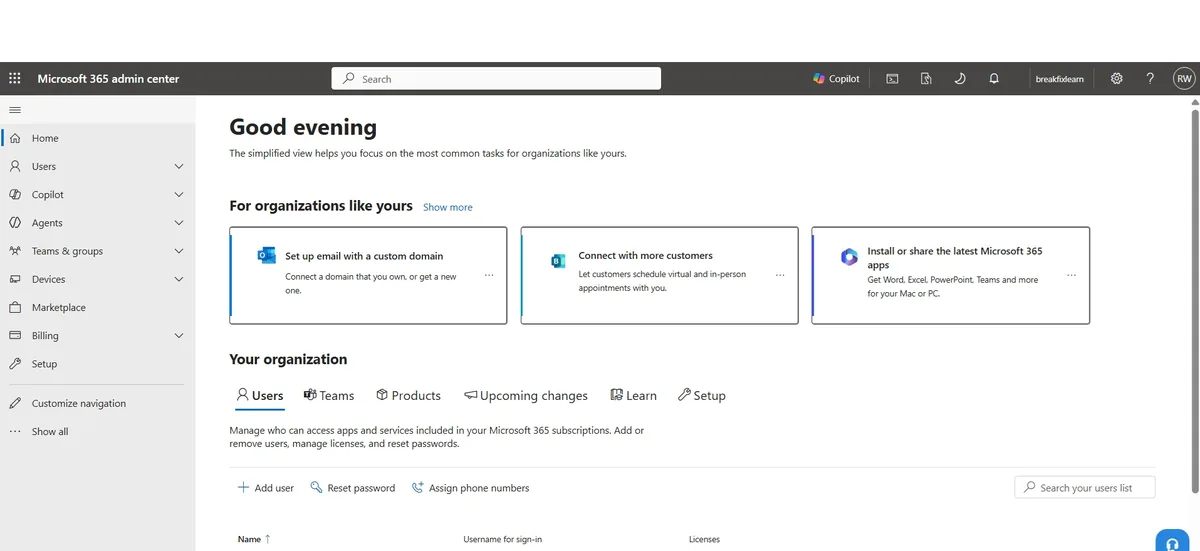
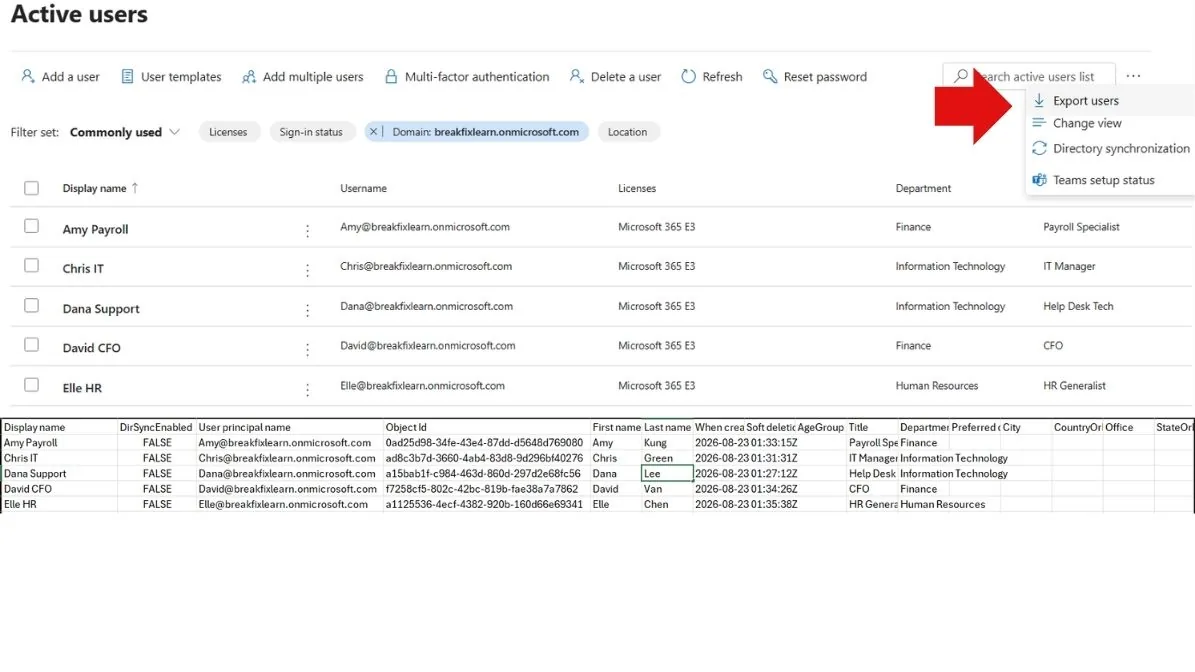
Resist the urge to add users randomly. A small, coherent, believable organizational structure reads far better in a portfolio, and in an actual demo, than a scattered pile of test accounts. I used five people across three departments: an IT manager, a help desk technician, a payroll specialist and a CFO in finance, and a generalist in HR. That is enough breadth to make identity lifecycle automation and future access policy projects feel like they are happening inside a real, if small, organization.
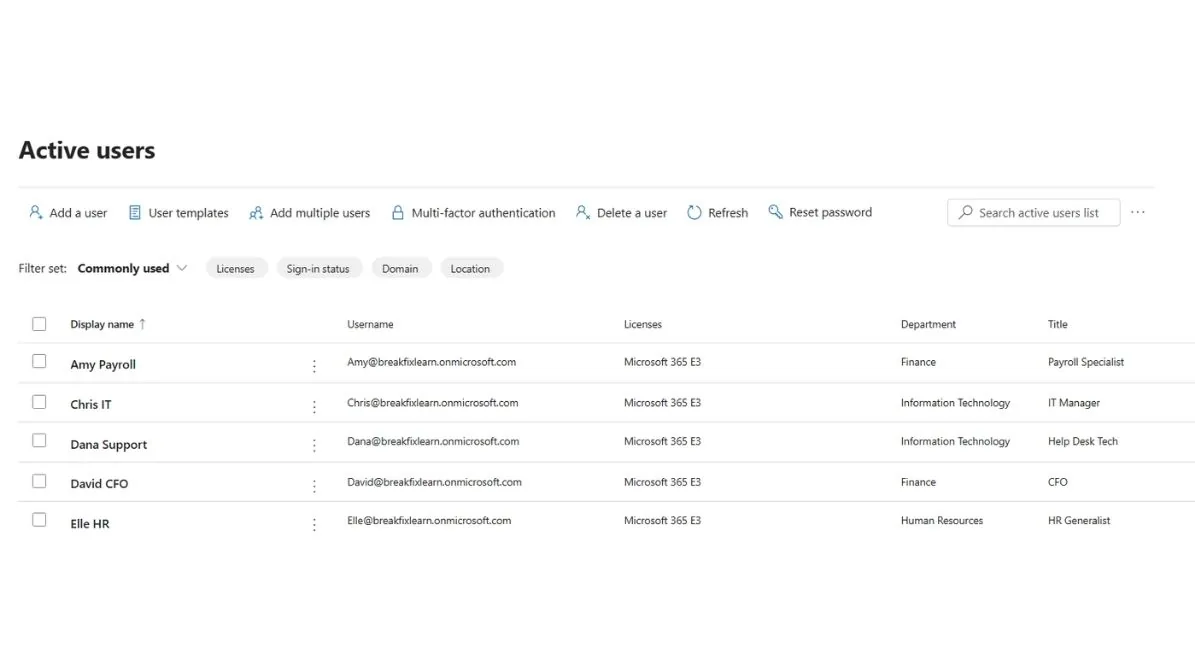
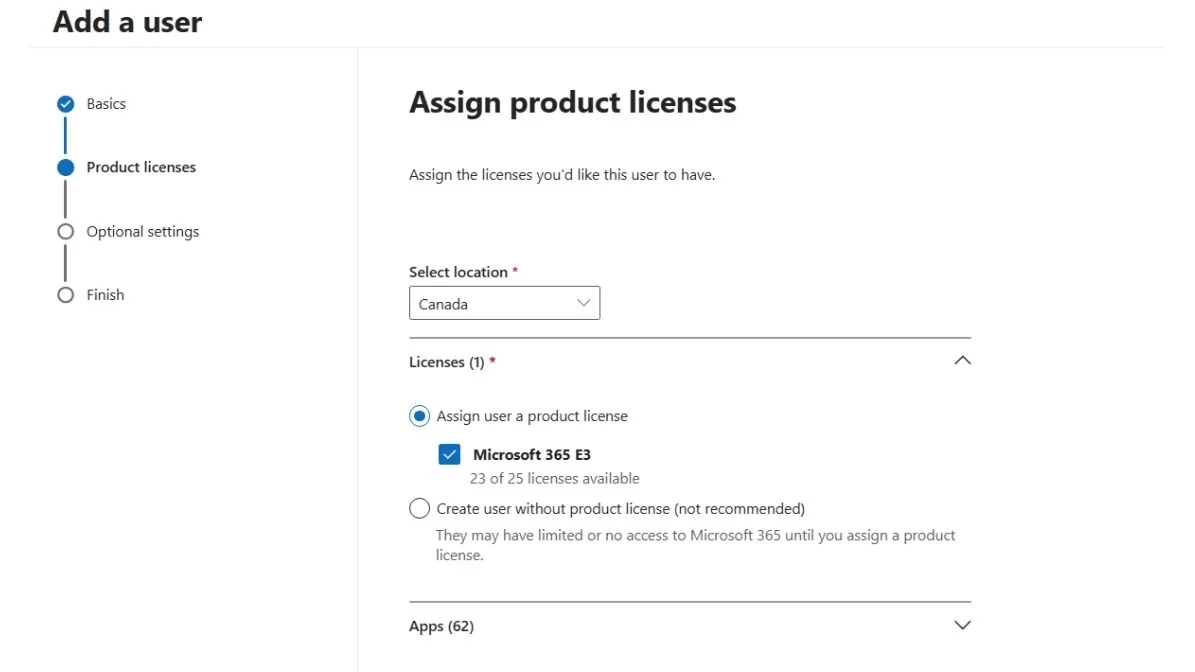
Assign licenses to whichever users you want active, being mindful of however many seats your specific trial offer grants (this can vary), share sign in credentials using whatever method makes sense since these are fictitious accounts, and complete the guided flow.
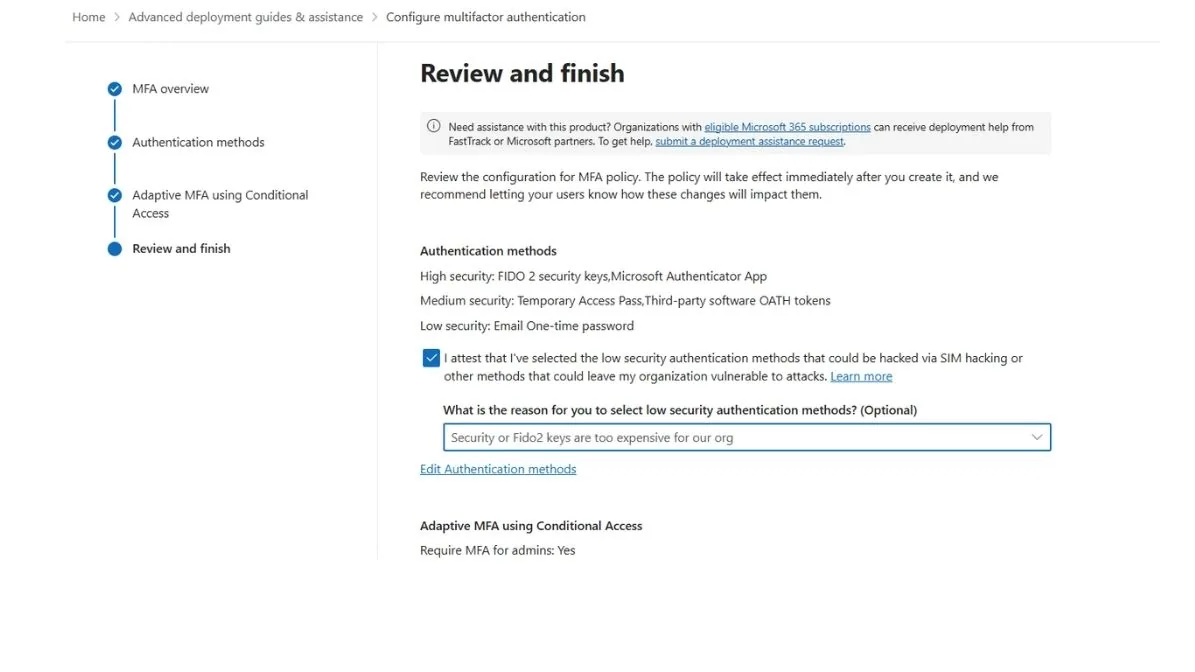
Step six: configure multifactor authentication before anything else
This is the step that actually demonstrates security judgment rather than just following a checklist, and the ordering matters. Do this before running any automation scripts, before testing any access policies, before doing anything beyond the guided setup itself.
In the admin center, go to Setup, then Configure multifactor authentication. Link it to an email or phone you actually control. At minimum, enable MFA on your admin account. Enabling it tenant wide is a reasonable stretch goal, and worth documenting explicitly as a deliberate next step even if you do not do it immediately, since there is a real difference between a documented, prioritized gap and the same gap existing silently with no explanation.
Step seven: export your baseline and capture evidence
Before building anything else on top of this tenant, export your current user list from the admin center under Users, then Active users, then Export users. Save that file somewhere durable, outside the tenant itself. This becomes the reference point every later project in this environment can be measured against.
Step eight: cancel before your deadline, and confirm it
When your reminder fires, go to the admin center, then Billing, then Your products, find your subscription, and cancel it. Read every confirmation screen rather than clicking through automatically, since Microsoft sometimes offers a retention discount or asks you to confirm your intent more than once. After cancelling, check Billing and Your products again to confirm the subscription shows a cancelled or expiring status rather than active, and screenshot that confirmation too.
Frequently asked questions
Is there any way to get the Microsoft 365 E5 developer sandbox without Visual Studio or a partner program?
Not through the standard self service Developer Program flow. If you have access to a paid Visual Studio Professional or Enterprise subscription through an employer, school program, or your own purchase, that is currently the most direct individual path. Without one, the E3 trial covered in this article is the realistic option.
Is the Microsoft 365 E3 trial actually free?
Yes, for the one month trial period, provided you cancel before it converts. It requires a credit card at signup and will bill you automatically if you do not cancel, so "free" here means "free if actively managed," not "never charged under any circumstance."
What happens if I forget to cancel?
You get charged the standard subscription rate for Microsoft 365 E3 going forward, until you cancel. Contacting Microsoft billing support promptly after a missed deadline is worth doing, but refunds for trials that convert due to a missed cancellation are handled case by case and are not guaranteed, which is exactly why setting a reminder in advance matters far more than trying to fix it after the fact.
Can I sign up for another trial later if I let this one convert or expire?
Trial eligibility varies and Microsoft generally limits repeat trials on the same account to prevent abuse. Do not count on being able to easily restart the same trial offer; treat each trial period as the one attempt you have.
Is E3 good enough for general IT support study, or do I really need E5?
E3 is sufficient for the vast majority of Microsoft 365 administration, identity fundamentals, and Graph API automation practice, including everything in this project series. E5 specific features matter mainly for advanced compliance, identity protection, and premium threat protection scenarios, which are not typically where someone early in an IT support or networking career path is focused first.
What should I build next once this tenant is set up?
The next project in this series automates user onboarding and offboarding against this same tenant using the Microsoft Graph PowerShell SDK, replacing a manual, error prone process with something logged, repeatable, and fast. After that, a license and cost audit script and a Conditional Access policy rollout are natural next steps.
Try it yourself
The full runbook, including the exact cancellation timeline, a troubleshooting table, a stakeholder style meeting script, and the complete project README, are all in the GitHub repository linked here.
Repository: github.com/rachata072/m365-admin-lab
This is the first project in an ongoing series of hands-on IT support and cybersecurity projects I'm building for my portfolio (more on my background here). Each one is scoped to be genuinely useful in a real organization rather than portfolio filler, corrections included when the plan turns out to be wrong. The next project in the series covers automating user onboarding and offboarding on top of this same tenant — more lab notes and write-ups land here as each one ships.